AVIF to BMP converter
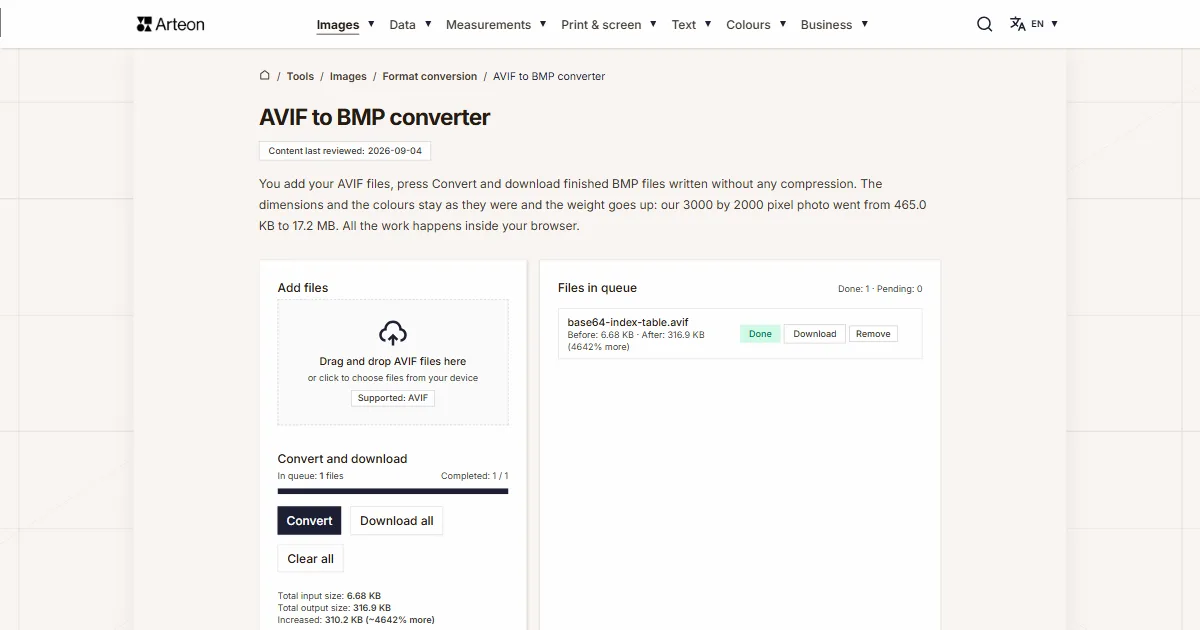
You add your AVIF files, press Convert and download finished BMP files written without any compression. The dimensions and the colours stay as they were and the weight goes up: our 3000 by 2000 pixel photo went from 465.0 KB to 17.2 MB. All the work happens inside your browser.
Files in queue
What is AVIF, and what is BMP?
AVIF stores a picture the way video is stored. The Alliance for Open Media took the AV1 codec and wrote down, in the AV1 Image File Format specification, how to keep a single frame of it inside an image file; version 1.2.0 of that document is dated 16 October 2025.[1] That is where its weight comes from: the MDN guide puts an AVIF file at roughly half the size of a JPEG at comparable quality.[2]
BMP keeps every pixel whole and applies no compression. Microsoft defined it as a device-independent bitmap, a way to move a picture between machines and programs, and that is the job it has held ever since.[3] The layout takes a few sentences to describe: a header with the file size, a second header with the dimensions and the number of bits per pixel, and behind them the raw array of points.[4]
That plainness is exactly why BMP is still needed. Reading such a file takes no library, and a program written thirty years ago will make sense of it. The MDN guide adds the fair warning that this same weight rules the format out for web pages.[2]
How do you turn an AVIF into a BMP?
Drag your AVIF files onto the Add files area, or click it and pick the images from your drive. Then press the Convert button. You can download the finished bitmaps one at a time with the Download button on each queue row, or all at once with Download all.
The quality here is fixed at the highest it can be. BMP keeps pixel values whole, so whatever the browser read out of the AVIF lands in the output file: the same pixel count and the same colours.
The result is written as 24-bit with a BITMAPINFOHEADER, one byte each for red, green and blue. This is the oldest and most widely read shape of the format, accepted by every program that opens BMP at all. The rows run from the bottom of the image upwards, the way the vast majority of programs write them.
In the queue on the right, every file shows its weight before and after conversion together with the difference in per cent. The same summary for the whole batch sits under the buttons, on the Increased line. Clear all empties the queue, and the Remove label on a row takes a single file out of it.
All the work happens on your own machine. The page code loads the AVIF file, draws it on a browser canvas and assembles the bitmap from there byte by byte. The image stays on your device from the first click to the end of the job and leaves the browser's memory once you close the tab.
Under the converter sits a format switch reading AVIF to BMP. Clicking either of the two formats opens a list, and picking from it takes you to the converter page for that pair. Every pair in this group is also gathered on the Format conversion page.
How much does a BMP weigh, and where does that number come from?
You know the weight of the finished BMP before you press Convert, because it depends on the dimensions of the image alone. Every pixel takes three bytes. Every row is padded with zeros up to a full four bytes; the Microsoft documentation gives the formula for it.[5] To all the rows together you add 54 bytes of header.
Let us walk through a photo measuring 3000 by 2000 pixels. One row is 3000 pixels at three bytes each, which is 9,000 bytes. At this width the padding comes out at zero. There are 2000 rows, so the pixels alone take 18,000,000 bytes. With the header that gives 18,000,054 bytes, which is 17.2 MB in the notation the tool uses in its summary.
The row padding only shows up at widths that do not divide by four. An image 801 pixels wide needs 2,403 bytes for a row and will still take 2,404 bytes in the file. That single byte comes back on every row, so across a thousand rows it grows into a kilobyte.
The same arithmetic applies to every picture. A photograph full of detail and a plain white board of the same dimensions produce a file of the same size, because BMP in this flavour keeps every point separately. Going the other way the relationship is reversed, and the table on the BMP to AVIF converter page shows it: there the weight of the result depends mostly on how many flat areas the image holds.
How much does the same image weigh in AVIF and in BMP?
| Image | Dimensions in pixels | AVIF | BMP | Times larger |
|---|---|---|---|---|
| Camera photograph | 3000 × 2000 | 465.0 KB | 17.2 MB | 37.8 |
| Photo for a web page | 1280 × 850 | 195.8 KB | 3.11 MB | 16.3 |
| Scan of a book page | 1200 × 1600 | 159.5 KB | 5.49 MB | 35.3 |
| Screenshot of an interface | 1200 × 630 | 22.9 KB | 2.16 MB | 96.9 |
| Drawing on a transparent background | 800 × 600 | 4.84 KB | 1.37 MB | 290.7 |
How much does a bitmap of a common size weigh?
| Image size | Dimensions in pixels | Bytes per row | BMP file weight |
|---|---|---|---|
| Graphic for a blog post | 800 × 600 | 2,400 | 1.37 MB |
| HD frame | 1280 × 720 | 3,840 | 2.64 MB |
| Full HD frame | 1920 × 1080 | 5,760 | 5.93 MB |
| Camera photograph, 6 megapixels | 3000 × 2000 | 9,000 | 17.2 MB |
| A4 page scanned at 300 dpi | 2480 × 3508 | 7,440 | 24.9 MB |
| 4K frame | 3840 × 2160 | 11,520 | 23.7 MB |
| Camera photograph, 12 megapixels | 4000 × 3000 | 12,000 | 34.3 MB |
| Camera photograph, 24 megapixels | 6000 × 4000 | 18,000 | 68.7 MB |
How does AVIF differ from BMP?
| Format feature | AVIF | BMP |
|---|---|---|
| Year of the first specification | 2019 | 1990 |
| File weight depends on the content of the image | Yes | No, on the dimensions alone |
| Lossy compression | Yes | No |
| Alpha channel, that is transparency | Yes | Yes, in the 32-bit flavour |
| Colour depth | 8, 10 or 12 bits per channel | 1 to 32 bits per pixel |
| Animation | Yes, as an image sequence | No |
| High dynamic range (HDR) | Yes | No |
| The browser version that reads them | Chrome 85, Firefox 93, Safari 16.1, Edge 121 | every version of Chrome, Firefox, Safari and Edge |
What does the converter do with an AVIF file?
Six things worth knowing before you drop a larger batch of images into the queue.
The pixel count stays the same
A 3000 by 2000 pixel image comes out as a bitmap measuring 3000 by 2000 pixels. Only the way it is stored changes; the framing and the resolution are left alone.Transparent areas turn white
The 24-bit flavour has no alpha channel, so the places cut out of the image need something behind them. The tool lays a white background under the picture, the same way it does when writing JPG. If the transparency has to survive, reach for the AVIF to PNG converter, or for print material the AVIF to TIFF converter — both keep the alpha channel.Colour is written at eight bits
The browser canvas works with eight bits per channel, so an AVIF file written at 10 or 12 bits gets an eight-bit equivalent in the BMP. A typical monitor shows exactly that many.From an animation we write the first frame
An AVIF file holding an image sequence gives a still bitmap with the first frame. BMP holds a single picture and there is nowhere in it to put the frames that follow.Single files of up to 100 MB
That is what the converter accepts from one input file. Anything larger brings up the message File is too large (max 100 MB). The result can be far heavier, because the weight of a bitmap grows with the dimensions of the image.Very large images are fitted to the canvas
The browser canvas holds 16,384 pixels per side and around 268 million pixels in total. An image beyond that limit is scaled down proportionally so that all of it lands in the result.
When is BMP the right choice?
The program reads bitmaps only
Older office applications, device drivers and simple graphics programs often take BMP and nothing else, because reading such a file calls for no library at all. An uncompressed bitmap is then the shortest way to the goal.You are writing your own image loader
A BMP header is 54 bytes with a fixed layout, and behind it lie the pixel values themselves. A dozen or so lines of code are enough to read such a file, which makes the format a good fit for learning and for devices with little computing power.The image is going on a web page
Here the weight of the file is what counts, and a bitmap is tens of times heavier than a compressed version. For a file headed to a website, use the AVIF to WebP converter.The photo goes out by email
A 3000 by 2000 pixel bitmap weighs 17.2 MB and will not fit a typical attachment limit. For sending, a file from the AVIF to JPG converter works better, and every mail program reads it.The way back
A finished bitmap can be slimmed down with the BMP to AVIF converter. It is the same pair of formats, only turned around.
Convert other files to BMP
Convert AVIF to other formats
Sources
- AV1 Image File Format (AVIF), version 1.2.0 — Alliance for Open Media
- Image file type and format guide — MDN Web Docs
- BMP file format — Wikipedia
- Bitmap Storage — Microsoft Learn
- BITMAPINFOHEADER — Microsoft Learn
The file sizes in the tables come from the formula the encoder in this tool writes by, and we checked them on finished files. What the page says about either format rests on the sources listed above.
Content last reviewed: · written and checked by the Arteon team
Common questions about turning AVIF into BMP
Will I lose quality converting AVIF to BMP?
No. BMP keeps pixel values whole, so whatever the browser read out of the AVIF lands in the output file. The ceiling is set by the original itself: if the AVIF was once written lossily, the bitmap reproduces it in the state it is in now.
Why is the file so much bigger afterwards?
AVIF packs the picture and skips over repeated patches, while BMP keeps every pixel separately in three bytes. For a 3000 by 2000 pixel photo that comes to 18,000,054 bytes whatever the picture shows. Our input file weighed 465.0 KB, which is 37.8 times less.
Which flavour of BMP does the tool write?
You get a 24-bit uncompressed bitmap with a 40-byte BITMAPINFOHEADER and rows written from the bottom upwards. This is the flavour every program that supports the format will open, including applications written for early versions of Windows.
What happens to a transparent background?
The 24-bit flavour has no alpha channel, so the cut-out areas turn white. When the transparency has to survive, pick the AVIF to PNG converter — PNG stores the alpha channel pixel by pixel.
Do my files go to a server?
No. The conversion is done by the page code in your browser, using the canvas (Canvas API). The image stays on your device for the whole session and leaves the browser's memory once you close the tab.
How many files can I convert at once?
You can add as many files to the queue as you like; the tool works through them one by one and shows the progress above the buttons. A single input file may weigh up to 100 MB, and the total number of files depends on your device's memory.
Does the converter work on a phone?
Yes, the page layout adapts to the width of the screen. A finished bitmap can be tens of times heavier than the input file, so a larger batch of photos is more comfortable to handle on a computer.
Help us improve our tools
Got an idea for a new feature, found a bug or want to suggest another tool? Write to us – we reply within 24 hours.
Try our other useful tools
Online image editor
Resize, crop and convert your image. Ready-made formats for social media, circular avatars, export to JPG/PNG/WebP.

Meta title & description checker
Check title and description length in pixels. Live Google preview and optimization tips.
PNG to JPG
Convert PNG files to JPG in your browser. No file limits, no signup, no server uploads.

Favicon generator
Create a complete favicon.ico set for your website from one image. All required sizes, no login.
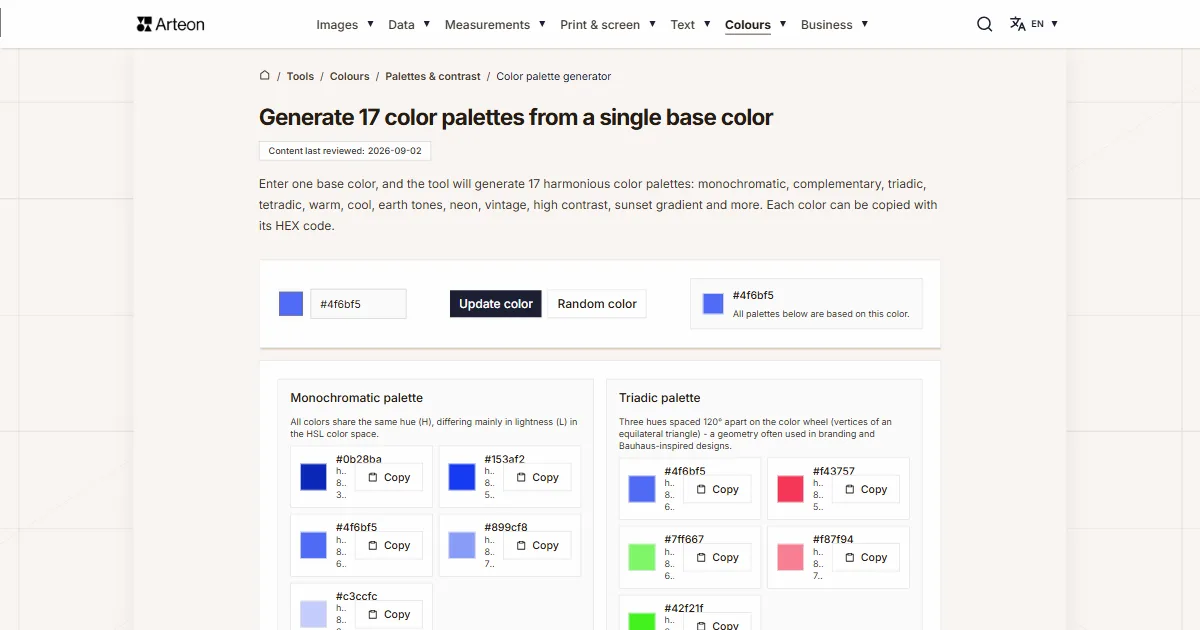
Color palette generator
Generate 9 palettes from one color: monochromatic, complementary, triadic and more. HEX codes.
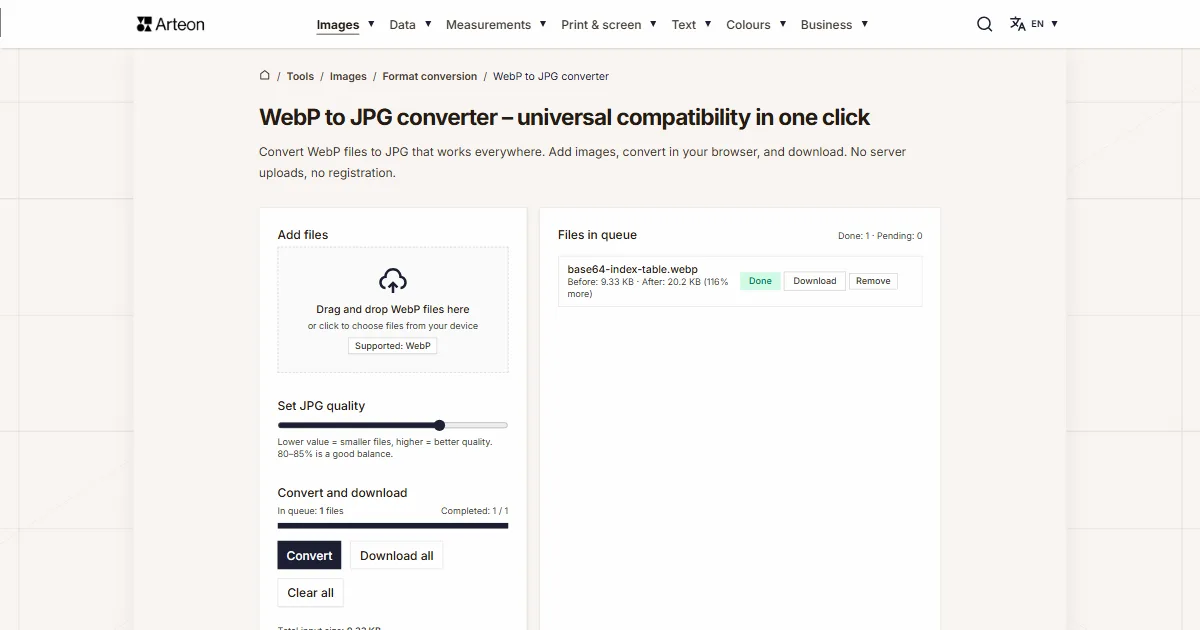
WebP to JPG
Convert WebP files to universally compatible JPG. Works in every app and platform.
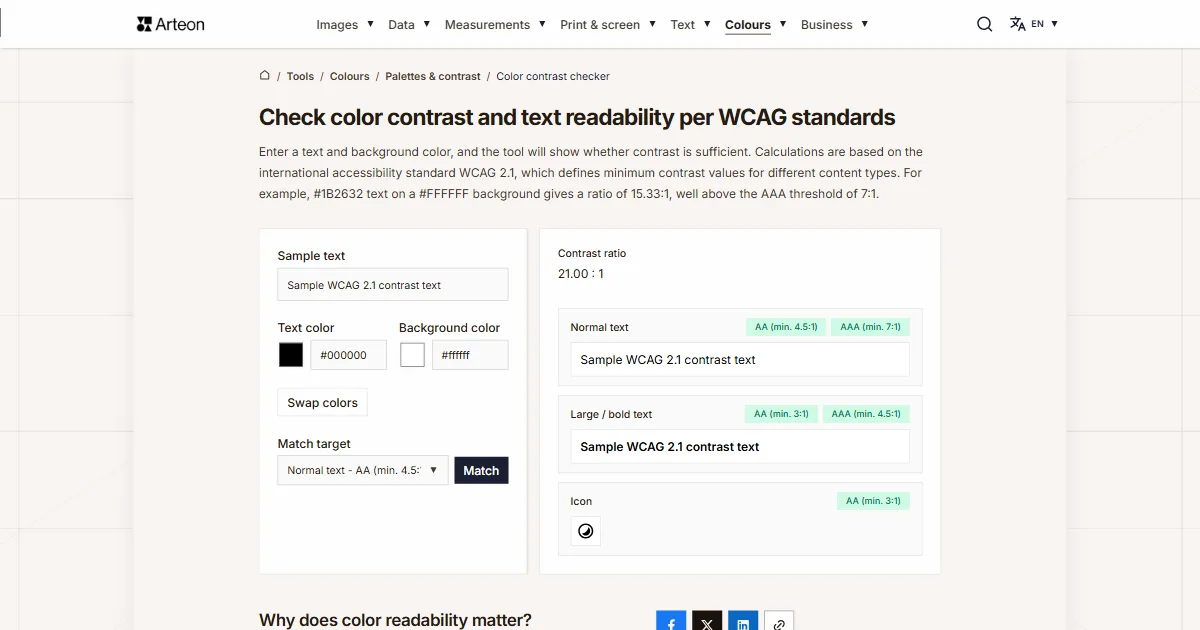
Color contrast checker
Check text and background contrast per WCAG 2.1 AA and AAA. Automatic color correction.
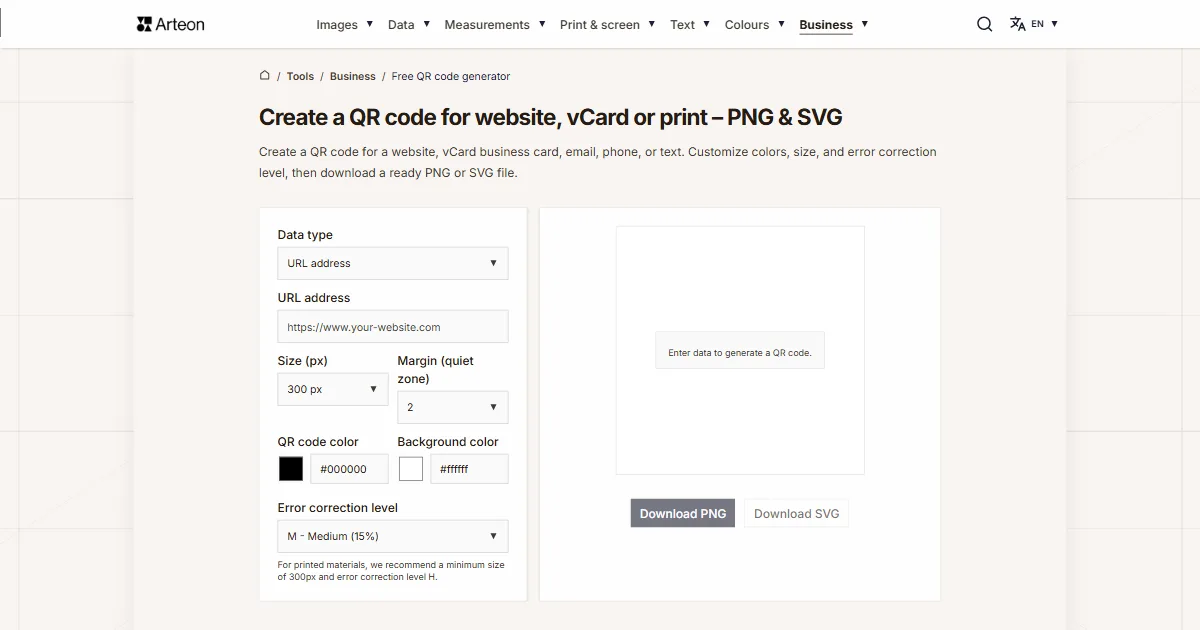
Free QR code generator
Create a QR code for a website, vCard business card or print. Export PNG and SVG, no registration.
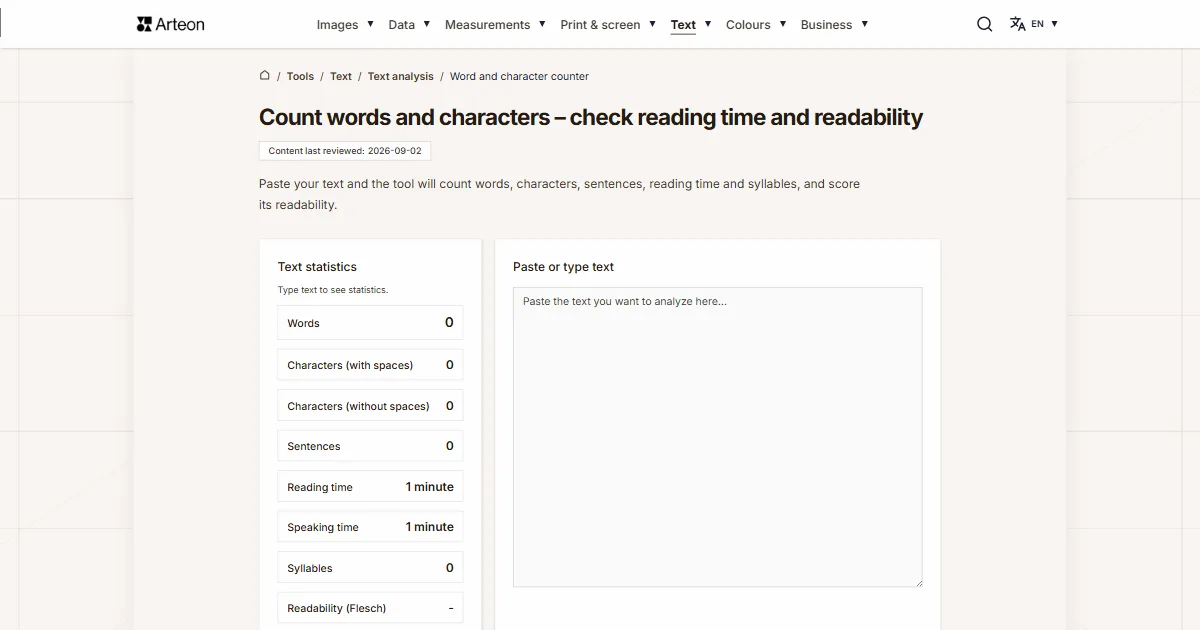
Word & character counter
Count words, characters, sentences and reading time. Check readability with the Flesch-Kincaid score.