PNG to JPG converter – reduce image size without losing quality
Convert PNG images to JPG and shrink their file size. Add files, set quality, and download the results. Everything runs locally in your browser.
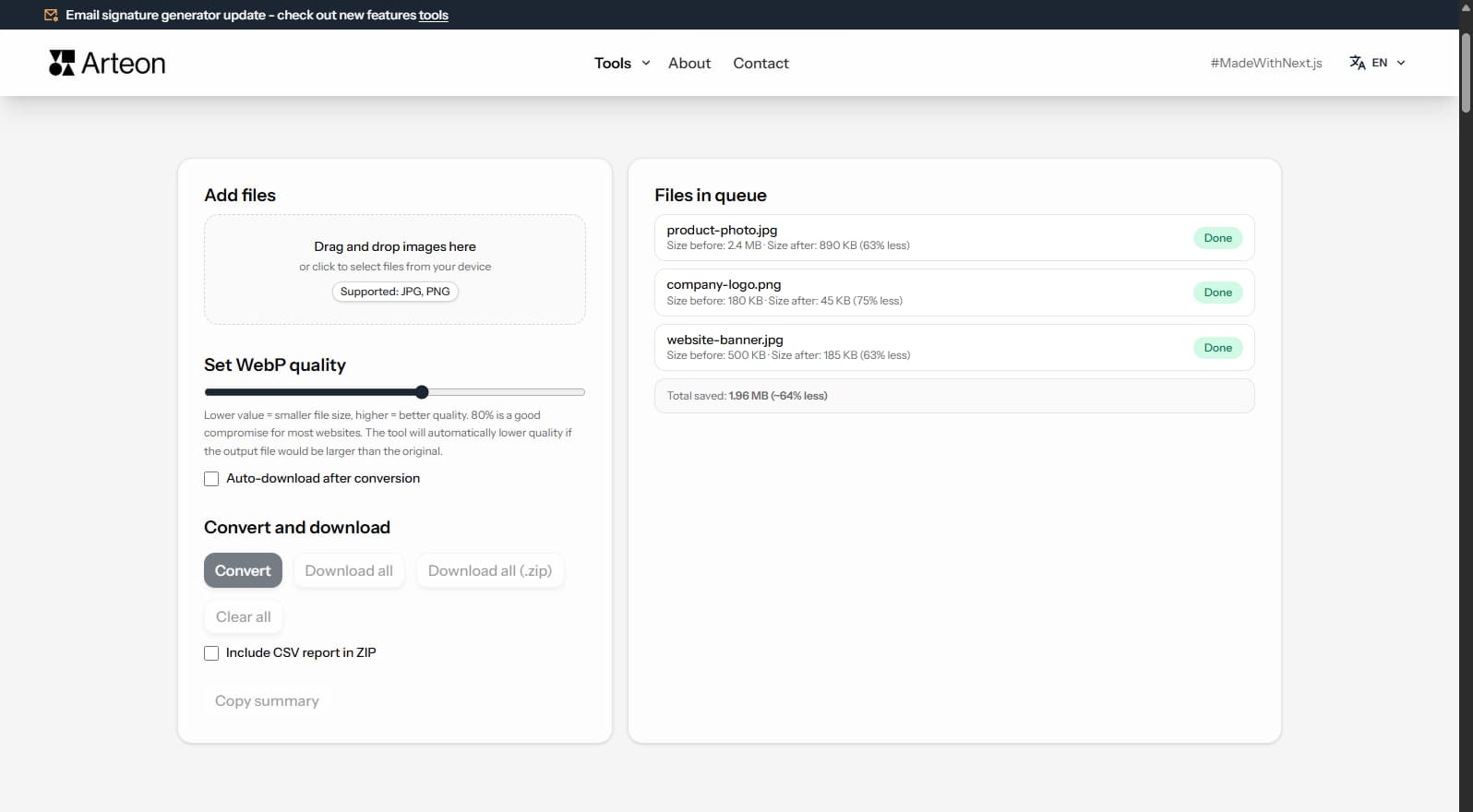
Files in queue
Why convert PNG to JPG?
PNG is a lossless format that produces large files — a 3000×2000 pixel screenshot can weigh 5–15 MB. JPG uses lossy compression to create files that are 5–10× smaller with minimal visible quality loss. For photographs and images without transparency, JPG is the more practical format.
JPG is universally supported by every browser, email client, social media platform, and image editor. At quality 85–90, JPG produces visually identical results to PNG for photographic content while being dramatically smaller. Converting PNG screenshots and photos to JPG saves storage and makes files easier to share.
Note that JPG does not support transparency — transparent areas in your PNG will be filled with a solid background color (typically white). If you need transparency, keep your files as PNG or convert to WebP instead.
This converter processes files locally in your browser — nothing is sent to any server. No registration, no limits, no watermarks.
How to convert PNG to JPG
The conversion takes just a few seconds:
1. Add PNG files
Drag your PNG images onto the upload area or click to select them from your device. There is no limit on the number of files.2. Set quality
Choose the JPG quality level (default 85%). A lower value produces a smaller file. For photographs, 80–85% is the sweet spot.3. Download JPG
Once conversion is complete, download files one by one or all at once. Each file displays how much space you saved.
When should you convert PNG to JPG?
PNG-to-JPG conversion is useful in many real-world scenarios:
Email attachments
PNG photos can be 5–15 MB — too large for most email providers. JPG reduces file size by 5–10×, making photos easy to attach and send without exceeding mailbox limits.Marketplace listings
Platforms like eBay, Amazon, and Etsy often prefer or require JPG product images. Converting PNG screenshots or renders to JPG ensures compatibility.Online forms and applications
Government portals, job applications, and banking forms frequently accept only JPG with a size limit. A quick conversion solves the problem.Websites and blogs
JPG photos load faster than PNGs, improving page speed and Core Web Vitals scores. For even smaller files, consider converting to WebP.
What makes this PNG to JPG converter different?
Complete privacy
Your files never leave your computer. Conversion happens inside the browser using the Canvas API - nothing is uploaded to any server. Data is erased when you close the tab.No file limit
Convert as many images as you need in a single session. All files are processed sequentially and ready for download.Quality control
Fine-tune the output quality with a slider (60–95%). See the resulting file size in real time before downloading.One-click download
Download converted files individually or grab them all at once with a single click.
Tips for choosing the right JPG quality
The ideal JPG quality setting depends on what you plan to do with the image:
- 90–95% – Archival or print. Minimal compression, maximum visual fidelity.
- 80–85% – General use (web, email, social media). The best balance of size and quality.
- 60–75% – Thumbnails or previews where file size matters more than detail.
This tool defaults to 85%, which covers the vast majority of use cases. You can adjust the slider at any time - even reconvert the same files with a different quality level.
PNG vs JPG – format comparison
| Feature | PNG | JPG |
|---|---|---|
| Lossy compression | — | ✓ |
| Lossless compression | ✓ | — |
| Transparency (alpha channel) | ✓ | — |
| Animation support | — | — |
| Web browser support | All browsers | All browsers |
| Color depth | 8/16-bit | 8-bit (16.7M) |
| Compact file size | — | ✓ |
| Metadata (EXIF) | — | ✓ |
How much can you save by converting PNG to JPG?
PNG is lossless and therefore large for photographic content. JPG provides substantial savings:
Photo (PNG)
8.5 MB → 890 KB
Screenshot
1.2 MB → 320 KB
Social media graphic
2.4 MB → 450 KB
Savings are highest for photographs and images with smooth gradients. Graphics with large flat color areas compress less efficiently in JPG.
How image conversion impacts page speed and SEO
Core Web Vitals is a set of performance metrics Google uses when evaluating websites. One of them — LCP (Largest Contentful Paint) — measures the time until the largest visible element renders. On image-heavy pages, this is often a hero image or product photo.
Converting PNG photographs to JPG typically reduces file size by 5–10×, directly shortening download time and improving the LCP score. Combined with loading="lazy" and fetchpriority="high", this can significantly improve page performance.
For even smaller files, consider WebP (25–35% smaller than JPG) or AVIF (30–50% smaller). Use PageSpeed Insights to identify specific images worth optimizing.
Convert other files to JPG
Convert PNG to other formats
Frequently asked questions about PNG to JPG conversion
Does converting PNG to JPG reduce image quality?
JPG is a lossy format, so some quality loss is inevitable. At 80–85% quality the difference is virtually invisible to the naked eye. The tool lets you set quality from 60% to 95% so you can find the right balance.
What happens to PNG transparency?
JPG does not support transparency. Transparent areas are replaced with a white background during conversion. If you need to preserve transparency, keep the PNG or convert to WebP instead.
What quality level should I choose?
For photographs and screenshots, 80–85% gives a good compromise between size and appearance. For graphics with sharp edges (diagrams, text overlays), try 90–95% to avoid visible compression artefacts.
How much space can I save?
Savings depend on image content. A 5–10 MB PNG photo converted to JPG at 85% quality typically drops to 0.3–1 MB - a reduction of 80–95%. Screenshots with large flat-colour areas save somewhat less.
Can I convert multiple files at once?
Yes. Add as many files as you like - there is no limit. All images are converted in sequence, and you can download them individually or all at once.
Are my files uploaded to a server?
No. The entire conversion runs locally in your browser via the Canvas API. Files never leave your device - they are not sent to any server. Data is cleared from memory when you close the page.
Does this tool work on mobile devices?
Yes, but for the best experience we recommend a laptop or desktop. The converter uses the HTML5 Canvas API, which is supported by all modern browsers including Chrome, Firefox, Safari, and Edge.
What is the maximum file size I can convert?
Individual files up to 100 MB are supported. There is no limit on the total number of files you can convert in a single session.
Help us improve our tools
Have an idea for a new feature, found a bug, or want to suggest another tool? Drop us a message - we respond within 24 hours.
Explore other useful tools
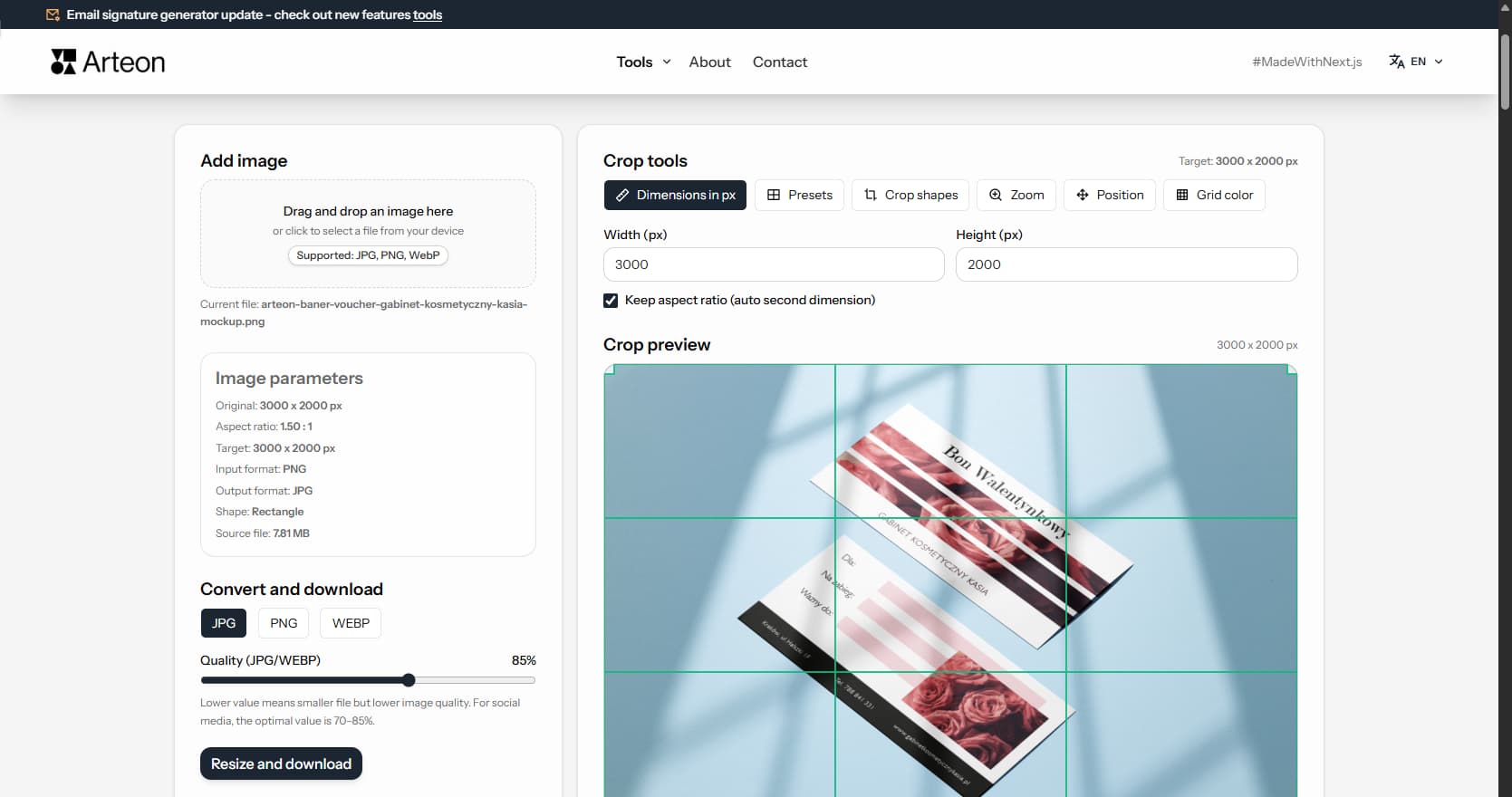
Online image editor
Resize, crop and convert your image. Ready-made formats for social media, circular avatars, export to JPG/PNG/WebP.
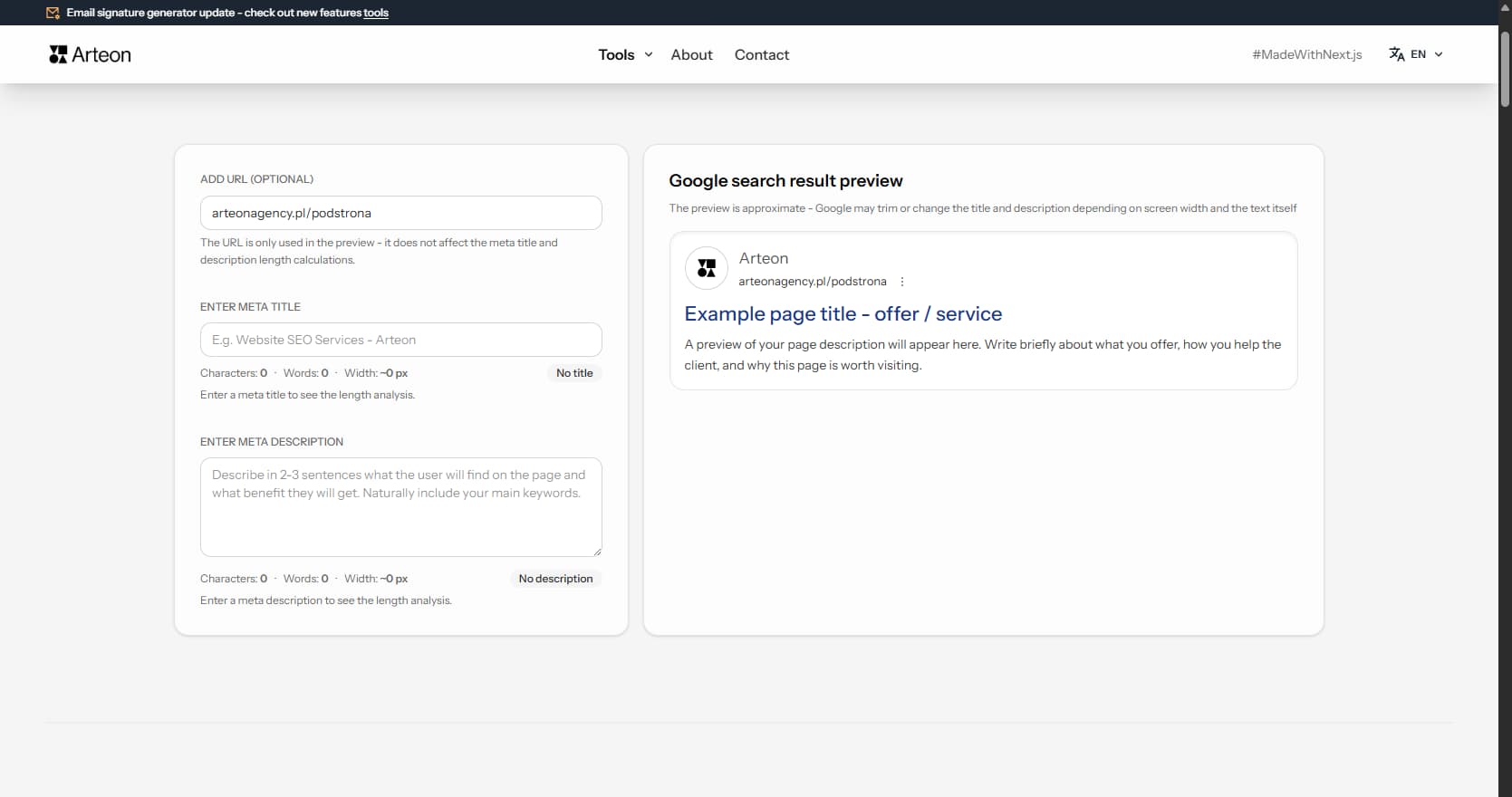
Meta title & description checker
Check title and description length in pixels. Live Google preview and optimization tips.
PNG to JPG
Convert PNG files to JPG in your browser. No file limits, no signup, no server uploads.
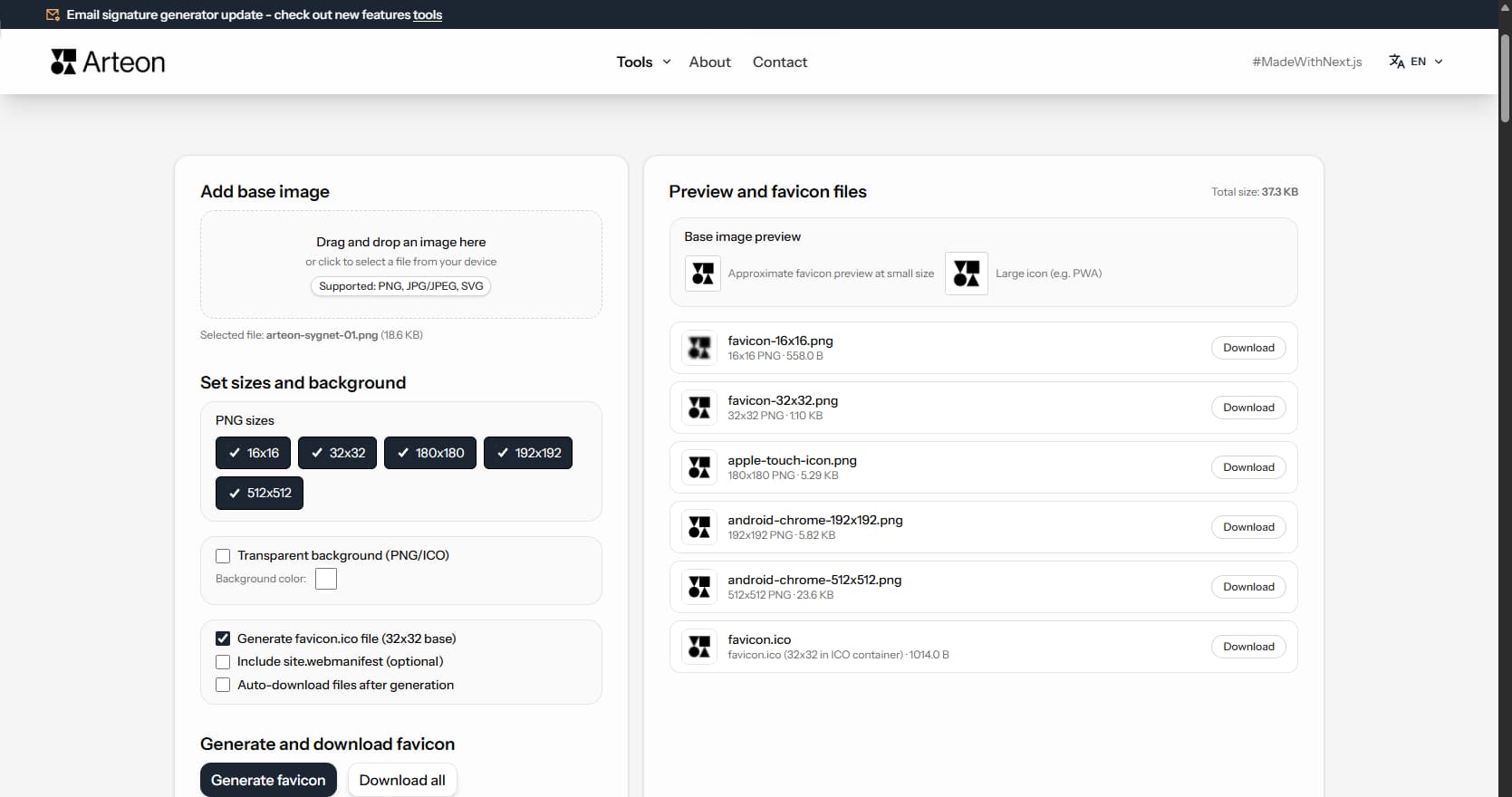
Favicon generator
Create a complete favicon.ico set for your website from one image. All required sizes, no login.
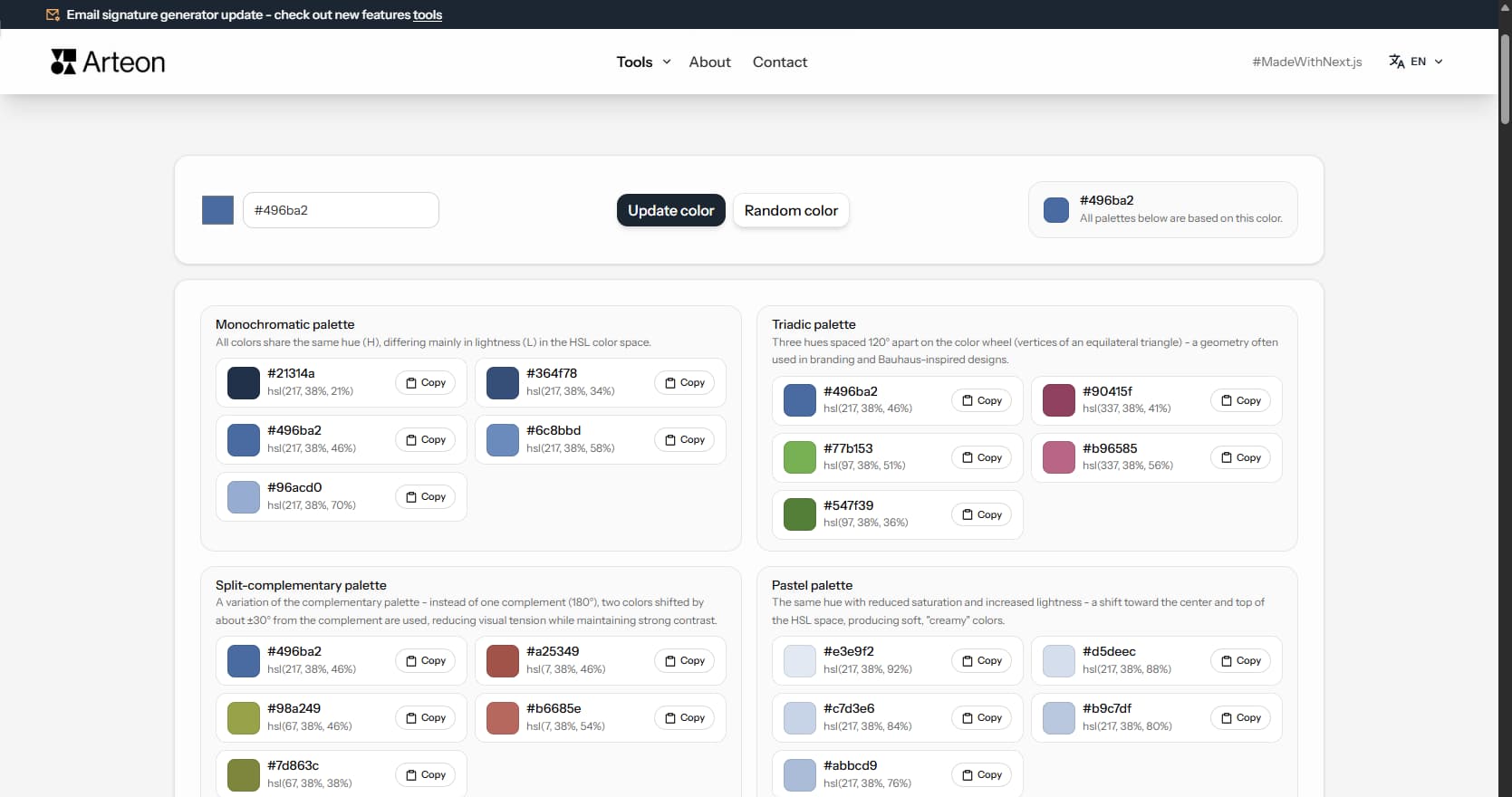
Color palette generator
Generate 9 palettes from one color: monochromatic, complementary, triadic and more. HEX codes.
WebP to JPG
Convert WebP files to universally compatible JPG. Works in every app and platform.
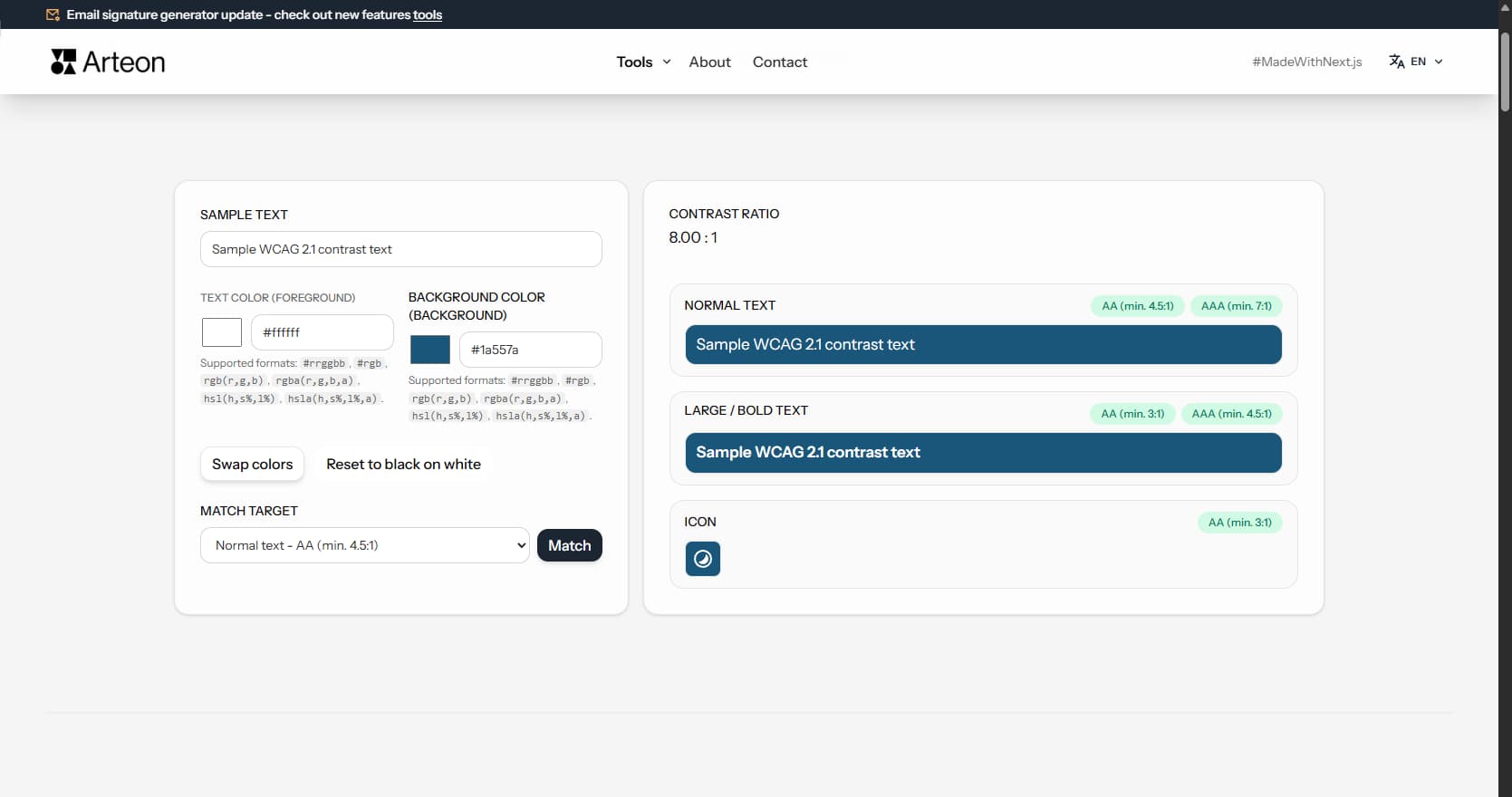
Color contrast checker
Check text and background contrast per WCAG 2.1 AA and AAA. Automatic color correction.
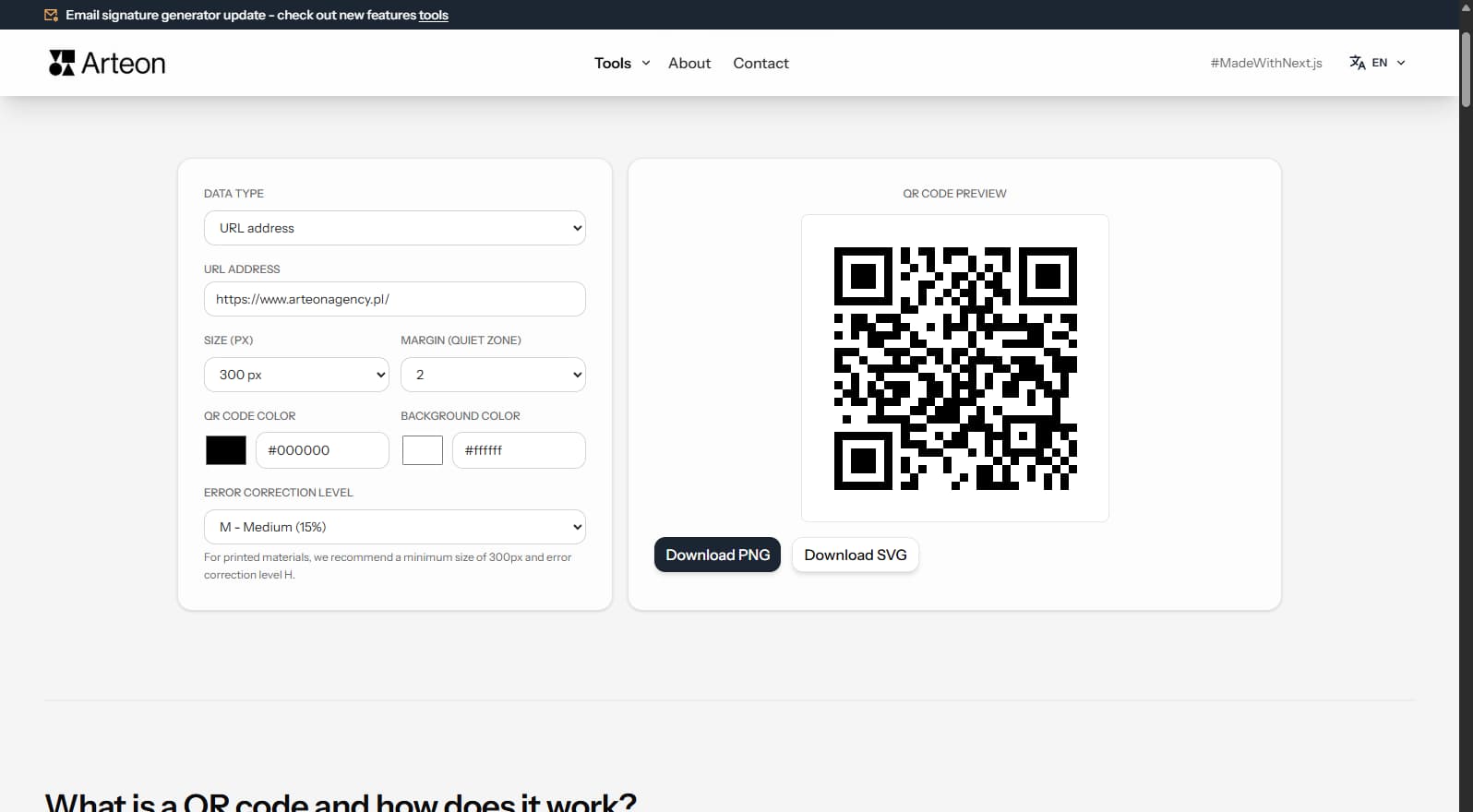
Free QR code generator
Create a QR code for a website, vCard business card or print. Export PNG and SVG, no registration.
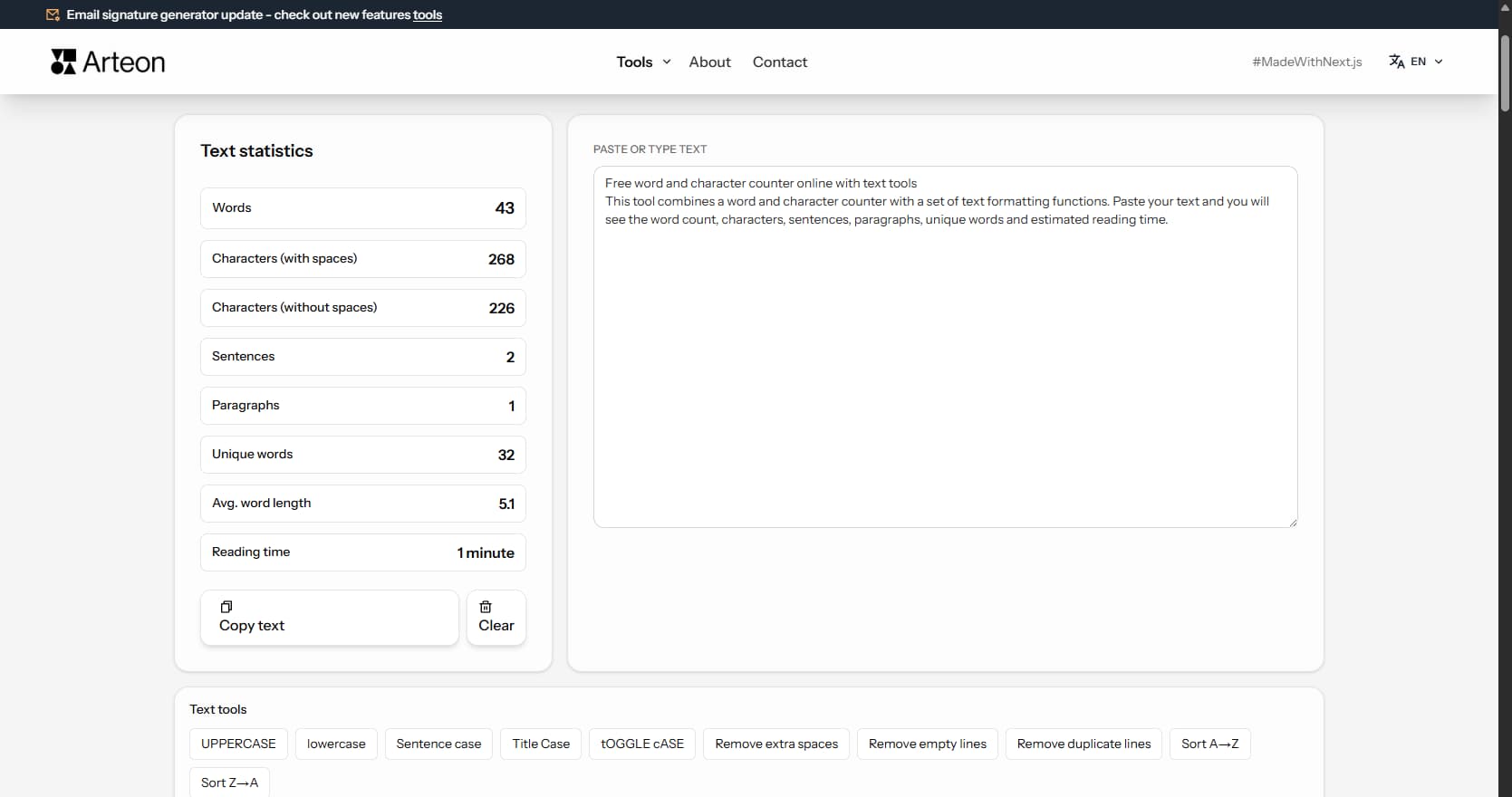
Word & character counter
Count words, characters, sentences and reading time. Check readability with the Flesch-Kincaid score.