Create favicon.ico for your website from a single image
Generate favicon.ico and a complete set of PNG icons for your website from a single image. All processing happens locally in the browser.
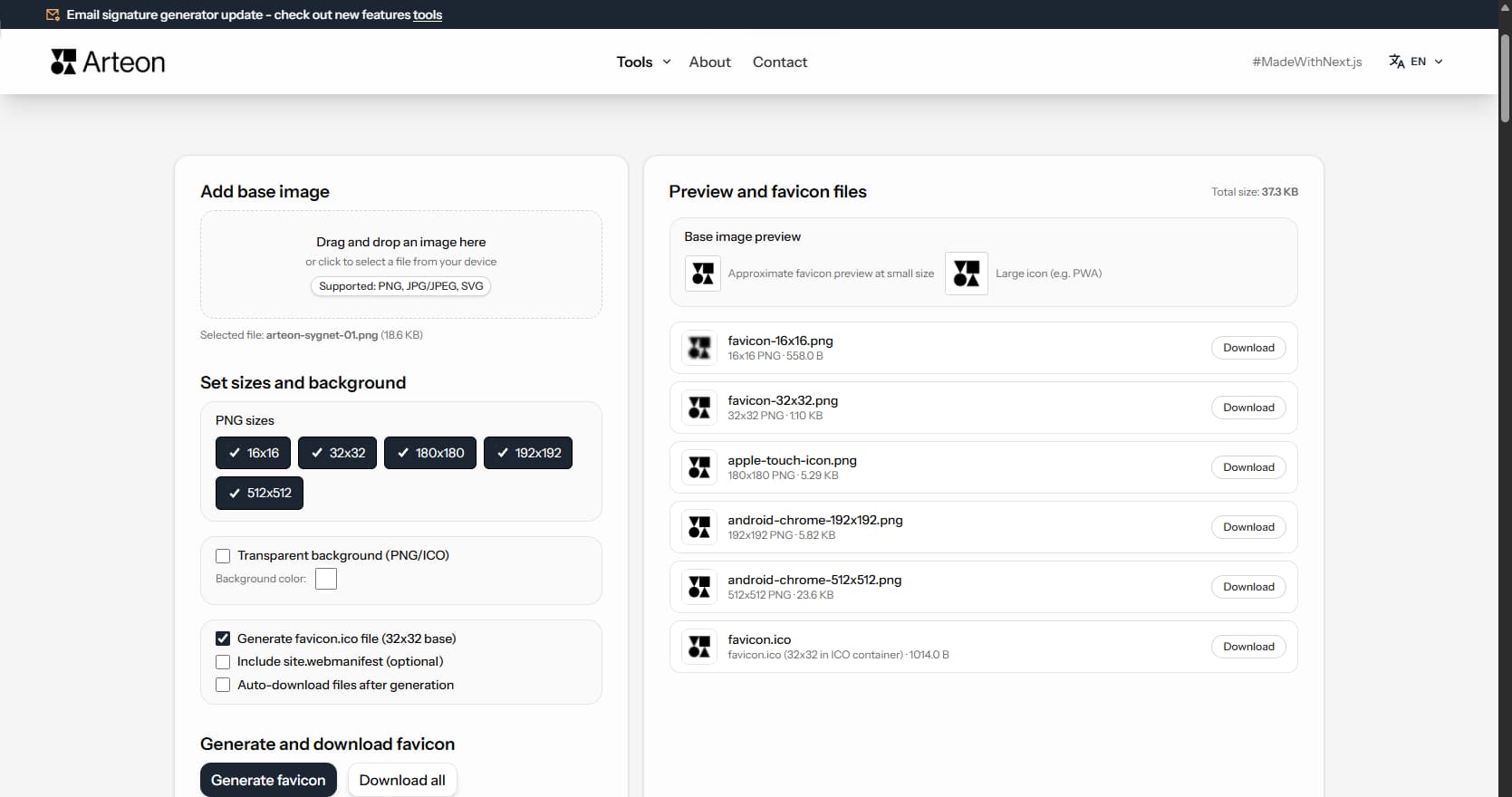
Preview and favicon files
favicon.ico
favicon-16x16.png
favicon-32x32.png
apple-touch-icon.png
android-chrome-192x192.png
android-chrome-512x512.png
This tool works on a larger screen
To use this tool comfortably, open it on a laptop, desktop computer, or tablet in landscape mode.
Tip
If you are using a tablet, switch it to landscape mode - when the window width is large enough, the tool will load automatically.
What is a favicon and why should you have one?
A favicon is a small icon that appears on the browser tab next to the page title. You also see it in bookmarks, browsing history, and on the phone home screen when someone adds the site as a shortcut.
This small graphic serves an important function - it helps users quickly recognize a site among many open tabs. When someone has a dozen tabs open in the browser, the favicon is often the only visible element identifying the site.
The generator creates a complete icon set: a classic favicon.ico file for browsers, PNG icons in various sizes, and an apple-touch-icon for Apple devices. It also generates 192x192 and 512x512 icons useful for web apps (PWA).
How to create a favicon in 3 steps
Generating a favicon takes just a few seconds:
1. Add an image
Drag a file onto the designated area or select a graphic from your device. Supported formats: PNG, JPG, SVG. Recommended size: min. 512×512 pixels.2. Set the background
Choose the icon background color, or keep it transparent.3. Download files
After generating, download all files at once or each icon individually. Below the tool you will find instructions on how to add the favicon to your site.
What icon sizes does the tool generate?
Each size has its use:
favicon.ico (32×32)
Classic format recognized by all browsers. Displays on the browser tab.
16×16 and 32×32 PNG
Standard sizes for modern browsers. Display on tabs and in bookmarks.
180×180 PNG (apple-touch-icon)
Icon for Apple devices (iPhone, iPad). Displays when someone adds the site to their home screen.
192×192 and 512×512 PNG
Icons for web apps (PWA), also used in app stores.
If you are not building a PWA, you only need: favicon.ico, 32×32 PNG, and 180×180 PNG. These three files cover most use cases.
What makes the favicon generator special?
Privacy - files never leave your computer
All operations are performed locally in the browser. The image is not sent to any server. After closing the page, all data is cleared.Complete set in one place
Favicon.ico, PNG icons, apple-touch-icon, and PWA icons - all from one image, in one tool.PNG, JPG, and SVG support
You can use a logo in any format. If you have SVG - icons will be sharp in all sizes.Ready for website and PWA use
The generated 192×192 and 512×512 icons can be used directly in a web app (PWA). Below you will find instructions for integrating the icons.
How to use the favicon generator
Generating a favicon is a few simple steps:
1. Add source image
Drag a file onto the designated area or select a graphic from your device. Supported formats: PNG, JPG, SVG. A simple logo or icon at least 512×512 pixels works best.2. Set the background
Choose the icon background: transparent or a specific color.3. Generate and download files
After starting generation, the tool processes the image locally - nothing is sent to a server. Download all files at once or individual icons separately.
Generation option - what does it do?
Background (transparent or color)
By default, the generator preserves transparency. You can also choose a specific background color.
How to download generated files
After generating icons, you have several download options:
Download all at once
The "Download" button saves all generated files to your device at once. This is the most convenient option when you need the full icon set.Download individual files
Each generated icon has its own download button - you can download a single file without downloading the entire set. Useful when only one size needs updating.
Where and how to add a favicon
WordPress
Most WordPress themes have a built-in option for setting the site icon. You will find it in the admin panel:
Appearance → Customize → Site Identity → Site Icon
Upload the 512×512 file there - WordPress will automatically generate smaller sizes. For full control over icons, you can also upload files directly to the root directory via FTP.
HTML
Place the generated files in the root directory of your site (where index.html is). Then add the appropriate tags in the <head> section:
<link rel="icon" href="/favicon.ico" sizes="32x32">
<link rel="icon" href="/icon-32x32.png" type="image/png" sizes="32x32">
<link rel="apple-touch-icon" href="/apple-touch-icon.png">
The code above is an example - adjust the paths to match your site structure.
Next.js / React
In Next.js (App Router), place favicon files in the app/ or public/ directory:
app/favicon.ico- automatically recognized by Next.jsapp/apple-icon.png- Apple iconpublic/- remaining icons (192×192, 512×512)
You can also configure icons in layout.tsx via the metadata.icons object.
What source image works best?
A favicon is a very small graphic - as small as 16×16 pixels. Not every image works well as a source:
Simple shapes and readable symbols
Simple logos, single letters, or symbols work best. Avoid complex graphics with many details.Square format
A favicon is square. If the source image has a ratio other than 1:1, it will be cropped or stretched.Large enough size
We recommend a source image of at least 512×512 pixels. Smaller images will be scaled up.SVG format as ideal source
SVG scales without quality loss, so icons in all sizes will be sharp.High-contrast colors
A favicon must be visible on different backgrounds (light tabs, dark mode). Choose colors that maintain readability.
How Google and Bing display favicons in search results
Google displays favicons next to website URLs in search results. Mobile search results have shown favicons since 2019. Desktop search results followed in January 2020. This makes the favicon a visible branding element in every Google search.
Google sets specific requirements for favicon display. The icon must measure at least 48×48 pixels. It must be square. The image must remain clearly visible on a white background. Google rejects icons with inappropriate or empty content.
The Googlebot crawls and indexes favicons independently from page content. Favicon updates in search results may take several days to several weeks. The favicon file must not be blocked in robots.txt - otherwise Google cannot fetch the new version.
Bing also shows favicons in its search results. DuckDuckGo displays site icons next to every result link. A complete favicon set ensures consistent brand appearance across all major search engines. Users recognize familiar favicons faster, which contributes to higher click-through rates.
Favicon and brand recognition across the web
A favicon is a micro-branding element visible in multiple places simultaneously. The icon appears in browser tabs, bookmark lists, browsing history, and on the mobile home screen. When a user has twenty or more tabs open, the favicon becomes the only visible element identifying the website.
Color consistency between the favicon and the company logo strengthens brand recall. The site icon should use the same colors and shapes as the primary logo. A simplified version of the logo or its first letter typically works best at small pixel sizes.
In e-commerce, a professional favicon signals a trustworthy store. Shoppers browsing multiple product pages in different tabs rely on favicons to navigate back to specific shops. Price comparison sites display favicons alongside merchant listings, adding visual differentiation.
Brand consistency extends to social media previews and browser history. A recognizable site icon creates a unified visual identity across every digital touchpoint. Businesses without a custom favicon - or those using the default browser icon - risk appearing less established to potential customers.
Favicon formats: ICO, PNG, and SVG in modern web development
Three favicon formats dominate modern web development: ICO, PNG, and SVG. Each format serves a specific purpose in the browser ecosystem.
ICO is the original favicon format introduced with Internet Explorer 5 in 1999. An ICO file can contain multiple sizes (16, 32, and 48 pixels) in a single container. Every major browser still supports ICO, making it the most compatible option.
PNG offers higher image quality than ICO at smaller file sizes. Modern browsers prefer PNG favicons declared via link tags in the HTML head. Separate PNG files per size (32×32, 192×192, 512×512) give the browser the optimal resolution for each context.
SVG favicons are the newest option. Chrome supports SVG favicons since version 80. Firefox has supported them since version 41. SVG scales to any size without quality loss. SVG favicons also support dark mode through the CSS prefers-color-scheme media query - the icon can automatically adapt its colors when the user switches to dark mode. As of early 2025, Safari does not yet support SVG favicons.
The recommended approach combines all three: favicon.ico for legacy compatibility, PNG files for modern browsers and PWA, and an optional SVG for scalability and dark mode support.
Favicon caching and web performance
Browsers cache favicons aggressively and independently from regular page assets. A cached favicon may persist for weeks even after the source file changes on the server. This behavior protects performance but can delay favicon updates.
Effective caching strategies use Cache-Control headers. Setting max-age=604800 (one week) with the immutable directive tells browsers to reuse the cached favicon without checking for updates. When deploying a new favicon, a version parameter in the URL (/favicon.ico?v=2) forces browsers to fetch the fresh file.
File size matters for page performance. An ICO file containing three sizes typically weighs 5 to 15 kilobytes. Individual PNG favicons range from 1 to 5 kilobytes each. The total favicon payload should stay under 20 kilobytes for optimal loading speed. Avoid base64-encoding favicons inline in HTML - this blocks rendering and increases document size.
The Lighthouse audit tool in Chrome DevTools checks for a valid, accessible favicon. A missing or broken favicon triggers a warning in the PWA audit category. Fixing this issue improves the overall Lighthouse score and confirms correct favicon configuration.
PWA icons: from favicon to installable web app
Progressive Web Apps require additional icons beyond the standard favicon. The manifest.json file must include an icons array specifying image source, size, type, and purpose for each entry.
Google requires at least two icons for PWA installability: 192×192 pixels and 512×512 pixels in PNG format. Without these sizes, Chrome will not show the install prompt to users.
Maskable icons are a special icon type for Android devices. The operating system crops maskable icons into various shapes - circles, rounded squares, or teardrops depending on the device manufacturer. The safe zone covers the inner 80 percent of the image area. All essential graphic elements must fit within this zone to avoid being cropped.
Apple handles PWA icons differently. iOS reads the apple-touch-icon (180×180 pixels) from a link tag in the HTML head - not from the manifest file. This icon appears when users add the website to their home screen.
The 512×512 icon serves as the source for the PWA splash screen. Android generates the splash screen automatically from this icon combined with the application name and background color declared in manifest.json. A high-quality 512×512 image ensures a professional appearance during app startup.
Frequently asked questions about the favicon generator
What size should the source image be for generating favicons?
The recommended size is at least 512×512 pixels in square format (1:1). With such a source, icons in all sizes will be sharp and readable. If you have a logo in SVG format - use it, as vector graphics scale without quality loss.
Can I generate only favicon.ico without the other icons?
The generator always creates the full set: favicon.ico plus PNG icons in 16x16, 32x32, 180x180, 192x192, and 512x512. After generating, you can download only the files you need - each icon has its own download button.
What image formats does the favicon generator support?
The generator accepts images in PNG, JPG, and SVG formats. As output, it generates a favicon.ico file and a full set of PNG icons, ready to upload to your website.
Does a favicon affect Google search ranking?
Not directly - favicon is not a ranking factor. However, it indirectly affects brand recognition: a site with a professional icon is more easily identifiable among many open tabs, which may translate to a higher click-through rate in search results.
Which icon sizes are essential for a regular website?
For a typical website, three files are sufficient: favicon.ico (32×32), a 32×32 PNG icon, and apple-touch-icon 180×180. If the site should work as a web app (PWA), the 192×192 and 512×512 icons are also worth using.
Does the favicon display the same in all browsers?
Most modern browsers (Chrome, Firefox, Edge, Safari) recognize the favicon.ico file and PNG icons. Differences may occur in the displayed icon size - Chrome prefers PNG 32×32, while Safari on iOS uses apple-touch-icon 180×180. For best compatibility, we recommend generating the full set of sizes.
Why doesn't the favicon change after uploading a new file?
Browsers aggressively cache favicons. After uploading a new icon, try clearing the browser cache or adding a version parameter to the file path (e.g., /favicon.ico?v=2). The change may take several hours to become visible.
Help us improve our tools
Have an idea for a new feature, found a bug, or want to suggest another tool that would make your work easier? Write to us – we respond within 24 hours.
Explore other useful tools
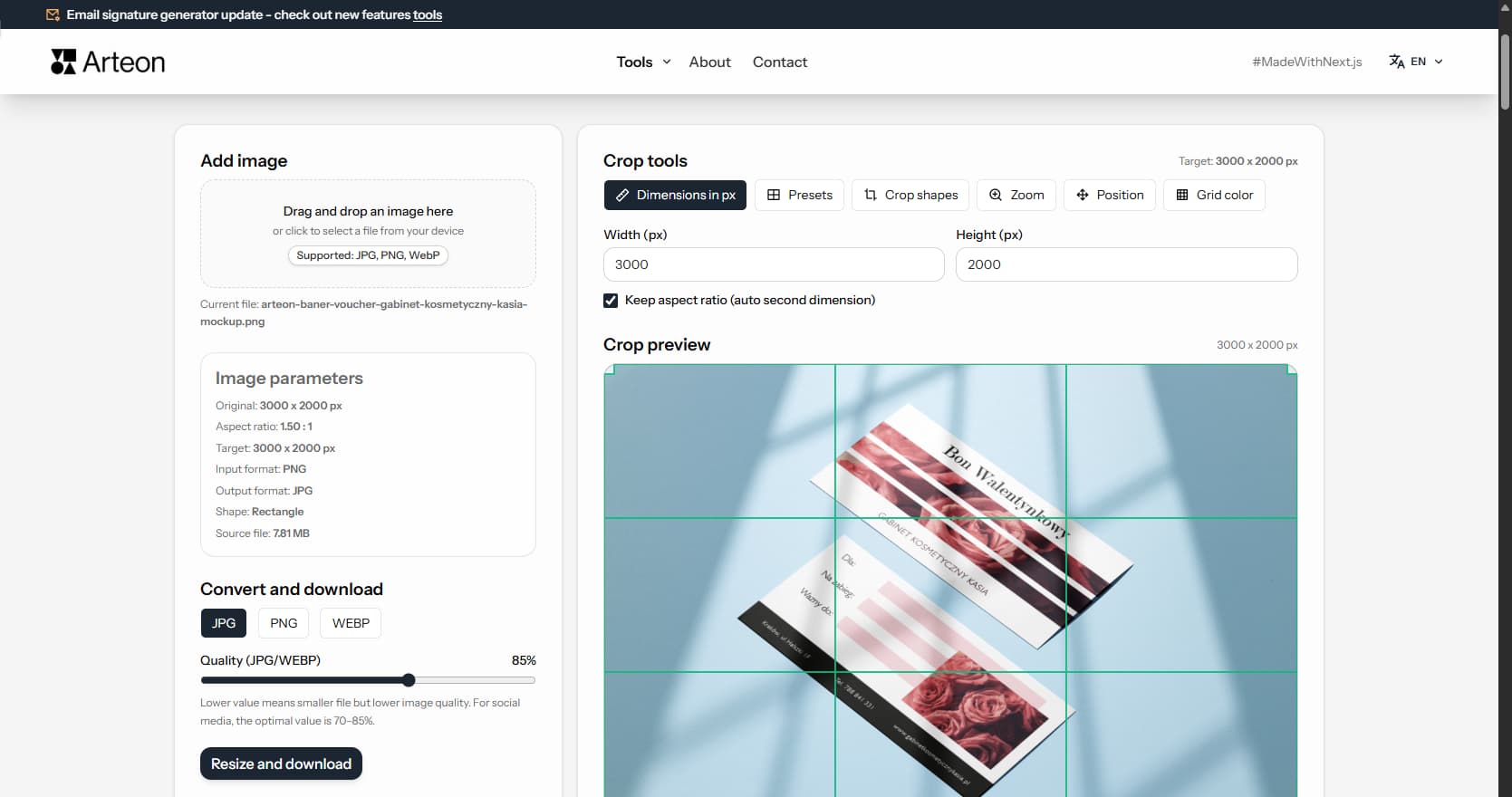
Online image editor
Resize, crop and convert your image. Ready-made formats for social media, circular avatars, export to JPG/PNG/WebP.
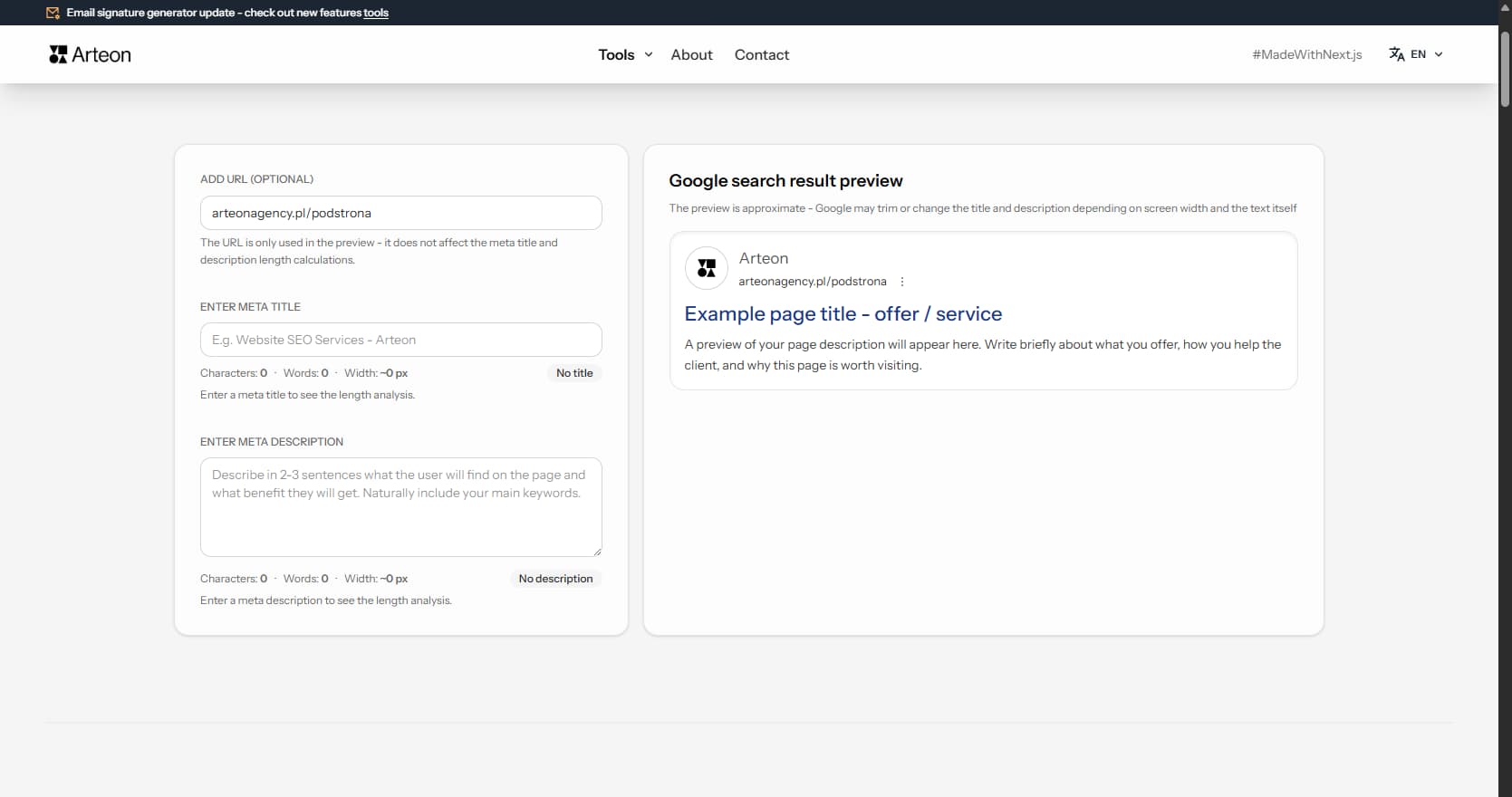
Meta title & description checker
Check title and description length in pixels. Live Google preview and optimization tips.
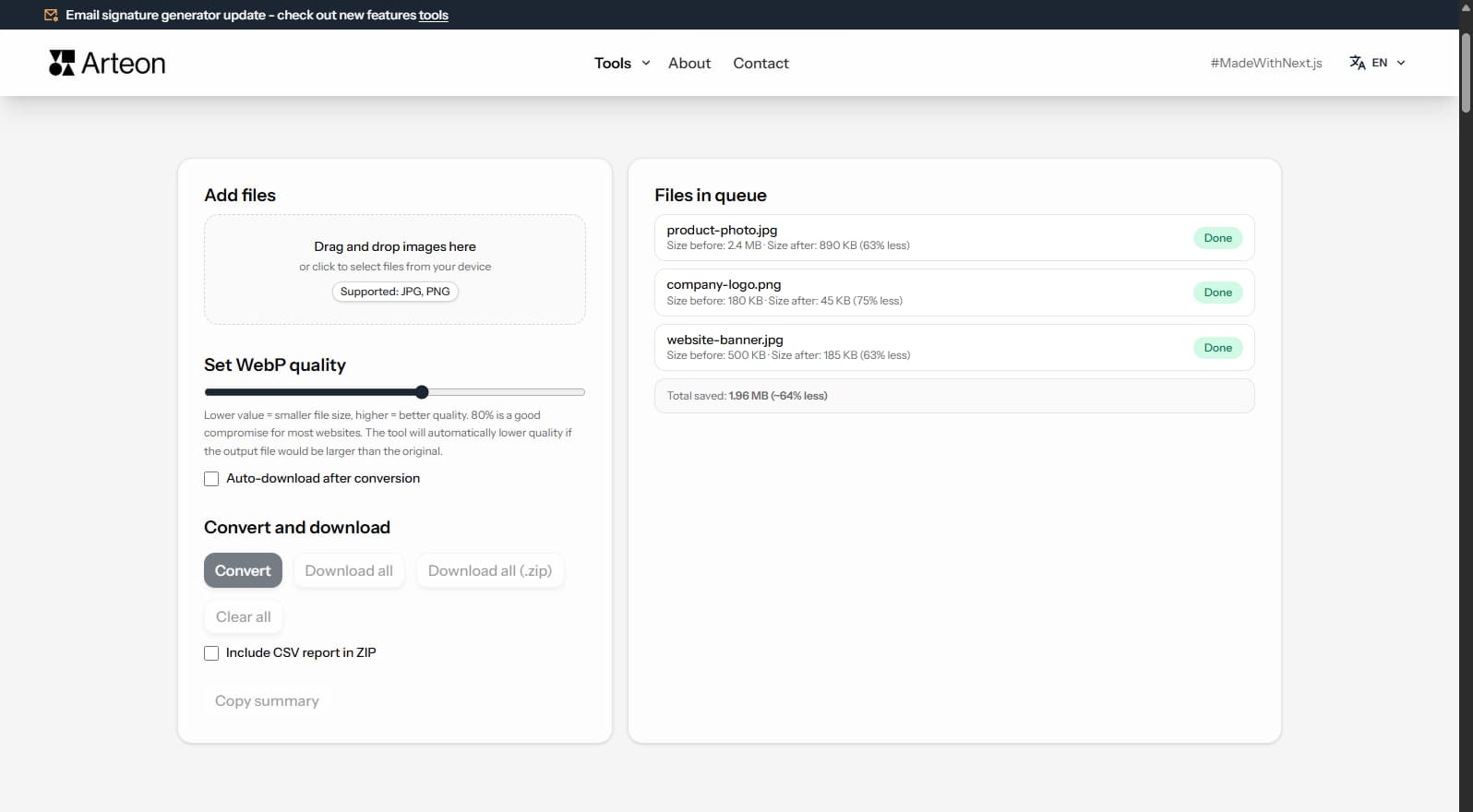
PNG to JPG
Convert PNG files to JPG in your browser. No file limits, no signup, no server uploads.
Favicon generator
Create a complete favicon.ico set for your website from one image. All required sizes, no login.
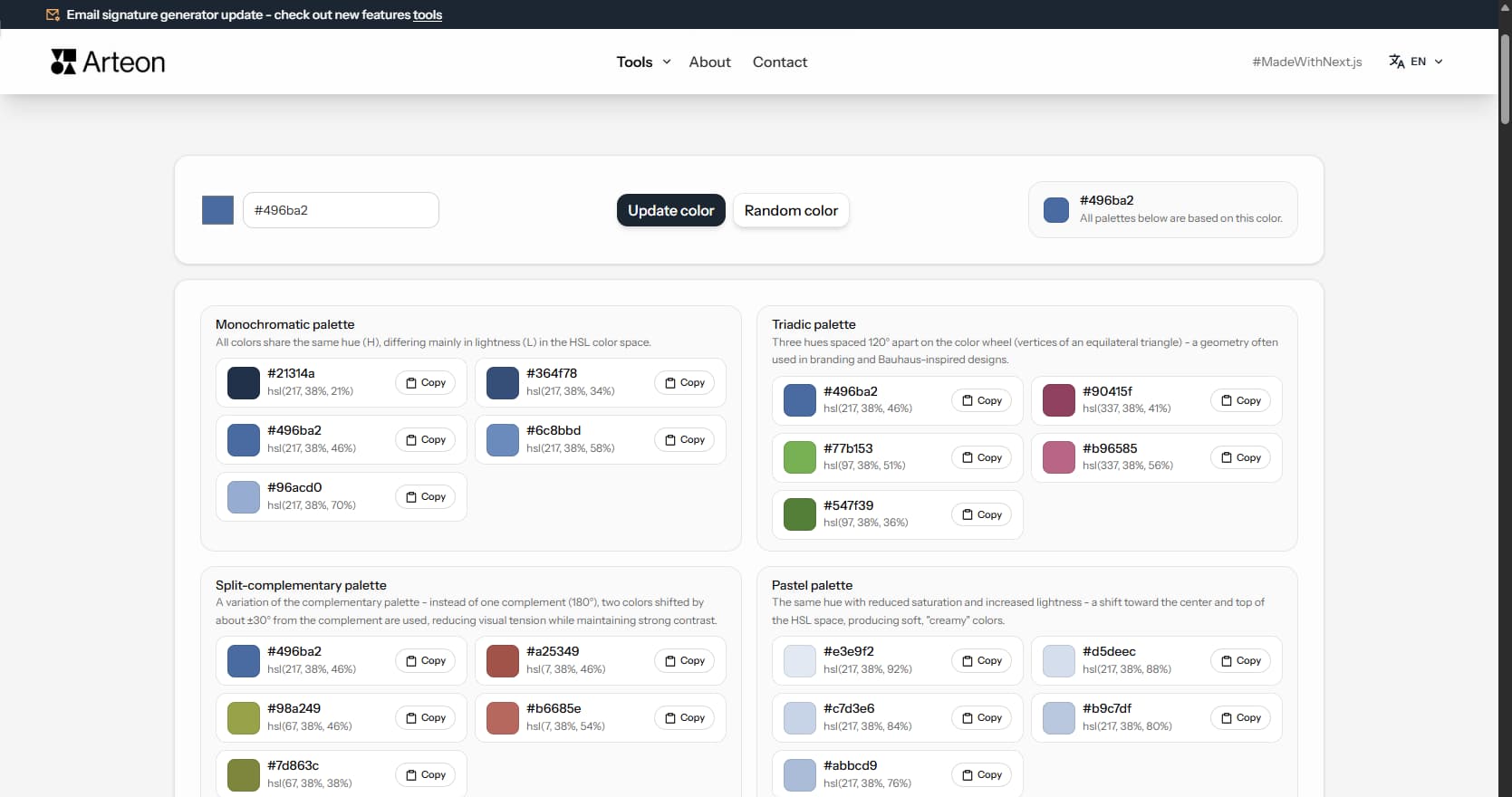
Color palette generator
Generate 9 palettes from one color: monochromatic, complementary, triadic and more. HEX codes.
WebP to JPG
Convert WebP files to universally compatible JPG. Works in every app and platform.
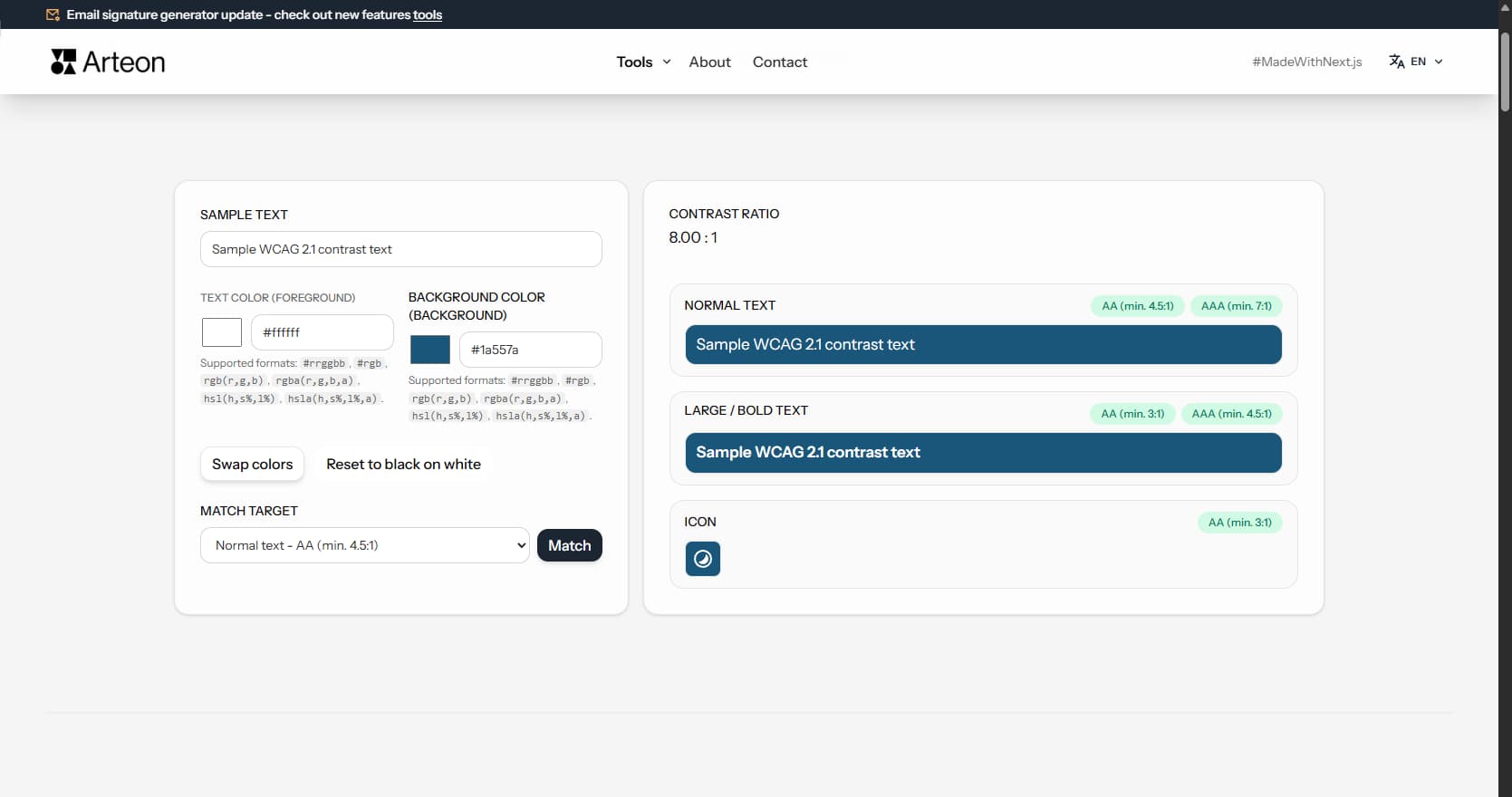
Color contrast checker
Check text and background contrast per WCAG 2.1 AA and AAA. Automatic color correction.
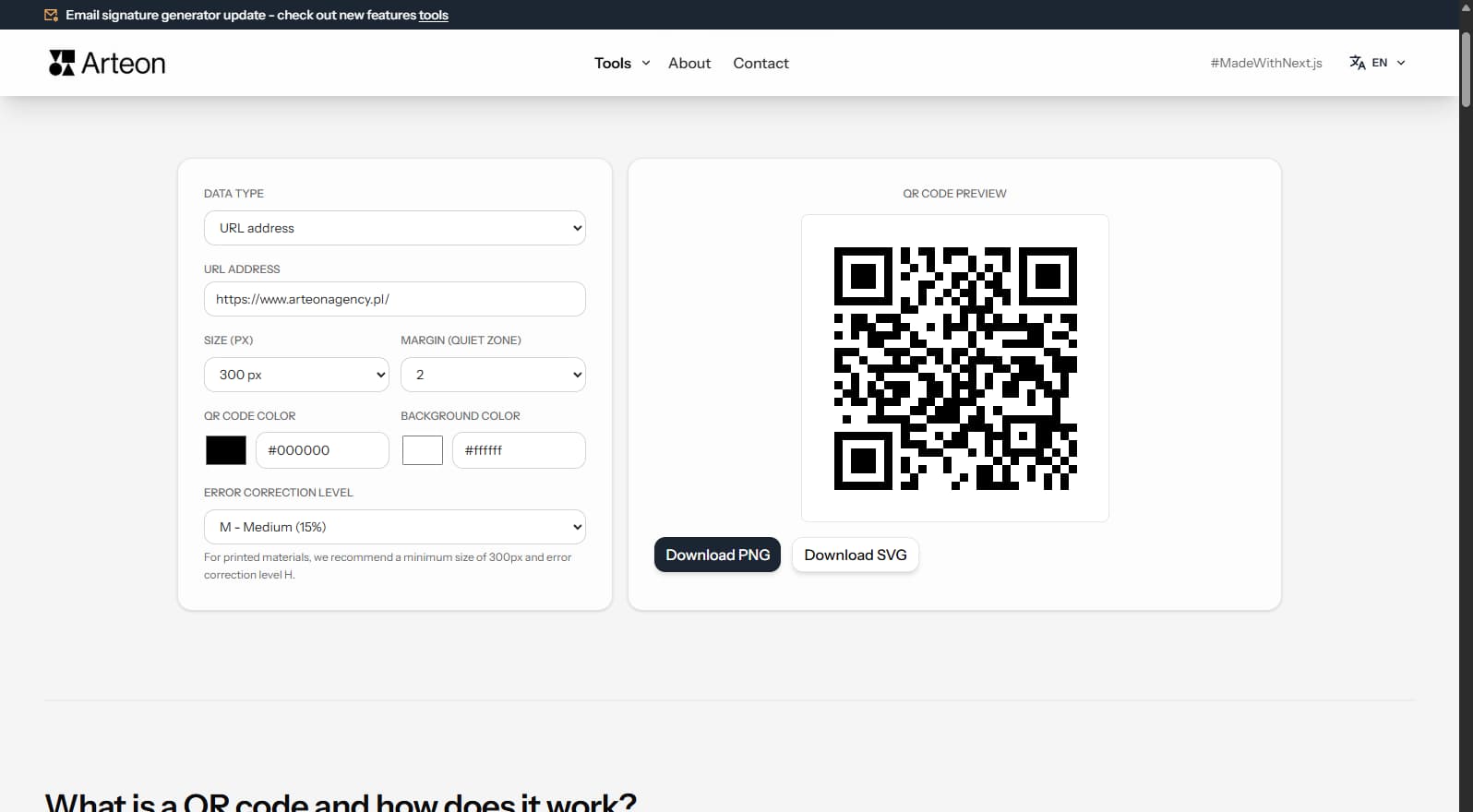
Free QR code generator
Create a QR code for a website, vCard business card or print. Export PNG and SVG, no registration.
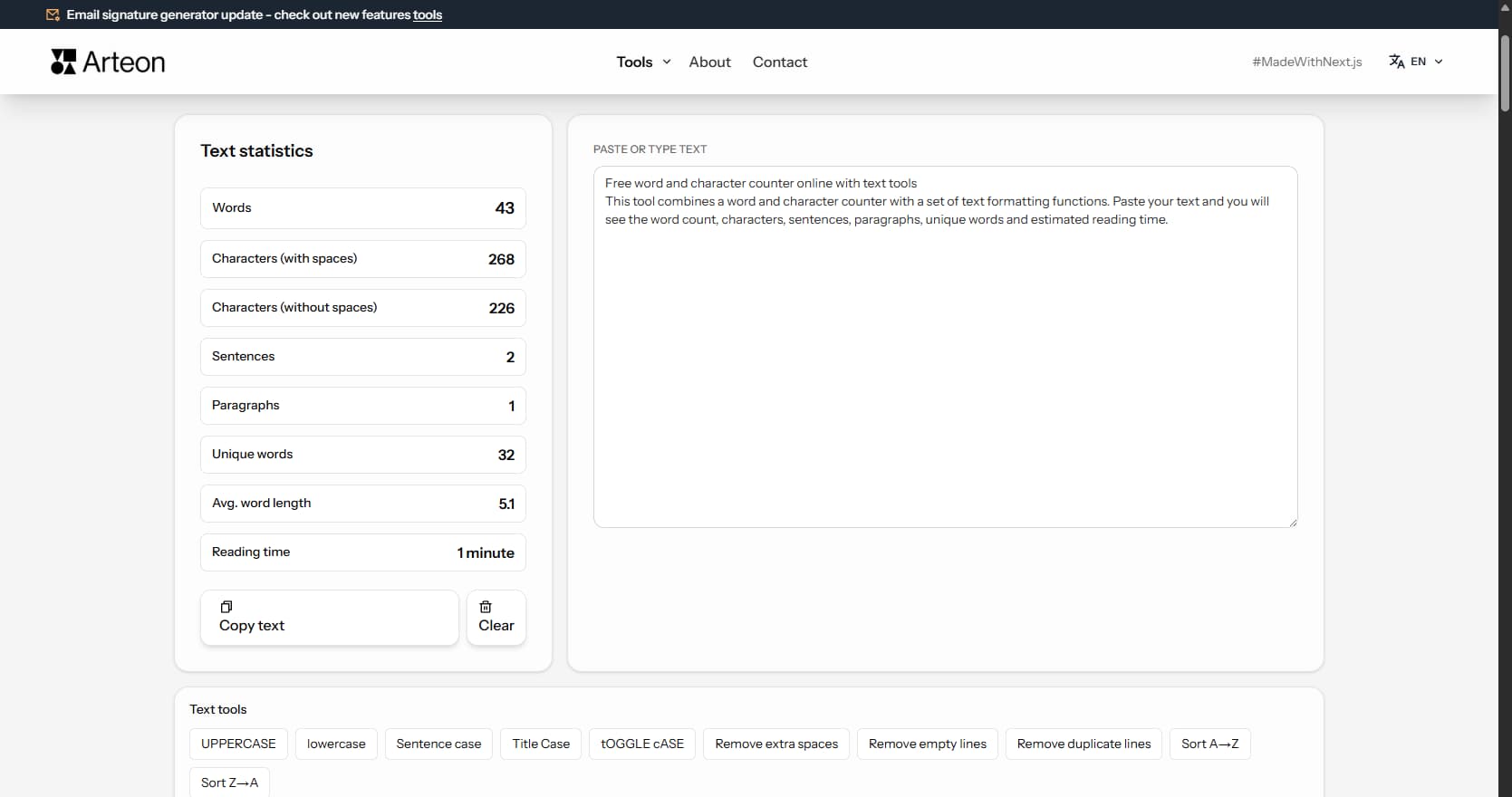
Word & character counter
Count words, characters, sentences and reading time. Check readability with the Flesch-Kincaid score.