Convert JSON to YAML – Docker, Kubernetes, GitHub Actions
Paste your JSON and get deployment-ready YAML for Docker Compose, GitHub Actions workflows, Helm charts, or Ansible playbooks — processed entirely in your browser, no account required.
Why convert JSON to YAML?
JSON is a universal data exchange format, but complex nested structures become hard to read — curly braces, square brackets, quotes, and commas obscure the content. YAML eliminates this: it uses indentation instead of braces, does not require quotes around keys, and supports comments (which JSON lacks).
YAML is the standard configuration format in the DevOps ecosystem: Docker Compose, Kubernetes manifests, GitHub Actions, GitLab CI, Ansible, Terraform, and Helm. Converting JSON to YAML is a daily task for developers and DevOps engineers working with these tools.
The converter generates valid YAML with proper indentation (2 spaces), handles arrays, nested objects, multiline values, and primitive types. Output is ready to paste into docker-compose.yml, deployment.yaml, or .github/workflows/*.yml.
All processing happens locally in your browser — nothing is sent to any server. No registration, no limits, no tracking.
How to convert JSON to YAML
Paste your data
Paste your JSON — an AWS CloudFormation template, an OpenAPI spec, a Kubernetes manifest draft, or any structured JSON config. You can also upload a .json file from your machine.Convert
Click Convert. Curly braces are replaced with indentation, arrays get dash notation, and strings with special characters are automatically quoted so the output passes yamllint without errors.Copy or download
Copy the YAML to clipboard and paste directly into your docker-compose.yml, .github/workflows/*.yml, or deployment.yaml file. Download as a .yaml file for version control or Helm chart packaging.
What makes this converter different?
Complete privacy
Your files are processed entirely in your browser. Nothing is uploaded to any server.No limits
Convert as many files as you need. No daily limits, no file size restrictions, no watermarks.Quality control
Adjust settings to find the perfect balance between file size and quality.Instant conversion
All processing happens locally using modern browser APIs - fast and works offline after loading.
JSON vs YAML – format comparison
| Feature | JSON | YAML |
|---|---|---|
| Nested/hierarchical data | ✓ | ✓ |
| Tabular data | — | — |
| Schema validation | ✓ | — |
| Human readable | ✓ | ✓ |
| API standard | ✓ | — |
| Compact syntax | ✓ | ✓ |
How does JSON to YAML conversion work?
JSON and YAML both represent structured data, but YAML uses a cleaner, indentation-based syntax without curly braces or quotation marks around keys. The converter parses the JSON structure and reformats it using YAML conventions: indentation for nesting, dashes for array items, and colons for key-value pairs.
For example, a JSON object like {"name": "John", "age": 30} becomes two lines in YAML: name: John and age: 30. Nested objects use deeper indentation, and arrays use the dash-space prefix for each item.
YAML is widely used for configuration files (Docker Compose, Kubernetes, GitHub Actions, Ansible) because it is more human-readable than JSON. The conversion runs entirely in your browser — no data is sent to any server.
Tips for converting JSON to YAML
A few tips to help you avoid common issues during conversion:
Indentation matters
YAML uses spaces for indentation (not tabs). The converter outputs consistent 2-space indentation. If you edit the output manually, ensure consistent spacing to avoid parsing errors.String quoting
YAML only requires quotes around strings that contain special characters (colons, hashes, brackets). Simple strings are left unquoted for cleaner output.Comments
JSON does not support comments, so there are none to transfer. However, once in YAML format, you can freely add # comments to annotate your configuration.Multi-line strings
Long string values containing newlines are formatted using YAML block scalar syntax (| or >) for better readability than JSON escaped newlines.
Common YAML pitfalls to watch out for
YAML is sensitive to formatting. Here are common issues when working with converted YAML:
- Indentation – YAML uses spaces (not tabs) for structure. The converter uses 2-space indentation consistently.
- Special characters in strings – values containing colons, hashes, or brackets may need quoting. The converter handles this automatically.
- Boolean gotchas – YAML treats
yes,no,on,offas booleans. If these appear as string values in JSON, the converter wraps them in quotes. - Number precision – large numbers and floating-point values are preserved exactly as they appear in the JSON source.
The converter generates valid YAML that passes yamllint validation. If you encounter issues, check for mixed indentation or unquoted special characters.
Convert JSON to other formats
Frequently asked questions about JSON to YAML conversion
Is converting JSON to YAML free?
Yes, this converter is completely free with no limits. No registration, no watermarks.
Does the converter upload my files?
No. All processing happens locally in your browser. Your files never leave your device.
Can I convert multiple files at once?
Yes, the converter supports batch conversion. Add multiple files and convert them all simultaneously.
Does the converter work on mobile?
Yes, the converter works on any device with a modern web browser, including smartphones and tablets.
Is converting JSON to YAML safe?
Yes. The entire conversion runs locally in your browser. Your data is never sent to any server. When you close the page, all data is automatically cleared from memory.
Can I use the YAML output in Docker or Kubernetes?
Yes. The output is standard YAML compatible with Docker Compose, Kubernetes manifests, GitHub Actions workflows, Ansible playbooks, and any other tool that reads YAML.
Is the conversion lossless?
Yes. All data types (strings, numbers, booleans, null, arrays, objects) are preserved exactly. YAML supports the same data types as JSON, so no information is lost.
Can I convert a JSON OpenAPI spec to YAML for use in Swagger or Stoplight?
Yes. OpenAPI specifications are commonly distributed in both JSON and YAML formats. Paste your OpenAPI JSON and the converter produces valid YAML that Swagger UI, Stoplight, Redoc, and other API documentation tools accept directly.
Help us improve our tools
Have an idea, found a bug, or want to suggest a feature? Drop us a message – we respond within 24 hours.
Explore other useful tools
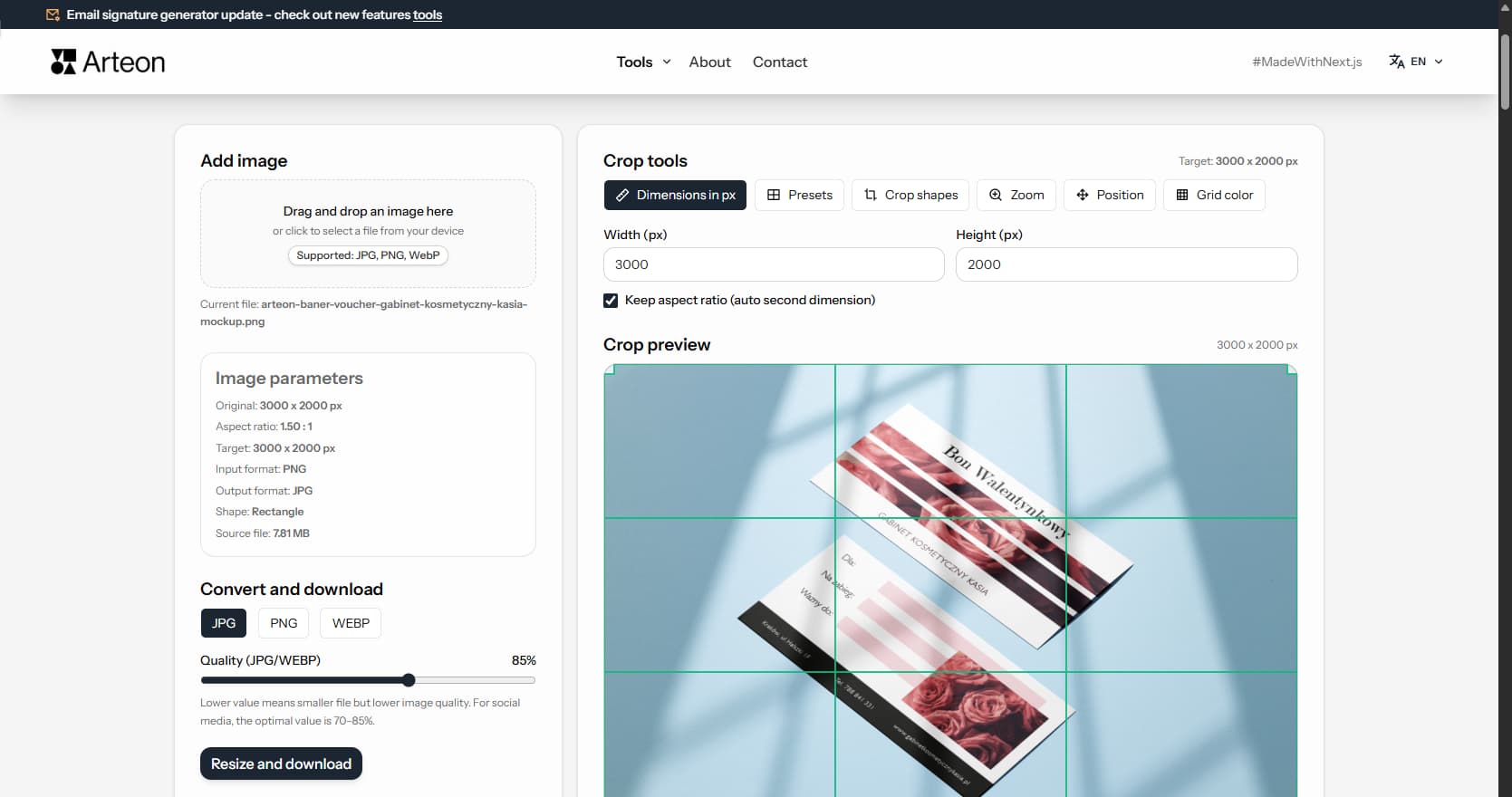
Online image editor
Resize, crop and convert your image. Ready-made formats for social media, circular avatars, export to JPG/PNG/WebP.
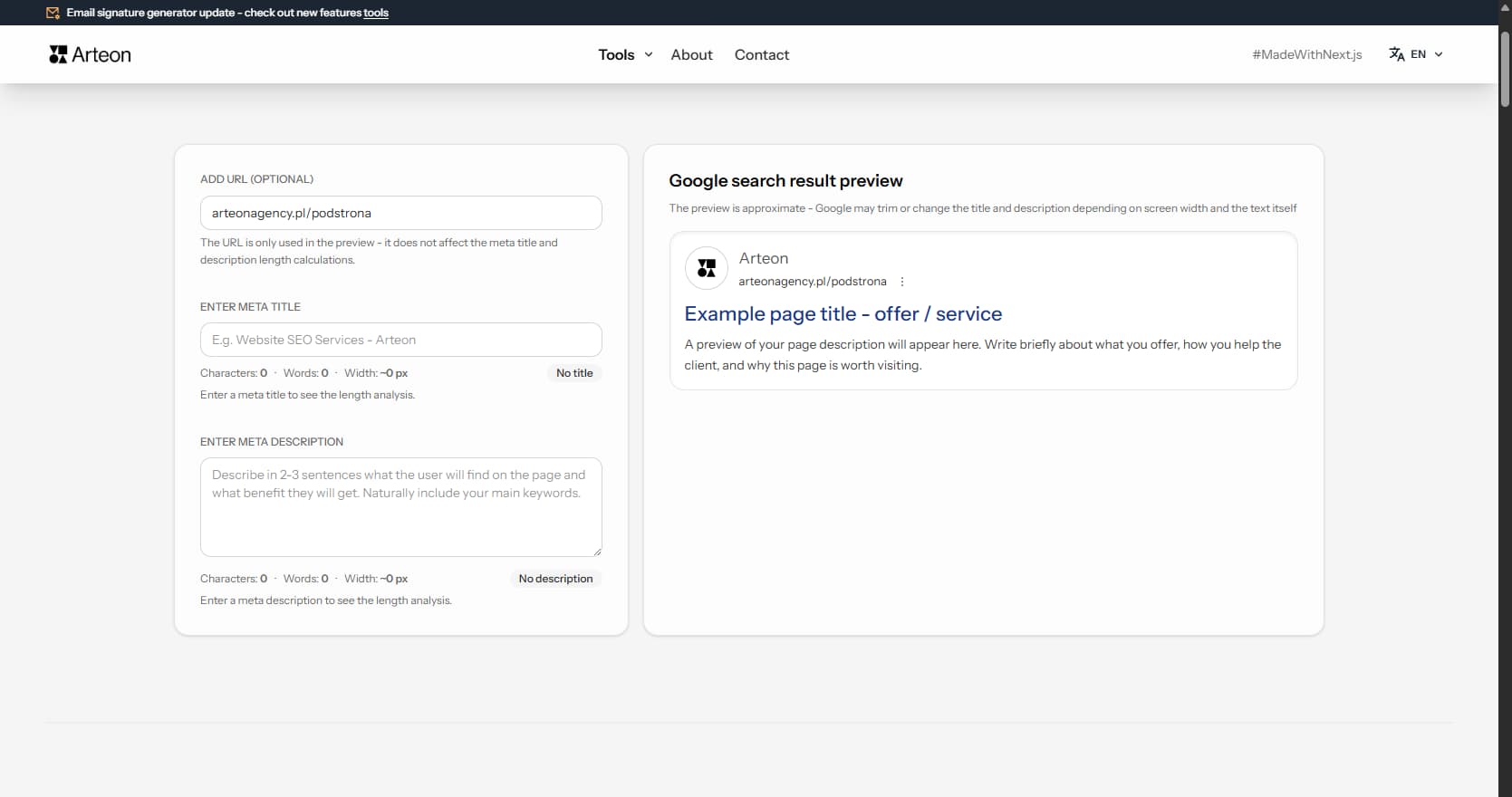
Meta title & description checker
Check title and description length in pixels. Live Google preview and optimization tips.
PNG to JPG
Convert PNG files to JPG in your browser. No file limits, no signup, no server uploads.
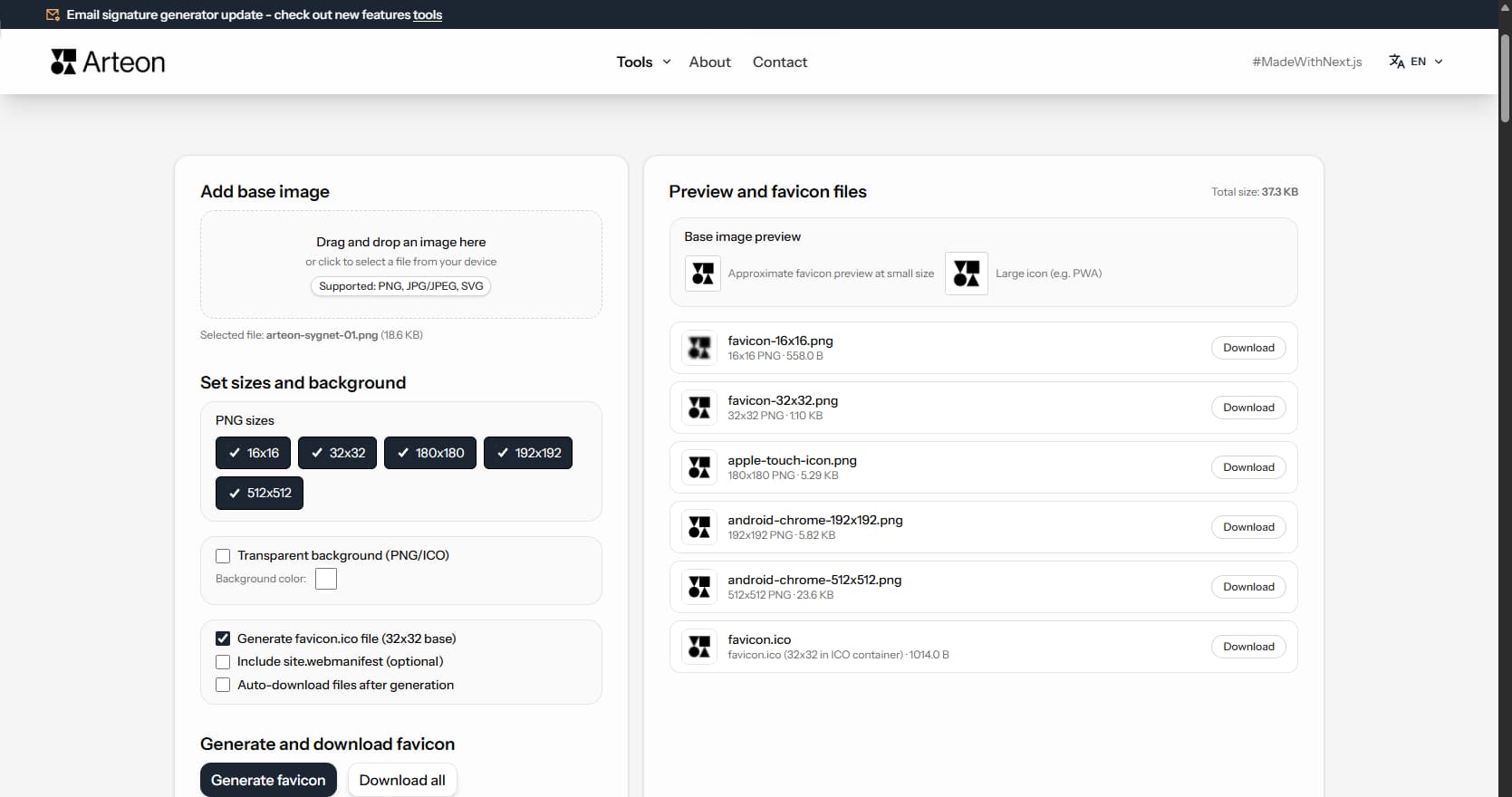
Favicon generator
Create a complete favicon.ico set for your website from one image. All required sizes, no login.
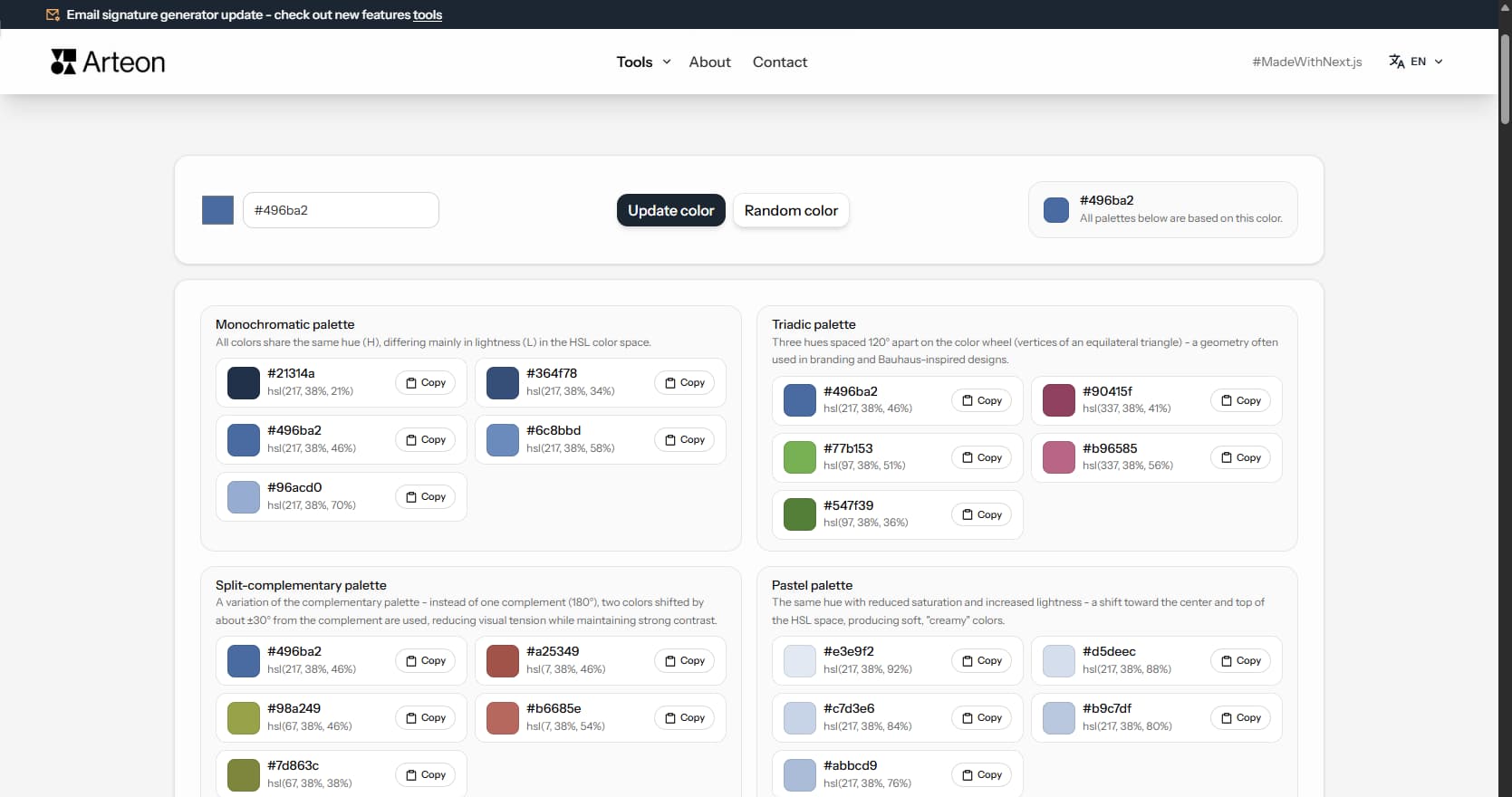
Color palette generator
Generate 9 palettes from one color: monochromatic, complementary, triadic and more. HEX codes.
WebP to JPG
Convert WebP files to universally compatible JPG. Works in every app and platform.
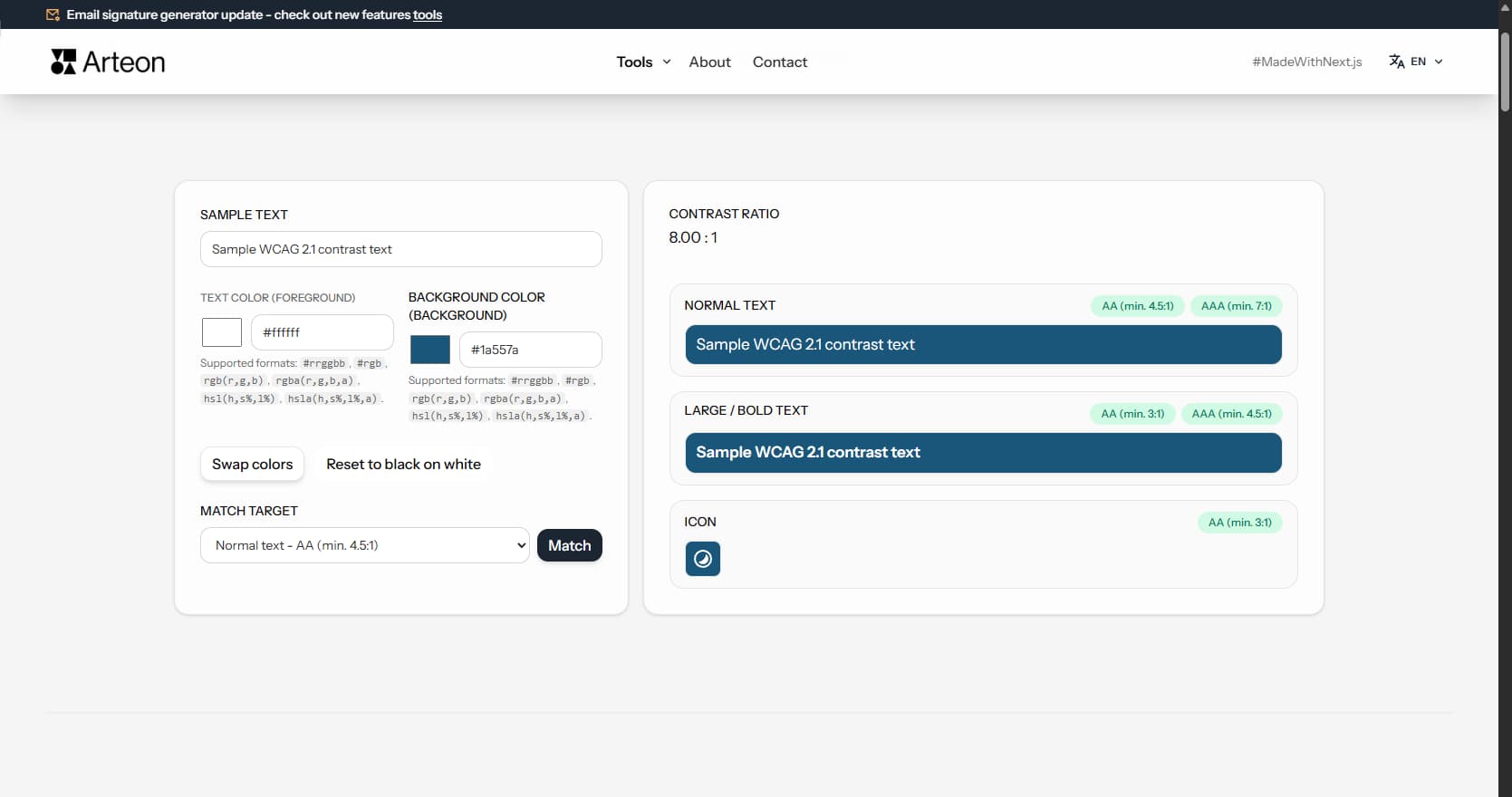
Color contrast checker
Check text and background contrast per WCAG 2.1 AA and AAA. Automatic color correction.
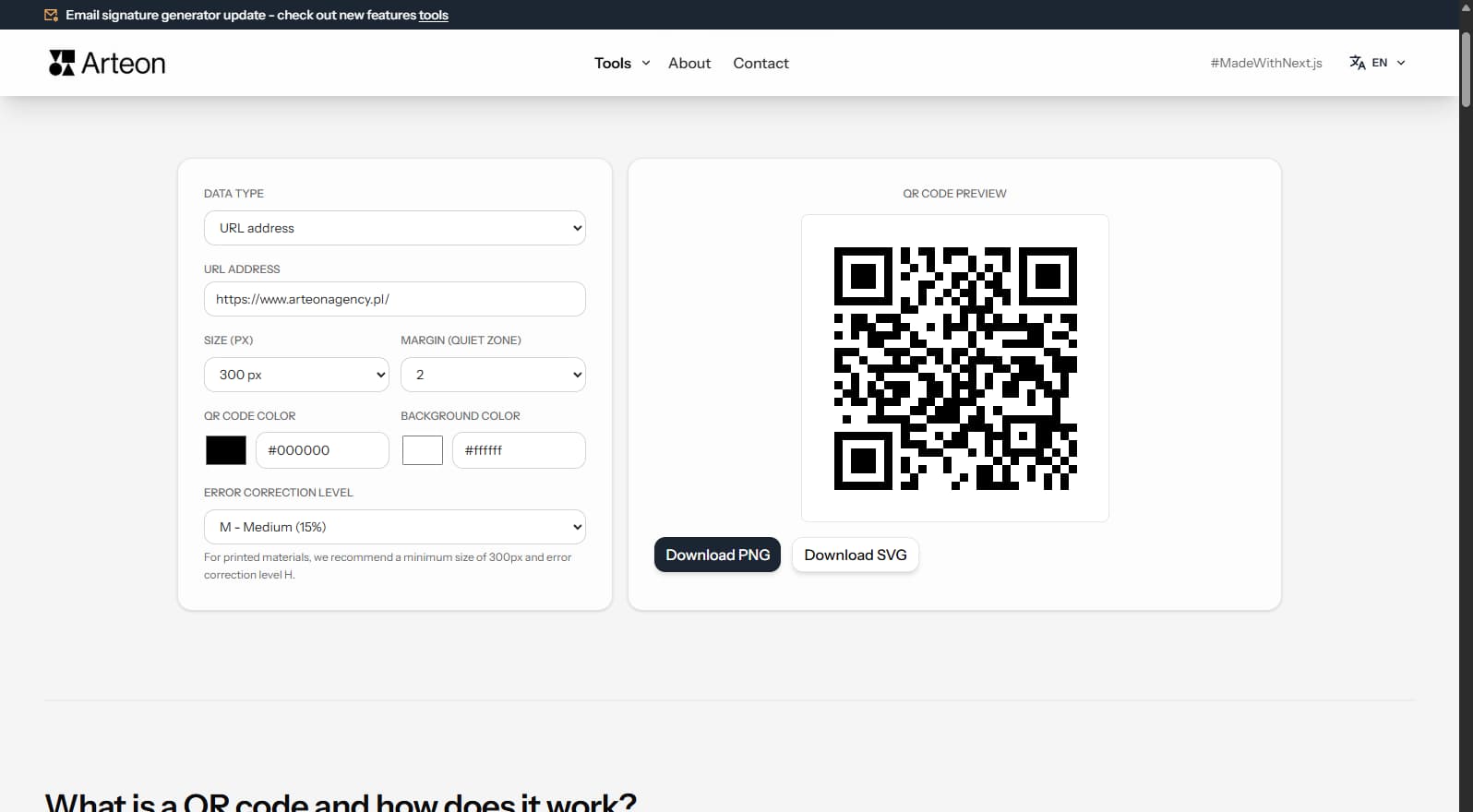
Free QR code generator
Create a QR code for a website, vCard business card or print. Export PNG and SVG, no registration.
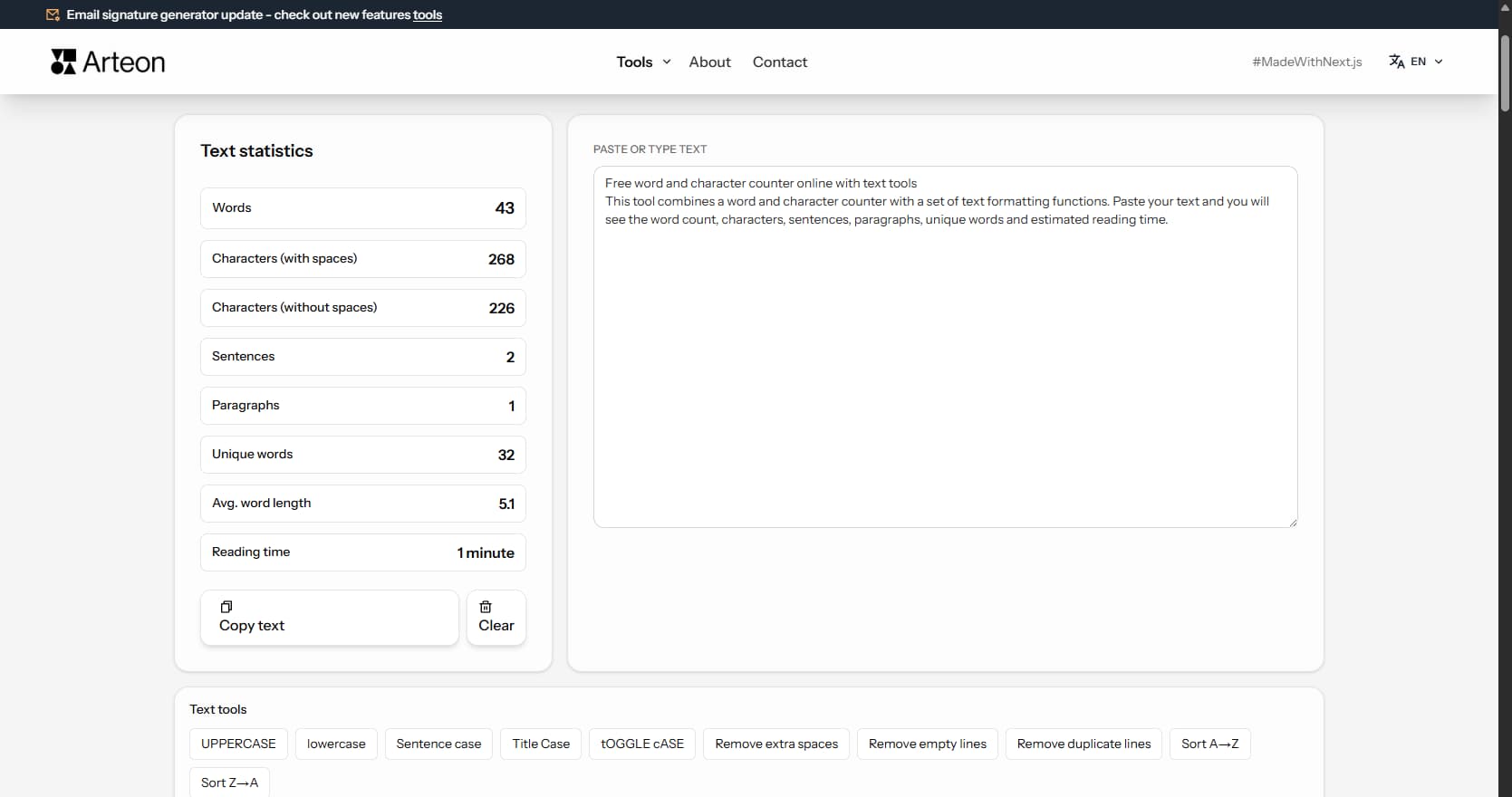
Word & character counter
Count words, characters, sentences and reading time. Check readability with the Flesch-Kincaid score.