HEIC to PDF converter
Convert HEIC images to PDF documents. Combine multiple files into one PDF. Free, no registration.
Files in queue
Why convert HEIC to PDF?
HEIC is the default photo format on iPhones and iPads since iOS 11. However, HEIC files cannot be opened directly on Windows, most Android devices, or many web platforms. Converting HEIC to PDF creates a universally readable document that can be viewed on any device and easily shared via email.
Converting multiple HEIC photos into a single multi-page PDF is ideal for creating photo albums, insurance documentation, real estate listings, and medical records from iPhone photos. PDF preserves image quality and can be printed at full resolution.
This converter processes files locally in your browser — nothing is sent to any server. No registration, no limits, no watermarks.
How to convert HEIC to PDF
Upload your HEIC file
Drag and drop your HEIC file onto the converter or click to browse.Convert
Click Convert - files are processed locally in your browser.Download your PDF
Download the converted PDF file with a single click. For multiple files, use the bulk download option to save everything as a ZIP.
What makes this converter different?
Complete privacy
Your files are processed entirely in your browser. Nothing is uploaded to any server.No limits
Convert as many files as you need. No daily limits, no file size restrictions, no watermarks.Quality control
Adjust settings to find the perfect balance between file size and quality.Instant conversion
All processing happens locally using modern browser APIs - fast and works offline after loading.
HEIC vs PDF – format comparison
| Feature | HEIC | |
|---|---|---|
| Lossy compression | ✓ | — |
| Lossless compression | ✓ | ✓ |
| Transparency (alpha channel) | ✓ | ✓ |
| Animation support | ✓ | — |
| Web browser support | Safari 13+ (macOS / iOS) | Built-in PDF viewer |
| Compact file size | ✓ | — |
| Metadata (EXIF) | ✓ | — |
Quality settings - what to choose when converting HEIC to PDF?
The quality slider lets you set a value from 60% to 95%. Higher values mean better image quality but larger file sizes.
- 85% (default) - a good balance for most use cases: business websites, blogs, articles. The visual difference compared to the original is virtually unnoticeable.
- 85–90% - for product photography, portfolios, and galleries where quality is the priority.
- 60–70% - when minimizing file size is the priority, e.g. thumbnails in category grids.
At 85% quality, the visual difference between the original HEIC and the resulting PDF is virtually imperceptible to the naked eye, while the file is significantly smaller.
Tips for converting HEIC to PDF
A few tips to help you avoid common issues during conversion:
Very large files
Converting images above 4000×4000 pixels may be slower and strain the browser. If processing many large files, consider splitting them into batches of 10–20.Already compressed files
If the original HEIC file was already heavily compressed, converting to PDF may not yield significant size savings. Try different quality settings.Transparency
The PDF format does not support transparency. Transparent areas will be replaced with a white background. Consider PNG or WebP for transparency.Keep your originals
Lossy conversion is irreversible. Keep copies of original HEIC files so you can re-convert with different settings if needed.
How much can you save by converting HEIC to PDF?
Savings depend on the source file type and its original compression. Below are example results:
Camera photo
4 MB → 680 KB
Product image
2.5 MB → 420 KB
Screenshot / banner
1.5 MB → 280 KB
Actual savings may vary depending on image content and quality settings. The converter shows the exact size before and after conversion for each file.
How image conversion impacts page speed and SEO
HEIC to PDF conversion creates document files. When sharing PDFs containing photos, file size matters — large PDFs slow down downloads and may exceed email attachment limits (typically 10–25 MB).
The converter optimizes the PDF output to balance quality and file size. A typical 12 MP iPhone photo produces a PDF page of about 1–2 MB, meaning a 10-photo PDF will be approximately 15–20 MB.
For smaller PDFs, consider reducing quality settings. For web sharing, you may want to convert HEIC to JPG or WebP instead and display images directly on a web page.
Convert other files to PDF
Convert HEIC to other formats
Frequently asked questions about HEIC to PDF conversion
Is converting HEIC to PDF free?
Yes, this converter is completely free with no limits. No registration, no watermarks.
Does the converter upload my files?
No. All processing happens locally in your browser. Your files never leave your device.
Can I convert multiple files at once?
Yes, the converter supports batch conversion. Add multiple files and convert them all simultaneously.
Does the converter work on mobile?
Yes, the converter works on any device with a modern web browser, including smartphones and tablets.
Is converting HEIC to PDF safe for my files?
Yes. All conversion happens locally in your browser using the Canvas API. Files are never sent to any external server. When you close the page, data is automatically cleared.
Can I set the photo order in the PDF?
Yes. HEIC photos are added to the PDF in the order you upload them. You can rearrange the order before conversion by dragging files in the list.
Is PDF supported by all browsers?
The PDF format is widely supported by modern browsers: Chrome, Firefox, Safari, Edge, and Opera.
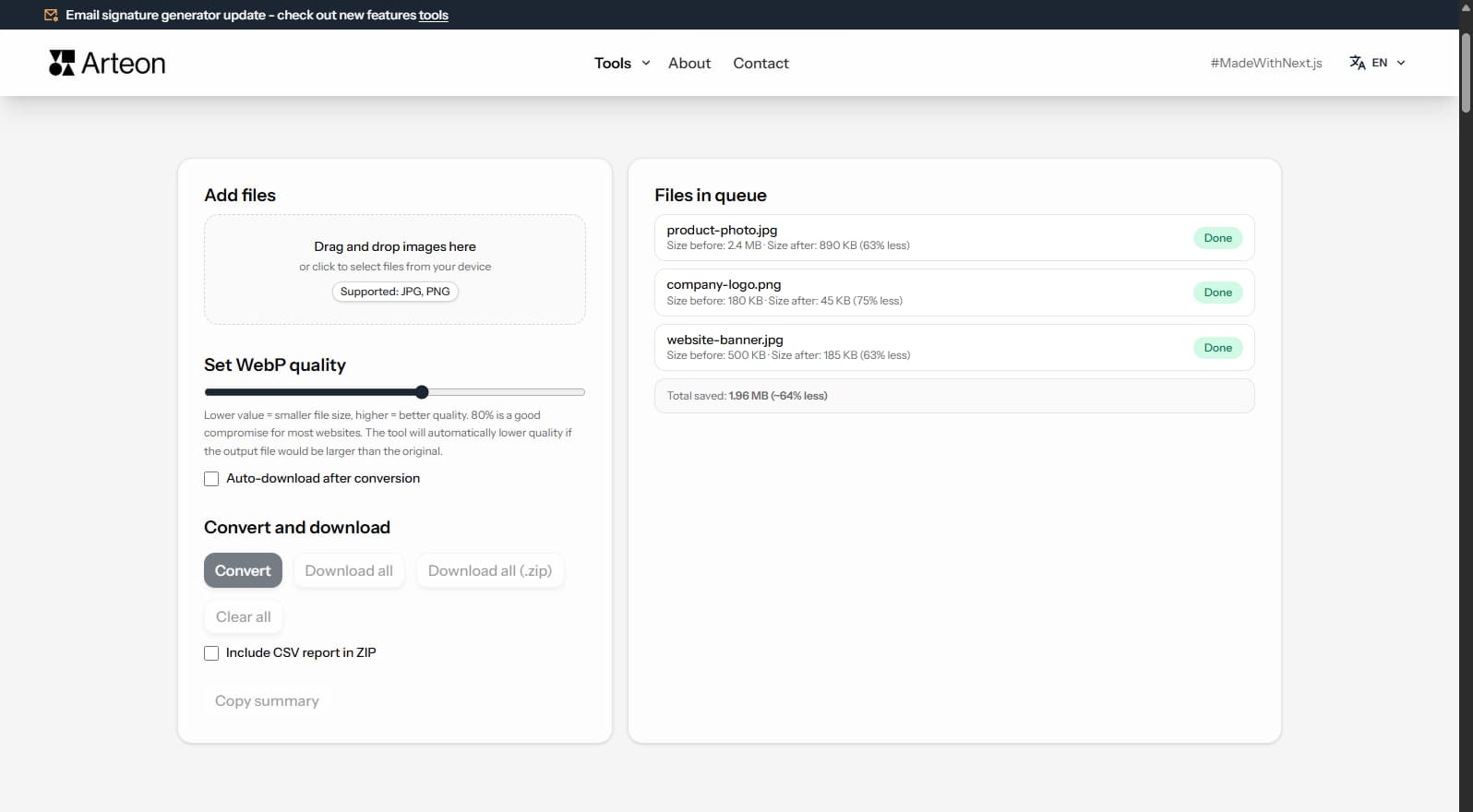
Help us improve our tools
Have an idea, found a bug, or want to suggest a feature? Drop us a message – we respond within 24 hours.
Explore other useful tools
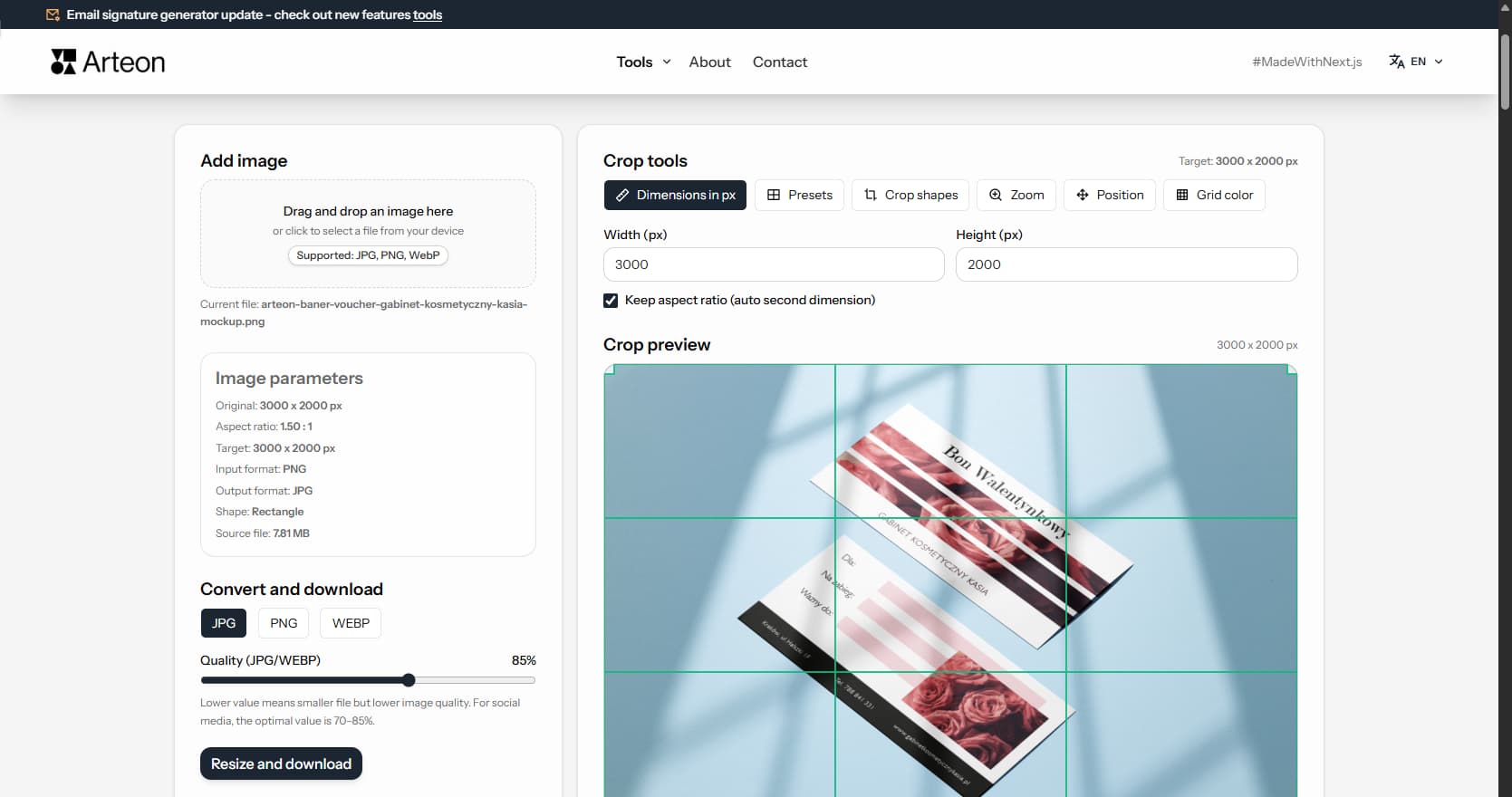
Online image editor
Resize, crop and convert your image. Ready-made formats for social media, circular avatars, export to JPG/PNG/WebP.
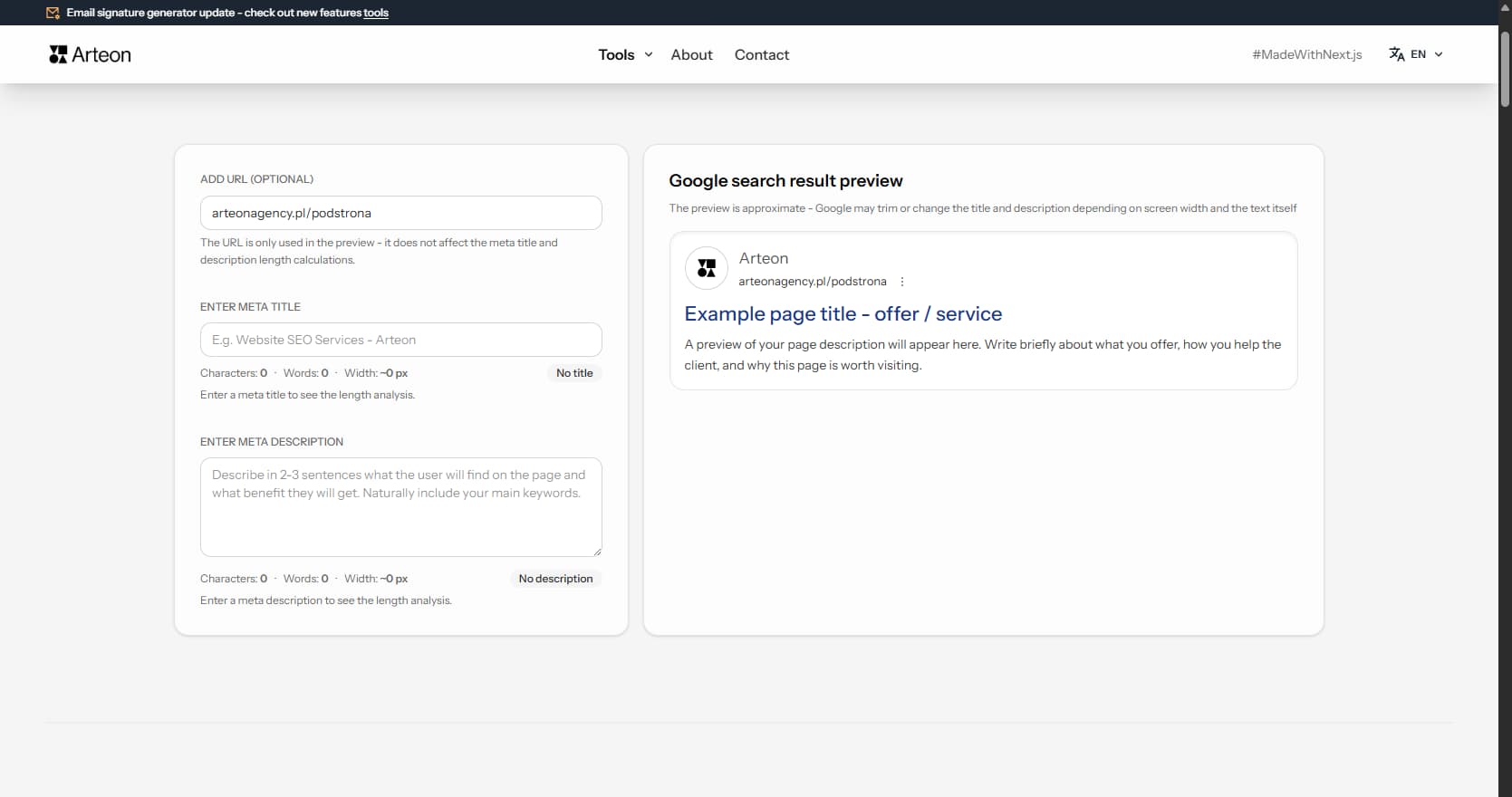
Meta title & description checker
Check title and description length in pixels. Live Google preview and optimization tips.
PNG to JPG
Convert PNG files to JPG in your browser. No file limits, no signup, no server uploads.
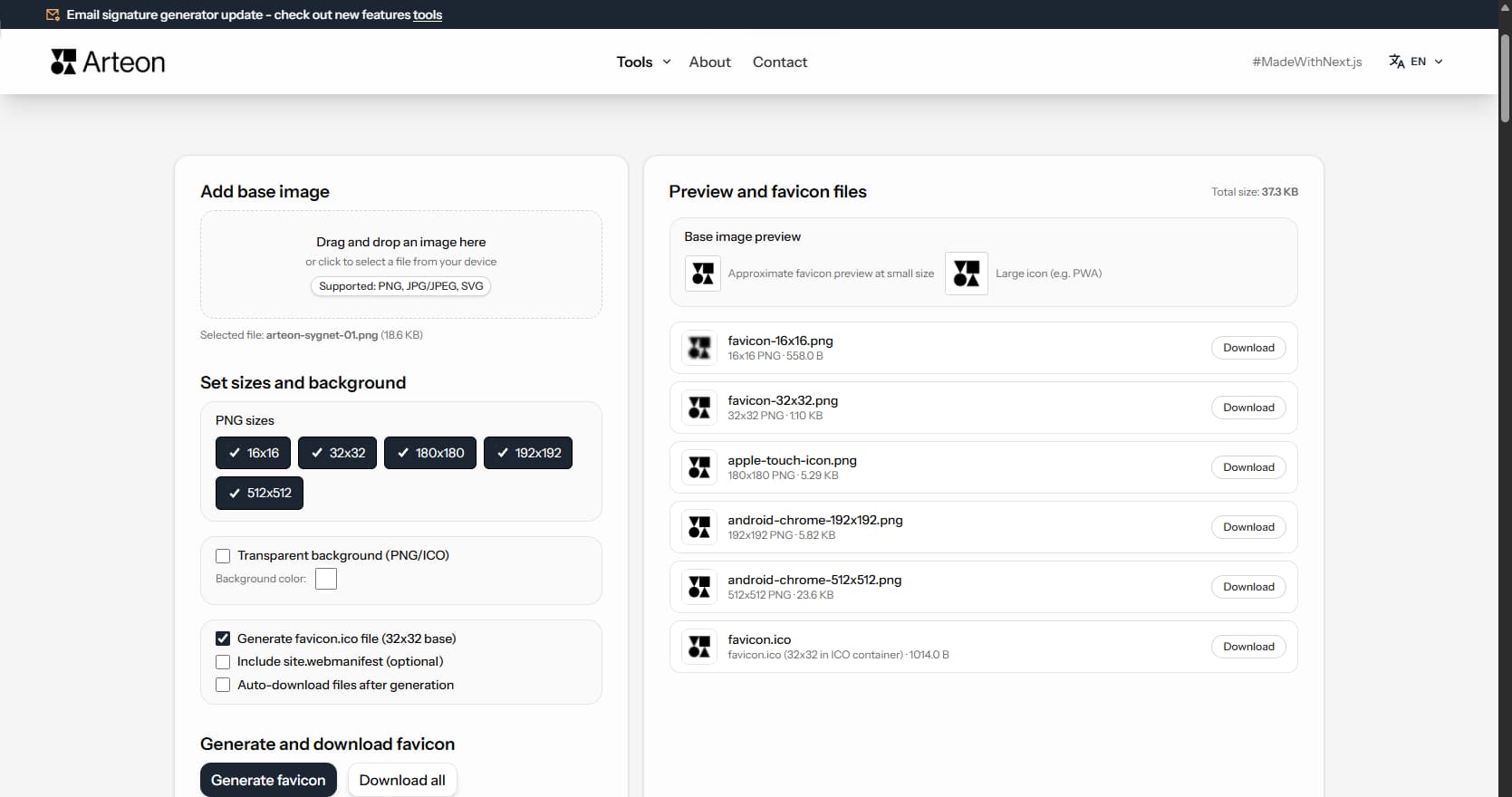
Favicon generator
Create a complete favicon.ico set for your website from one image. All required sizes, no login.
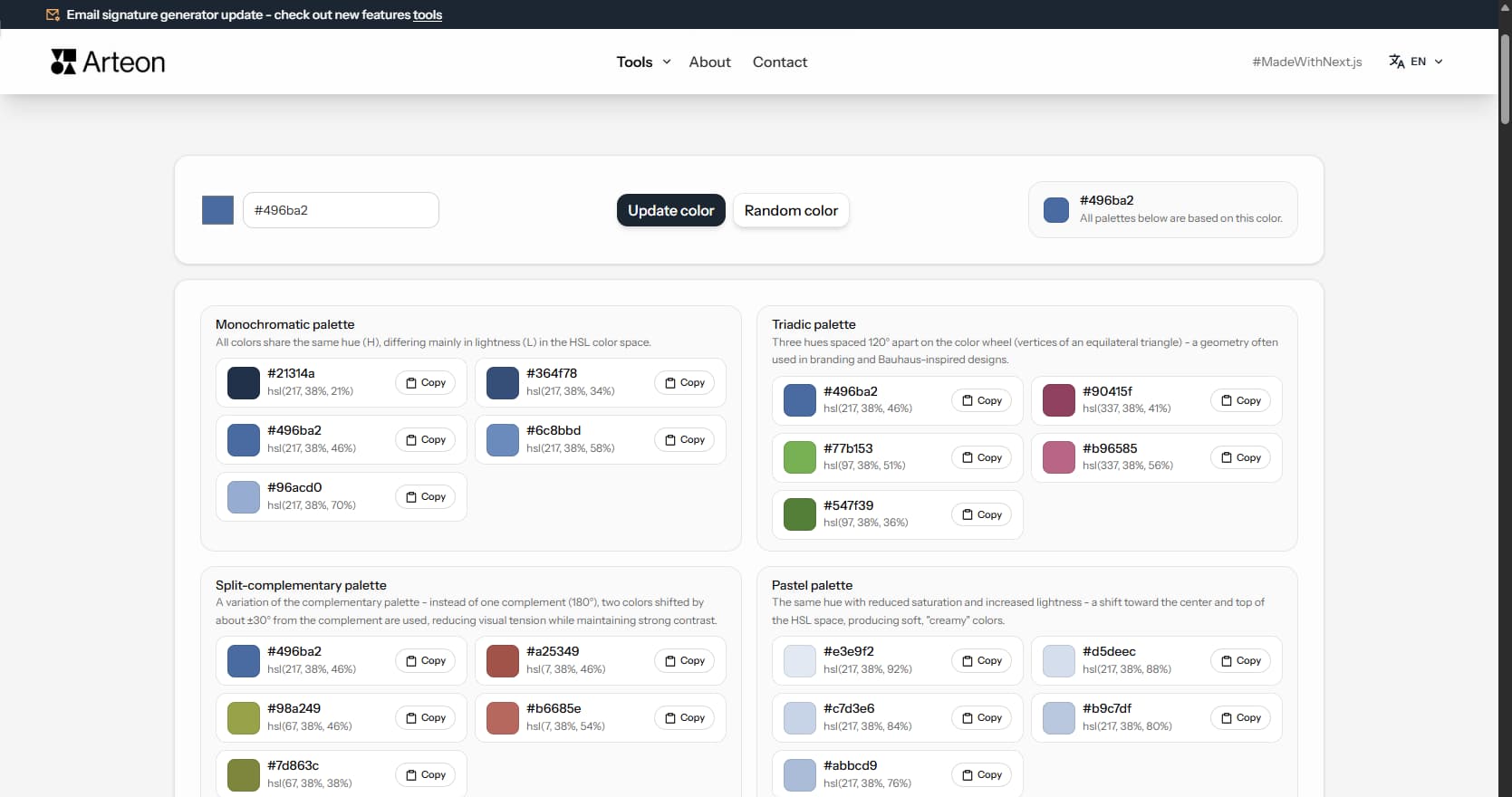
Color palette generator
Generate 9 palettes from one color: monochromatic, complementary, triadic and more. HEX codes.
WebP to JPG
Convert WebP files to universally compatible JPG. Works in every app and platform.
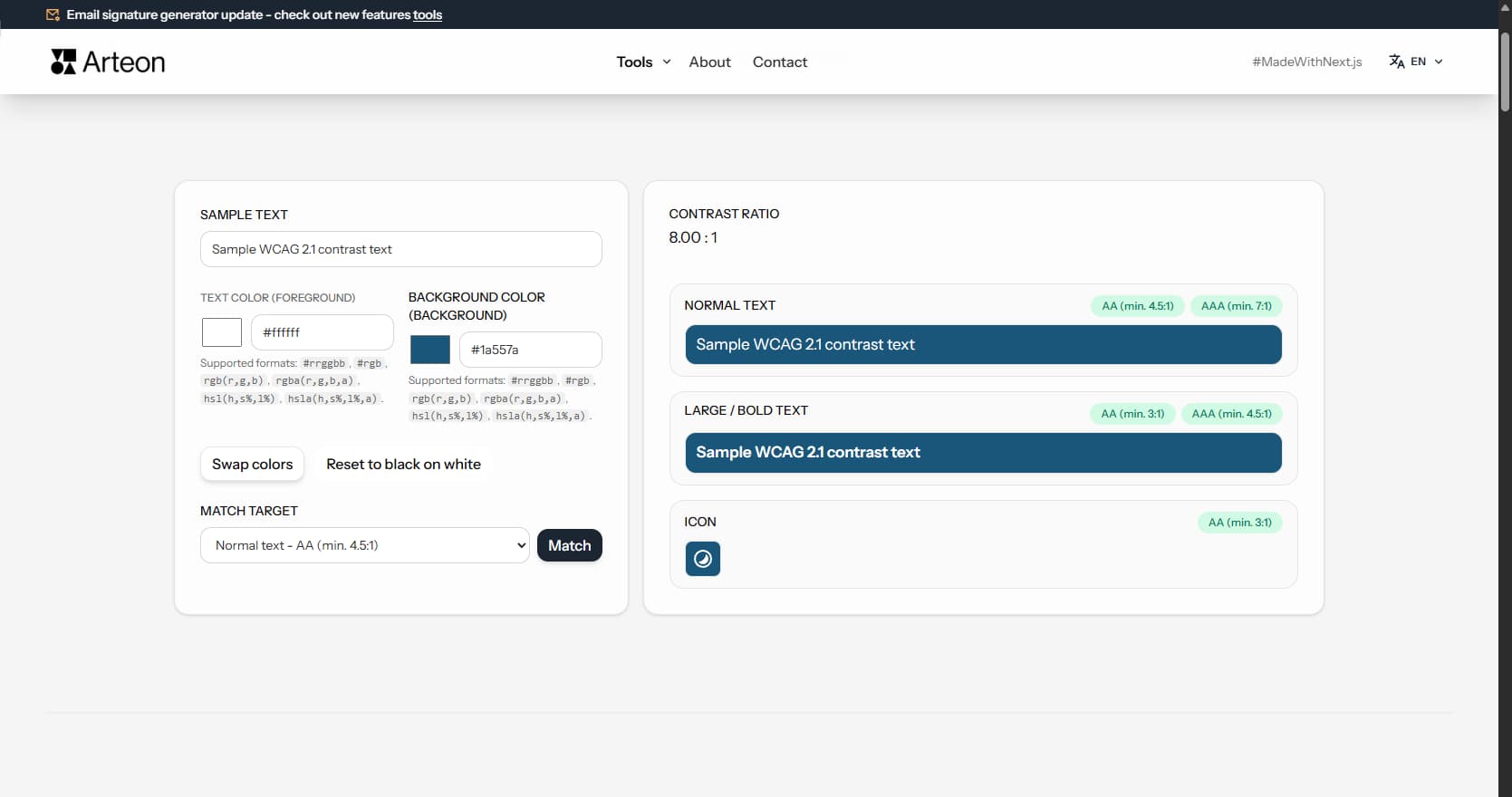
Color contrast checker
Check text and background contrast per WCAG 2.1 AA and AAA. Automatic color correction.
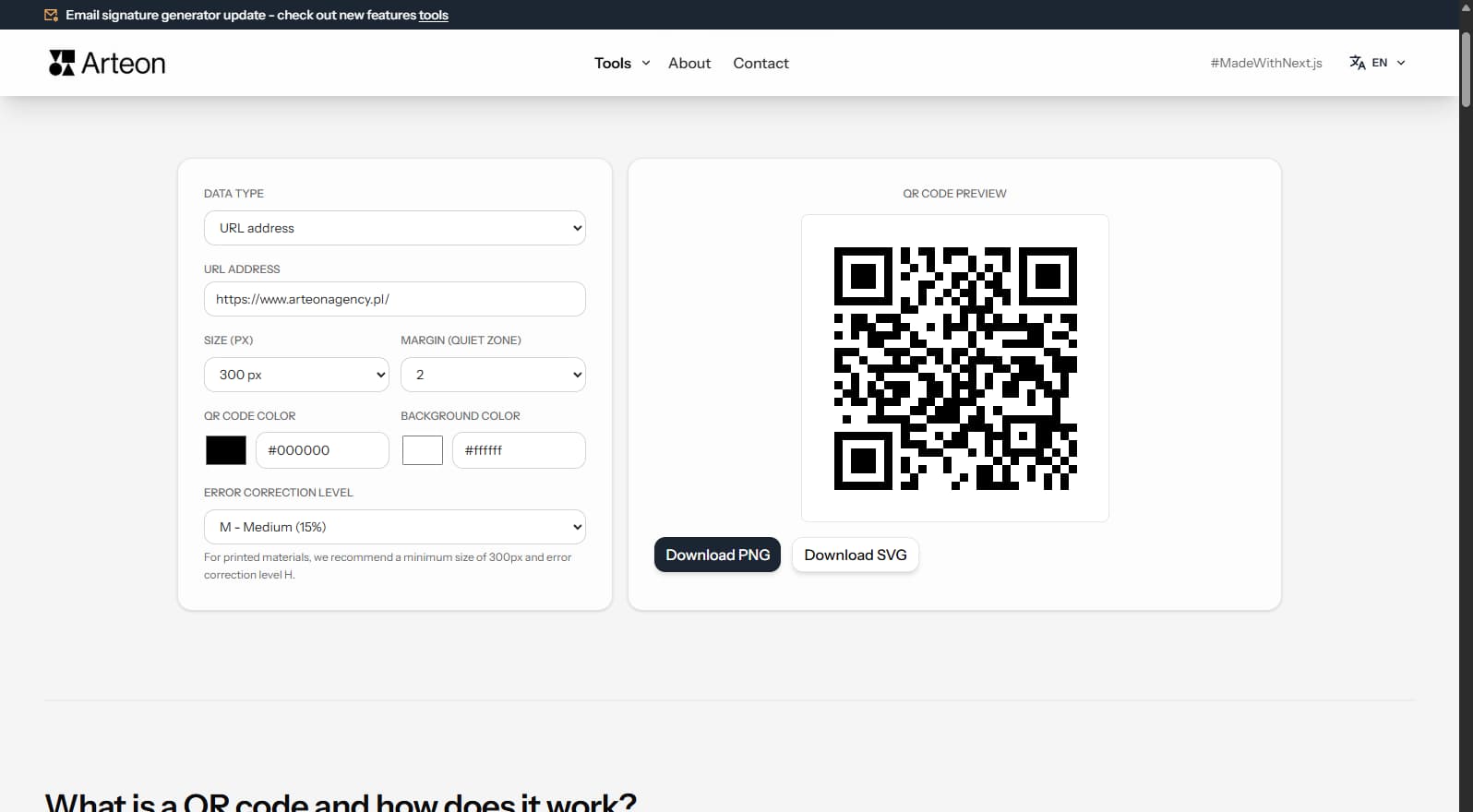
Free QR code generator
Create a QR code for a website, vCard business card or print. Export PNG and SVG, no registration.
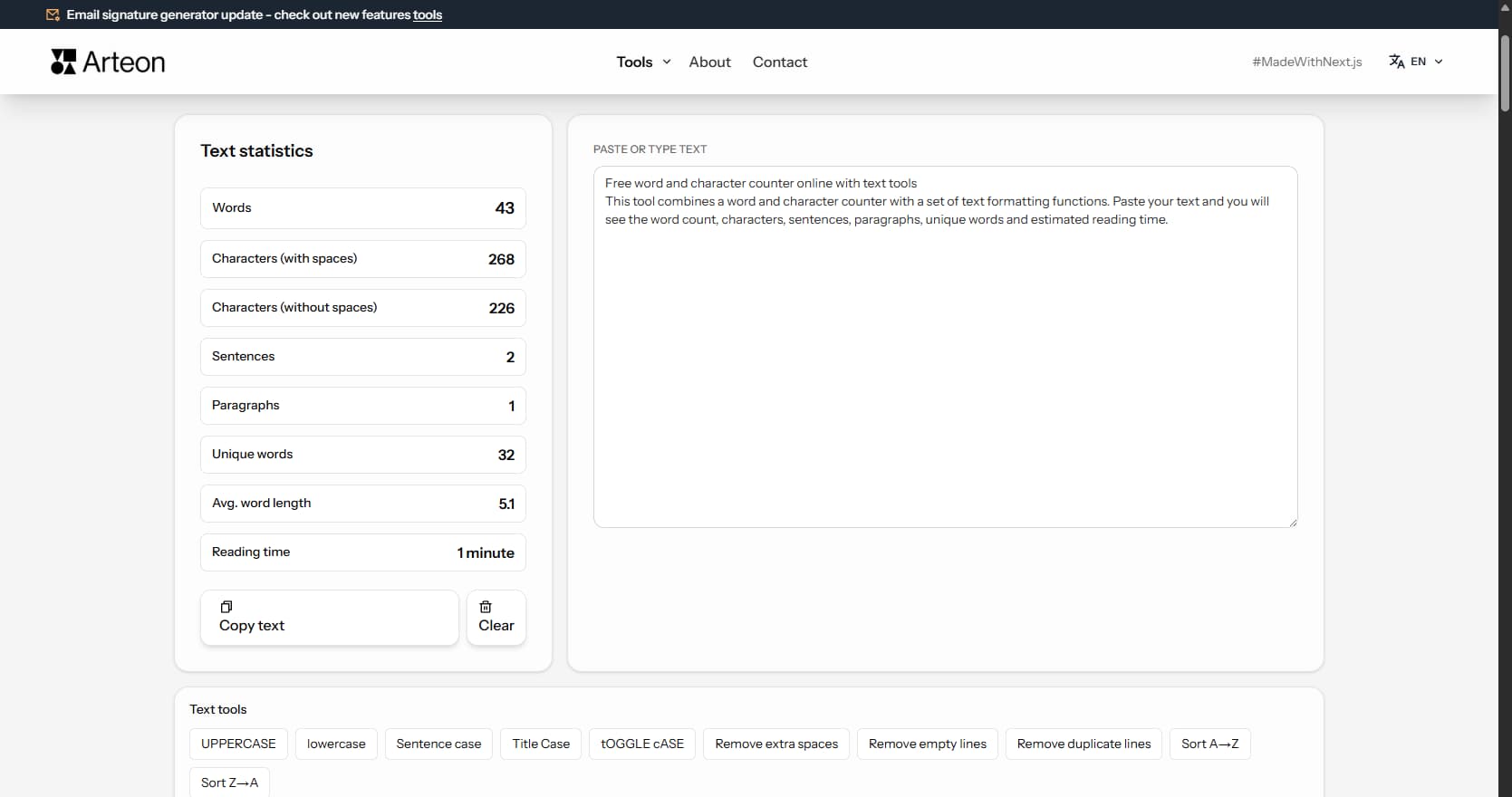
Word & character counter
Count words, characters, sentences and reading time. Check readability with the Flesch-Kincaid score.