GIF to JPG converter – compact static image from any GIF
Extract the first frame of a GIF as a JPG. Add files, set quality, and download. Runs locally in your browser.
Files in queue
Why convert GIF to JPG?
GIF is limited to 256 colors and is designed for simple graphics with flat colors. JPG supports millions of colors and uses lossy compression optimized for photographs. Converting GIF to JPG is useful when you need a more widely accepted format for photo-like images or when the 256-color limitation causes visible banding.
JPG is universally supported by every browser, email client, social media platform, and image editor. At quality 85–90, JPG produces excellent results for photographic content at small file sizes.
Note that JPG does not support transparency — transparent areas in your GIF will be filled with a solid background color (typically white). If transparency is important, convert to PNG or WebP instead.
All processing happens locally in your browser — nothing is sent to any server. No registration, no limits, no watermarks.
How to convert GIF to JPG
Upload your GIF file
Drag and drop your GIF image onto the converter area or click to browse your device. You can add multiple files at once for batch conversion.Adjust settings
Choose your preferred quality and output options. The converter shows a live preview so you can compare the original GIF with the JPG result before downloading.Download your JPG file
Click the download button to save your converted JPG file. For multiple files, use the batch download option to get all results in one click.
When should you convert GIF to JPG?
Website optimization
Convert GIF to JPG to ensure universal compatibility with all browsers and content management systems.Email and sharing
JPG files are universally accepted by email clients like Gmail, Outlook, and Apple Mail. JPG is the safest choice for email attachments due to its universal support.E-commerce and marketplaces
Platforms like Amazon, eBay, Etsy, Shopify often prefer JPG format for product images due to its optimal balance of quality and file size.Documents and archival
JPG is widely accepted for digital documents, reports, and presentations.
What makes this GIF to JPG converter different?
Complete privacy
Your GIF files are processed entirely in your browser. Nothing is uploaded to any server – your images stay on your device at all times.No limits
Convert as many GIF files to JPG as you need. There are no daily limits, no file size restrictions, and no watermarks on the output.Quality control
Adjust compression settings to find the perfect balance between file size and image quality. Preview changes in real time before downloading.Instant conversion
All processing happens locally using modern browser APIs, which means conversion is fast and works even without an internet connection after the page loads.
GIF to JPG conversion in practice
Businesses, developers, and creators worldwide rely on image format compatibility. Whether you are preparing product images for Amazon, eBay, Etsy, Shopify, optimizing graphics for WordPress, Wix, Squarespace, or converting photos for government portals worldwide, having the right format matters.
Modern web standards increasingly favor efficient formats. Google PageSpeed Insights and Core Web Vitals metrics reward pages that use optimized images. Converting GIF to JPG can directly improve your Largest Contentful Paint (LCP) score, which impacts both search rankings and user experience.
For email marketing campaigns and social media, JPG offers maximum compatibility across all platforms. Whether you are a freelancer, small business owner, or enterprise user, this converter handles your image conversion needs reliably and securely.
Tips for converting GIF to JPG
- Start with quality 85 – this is typically the sweet spot for JPG compression, offering significant file size reduction with minimal visible quality loss.
- Check for transparency – GIF images with transparent areas will get a solid background in JPG. Choose a background color that works for your use case before converting.
- Batch convert for efficiency – if you have many GIF files, use the batch conversion feature to process them all at once. This saves considerable time compared to one-by-one conversion.
- Compare before downloading – use the live preview to compare the original GIF with the JPG result. Adjust quality settings until you find the right balance for your specific use case.
- Keep your originals – always save a copy of your original GIF files. Lossy compression is irreversible, so having the originals allows you to re-convert with different settings later.
GIF vs JPG – format comparison
| Feature | GIF | JPG |
|---|---|---|
| Lossy compression | — | ✓ |
| Lossless compression | ✓ | — |
| Transparency (alpha channel) | ✓ | — |
| Animation support | ✓ | — |
| Web browser support | All browsers | All browsers |
| Color depth | 8-bit (256) | 8-bit (16.7M) |
| Compact file size | — | ✓ |
| Metadata (EXIF) | — | ✓ |
Quality settings – what to choose when converting GIF to JPG?
The quality slider lets you set a value from 60% to 95%. Higher values mean better image quality but larger file sizes.
- 85% (recommended) – the best balance for most GIF-to-JPG conversions. JPG at 85% preserves all visual detail from the 256-color GIF source.
- 90–95% – for graphics with fine details where maximum quality is needed.
- 60–75% – for email attachments and thumbnails where file size matters more than detail.
GIF is limited to 256 colors, so converting to JPG (which supports millions of colors) does not add color information — but it does remove the 256-color banding that may be visible in the GIF.
GIF to JPG – file size comparison
File size comparison depends on the image content. Simple graphics may be smaller in GIF, while complex images compress better in JPG:
Simple icon
GIF: 8 KB → JPG: 12 KB
JPG larger (simple graphic)
Photo-like GIF
GIF: 180 KB → JPG: 95 KB
Complex graphic
GIF: 250 KB → JPG: 120 KB
JPG works best for photographic content. For simple icons and logos, GIF or PNG may actually produce smaller files.
Convert other files to JPG
Convert GIF to other formats
Frequently asked questions about GIF to JPG conversion
Is converting GIF to JPG free?
Yes, this GIF to JPG converter is completely free with no limits. You can convert as many files as you need without registration or watermarks.
Does the converter upload my files to a server?
No. All processing happens locally in your browser using JavaScript and Canvas API. Your files never leave your device, ensuring complete privacy and security.
Will I lose quality when converting GIF to JPG?
JPG uses lossy compression, so there may be a slight reduction in quality depending on the compression level you choose. At higher quality settings (80-95%), the difference is typically imperceptible to the human eye.
What happens to transparent areas when converting GIF to JPG?
Since JPG does not support transparency, any transparent areas in your GIF image will be filled with a solid background color (white by default). You can typically choose a different background color in the converter settings.
Can I convert multiple GIF files at once?
Yes, the converter supports batch conversion. You can add multiple GIF files and convert them all to JPG simultaneously. Use the batch download option to save all converted files at once.
What is the maximum file size I can convert?
There is no hard file size limit since processing happens in your browser. However, very large files (over 50 MB) may take longer to process depending on your device's available memory and processing power.
Does the converter work on mobile devices?
Yes, the converter works on any device with a modern web browser, including smartphones and tablets. The interface adapts to your screen size for a comfortable experience on any device.
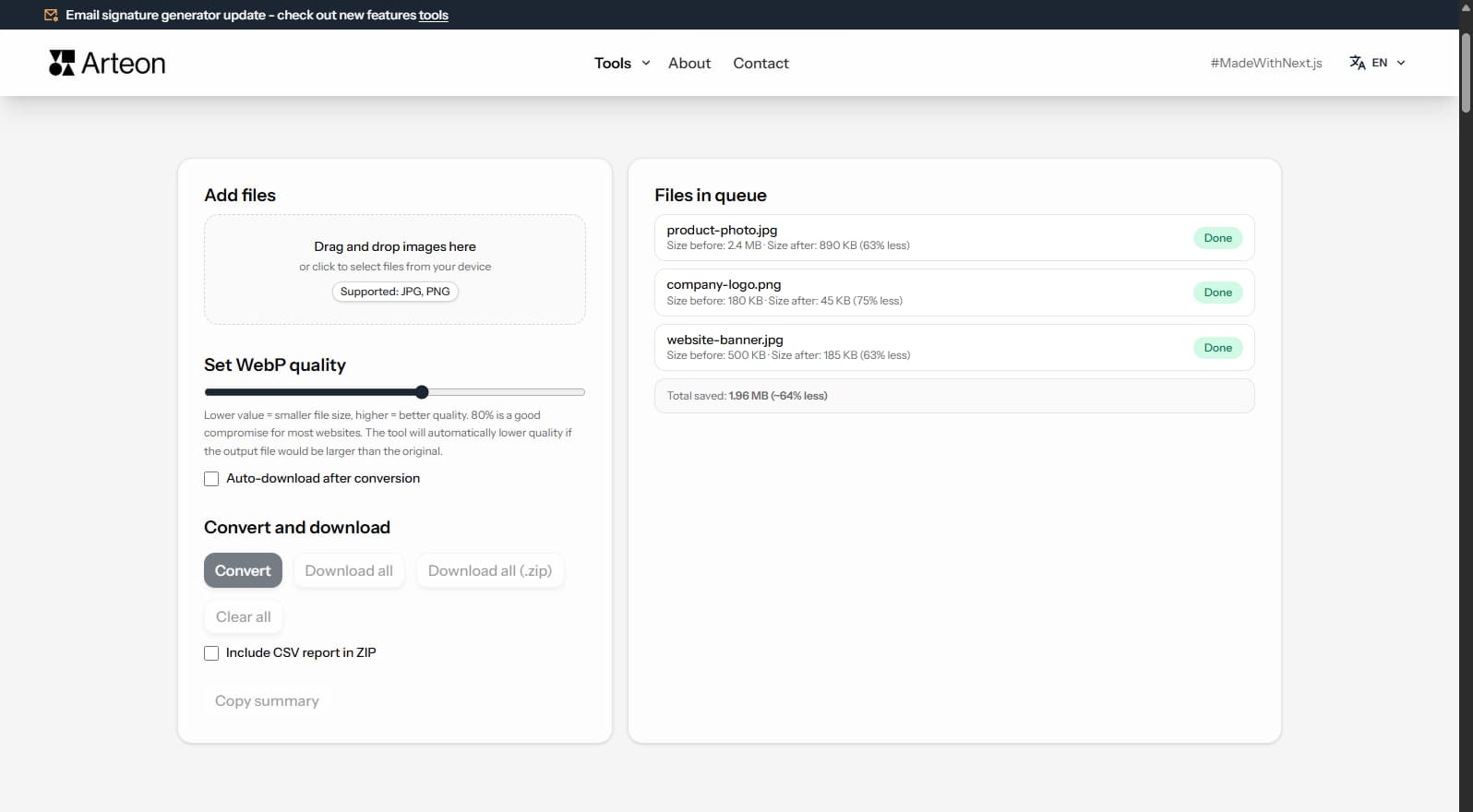
Help us improve our tools
Have an idea, found a bug, or want to suggest a feature? Drop us a message - we respond within 24 hours.
Explore other useful tools
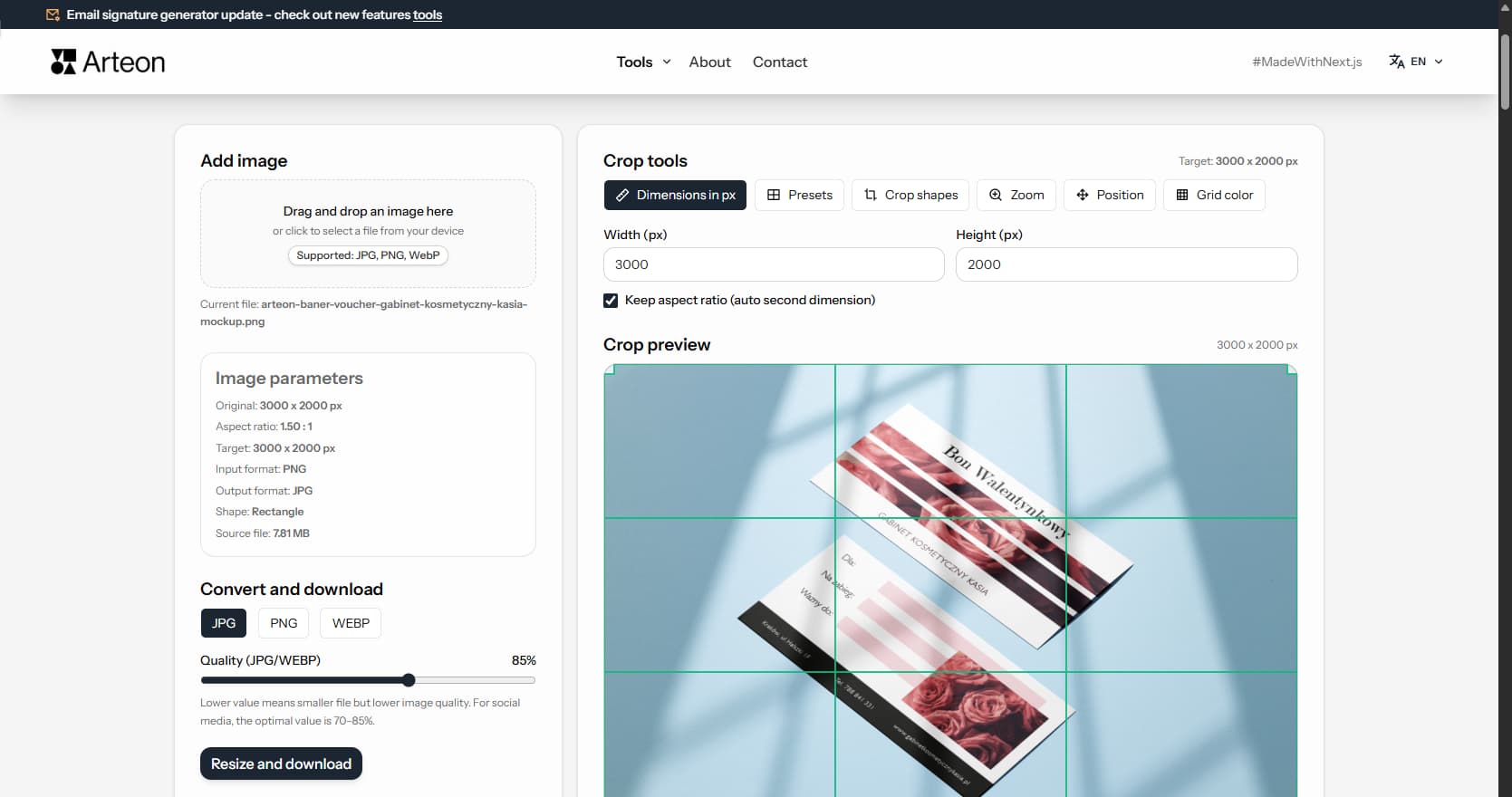
Online image editor
Resize, crop and convert your image. Ready-made formats for social media, circular avatars, export to JPG/PNG/WebP.
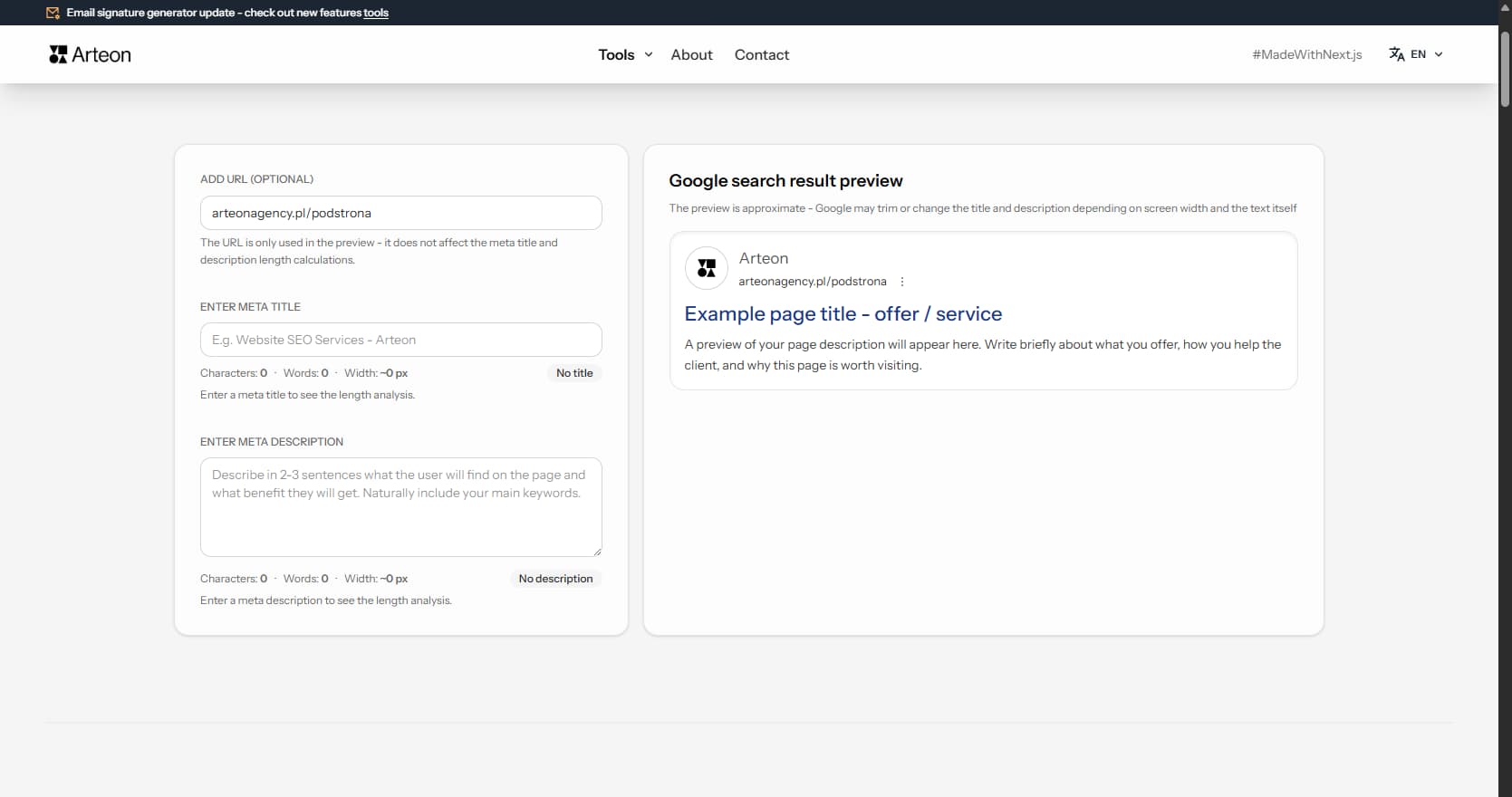
Meta title & description checker
Check title and description length in pixels. Live Google preview and optimization tips.
PNG to JPG
Convert PNG files to JPG in your browser. No file limits, no signup, no server uploads.
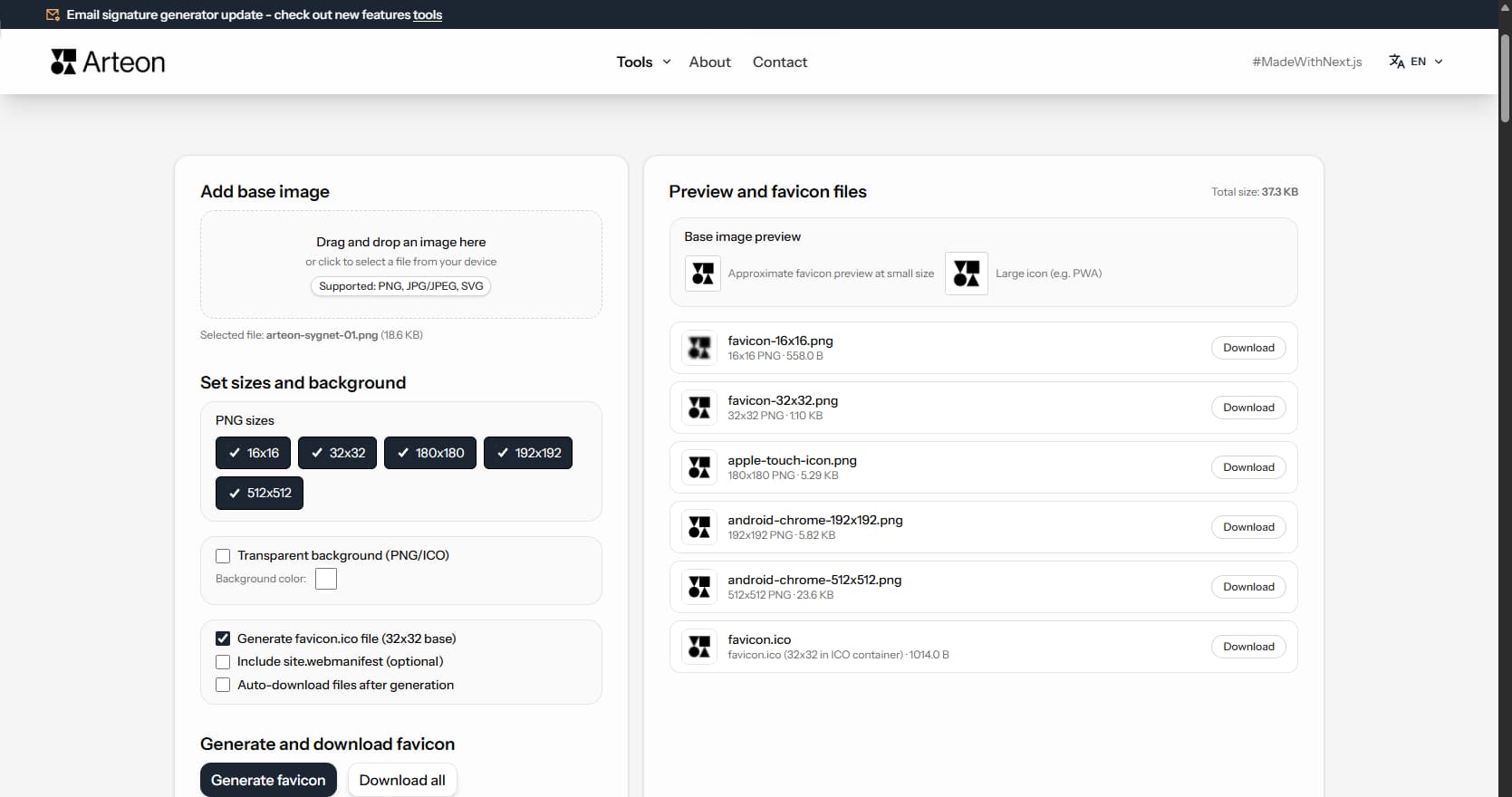
Favicon generator
Create a complete favicon.ico set for your website from one image. All required sizes, no login.
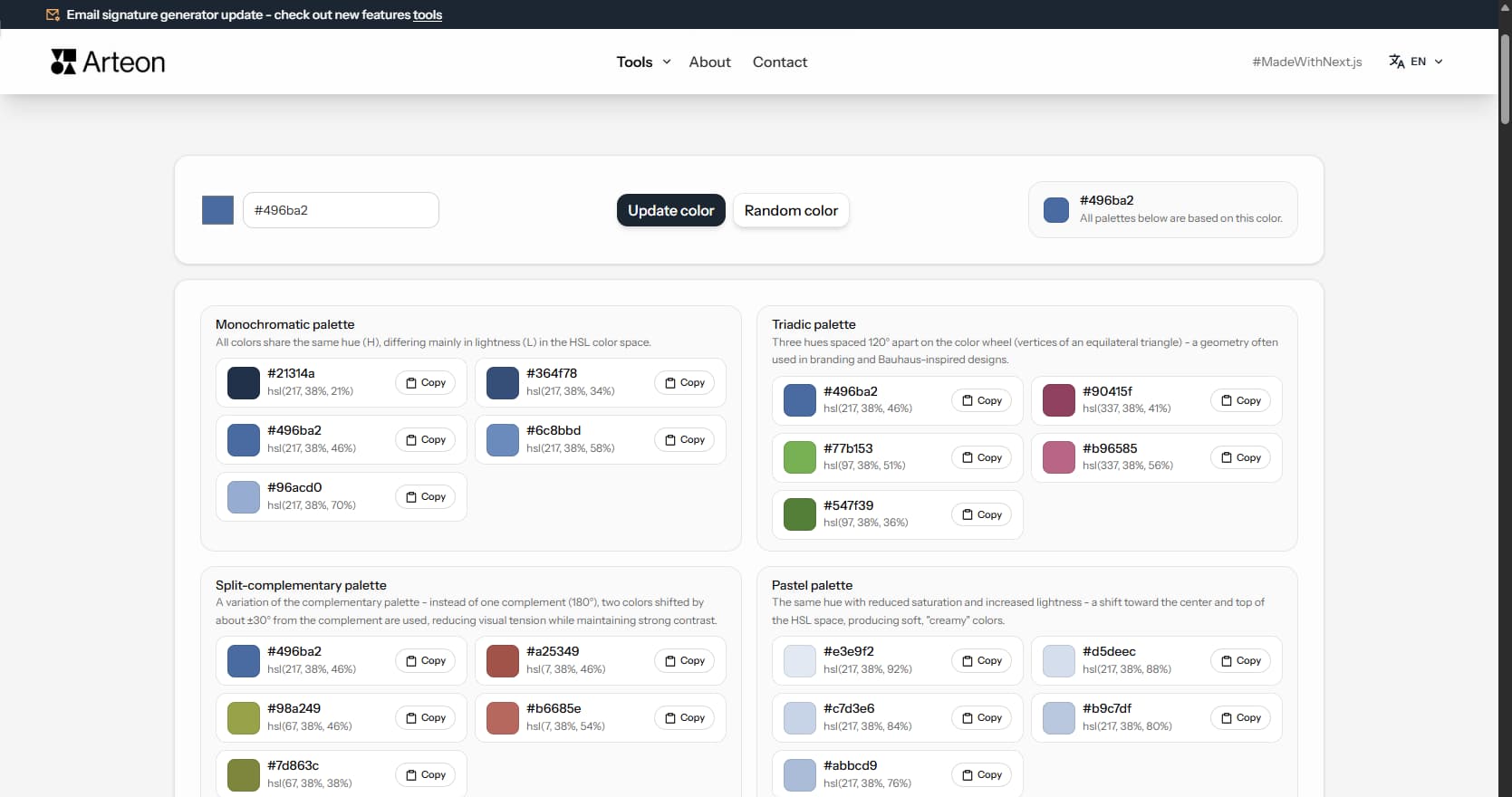
Color palette generator
Generate 9 palettes from one color: monochromatic, complementary, triadic and more. HEX codes.
WebP to JPG
Convert WebP files to universally compatible JPG. Works in every app and platform.
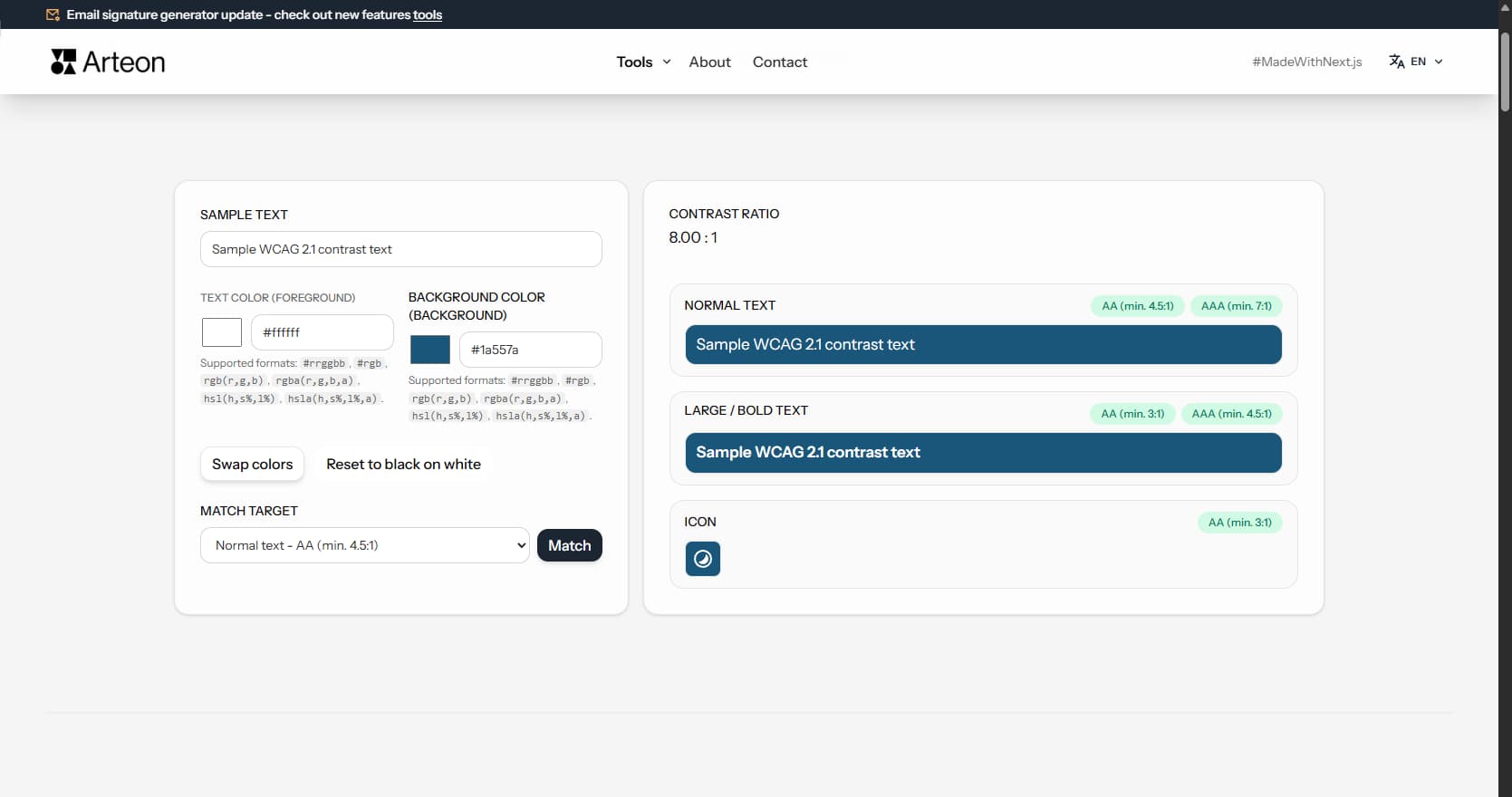
Color contrast checker
Check text and background contrast per WCAG 2.1 AA and AAA. Automatic color correction.
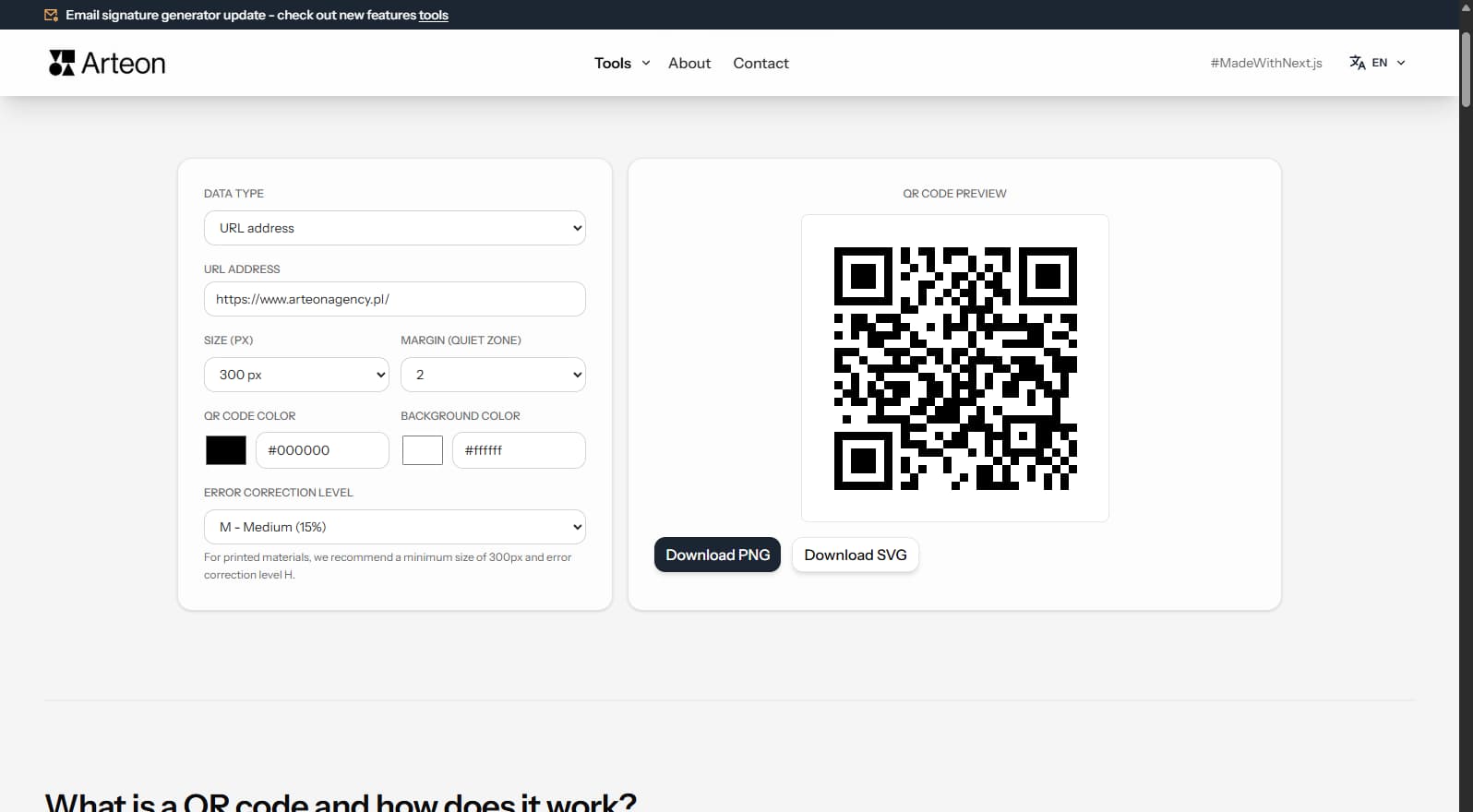
Free QR code generator
Create a QR code for a website, vCard business card or print. Export PNG and SVG, no registration.
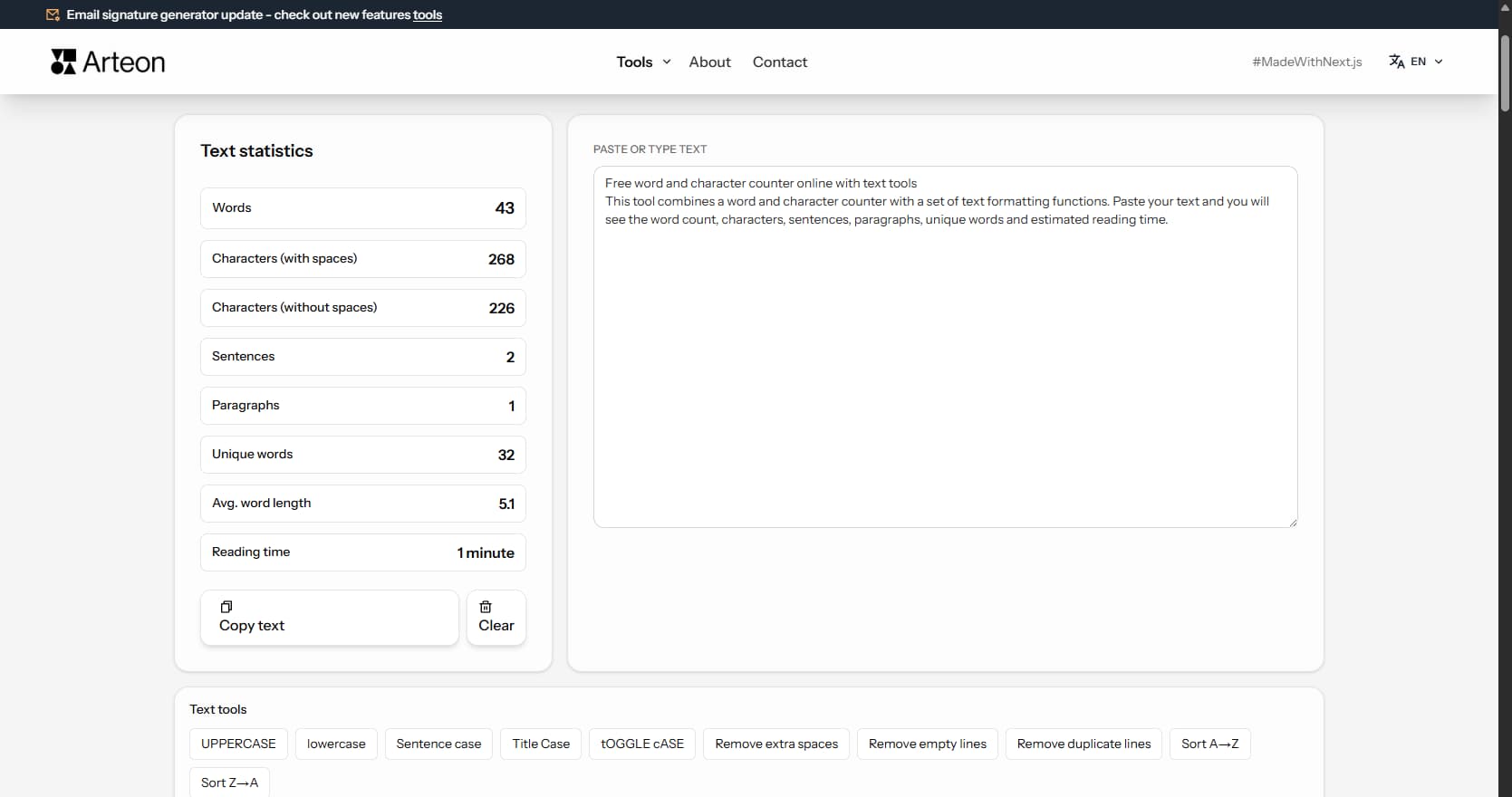
Word & character counter
Count words, characters, sentences and reading time. Check readability with the Flesch-Kincaid score.