PDF to PNG converter
Convert PDF pages to PNG images. High quality, no file limits. Free, no registration.
Files in queue
Why convert PDF to PNG?
PDF is universal for documents, but you often need individual page images for presentations, websites, or social media. PNG preserves sharp text and clean edges without compression artifacts, making it ideal for documents, invoices, and technical drawings extracted from PDF.
Each PDF page becomes a separate PNG file with lossless quality. PNG supports transparency, so pages with transparent backgrounds are preserved correctly. For photo-heavy PDFs where file size matters more than edge sharpness, consider converting to JPG or WebP instead.
This converter processes files locally in your browser — nothing is sent to any server. No registration, no limits, no watermarks.
How to convert PDF to PNG
Upload your PDF file
Drag and drop your PDF file onto the converter or click to browse.Convert pages
Each PDF page is converted to a separate PNG image.Download your PNG
Download the converted PNG file individually, or use the bulk download option to save all converted pages as a ZIP archive.
What makes this converter different?
Complete privacy
Your files are processed entirely in your browser. Nothing is uploaded to any server.No limits
Convert as many files as you need. No daily limits, no file size restrictions, no watermarks.Quality control
Adjust settings to find the perfect balance between file size and quality.Instant conversion
All processing happens locally using modern browser APIs - fast and works offline after loading.
PDF vs PNG – format comparison
| Feature | PNG | |
|---|---|---|
| Lossy compression | — | — |
| Lossless compression | ✓ | ✓ |
| Transparency (alpha channel) | ✓ | ✓ |
| Animation support | — | — |
| Web browser support | Built-in PDF viewer | All browsers |
| Compact file size | — | — |
| Metadata (EXIF) | — | — |
How image conversion impacts page speed and SEO
Core Web Vitals is a set of performance metrics Google uses when evaluating websites. One of them - LCP (Largest Contentful Paint) - measures the time it takes for the largest visible element to appear on screen. On many pages, that element is an image.
Converting PDF images to PNG reduces graphic file sizes, which directly shortens resource download time and improves the LCP score. Smaller files mean faster page loading - especially important on mobile devices with slower connections. Additional techniques like loading="lazy" and fetchpriority="high" speed up rendering.
Tools like PageSpeed Insights and Lighthouse identify specific files worth optimizing.
Tips for converting PDF to PNG
A few tips to help you avoid common issues during conversion:
Very large files
Converting images above 4000×4000 pixels may be slower and strain the browser. If processing many large files, consider splitting them into batches of 10–20.Already compressed files
If the original PDF file was already heavily compressed, converting to PNG may not yield significant size savings. Try different quality settings.Transparency
The PNG format supports alpha channel (transparency). If the original PDF file contains transparent areas, they will be preserved.Keep your originals
Lossy conversion is irreversible. Keep copies of original PDF files so you can re-convert with different settings if needed.
How much can you save by converting PDF to PNG?
Savings depend on the source file type and its original compression. Below are example results:
Camera photo
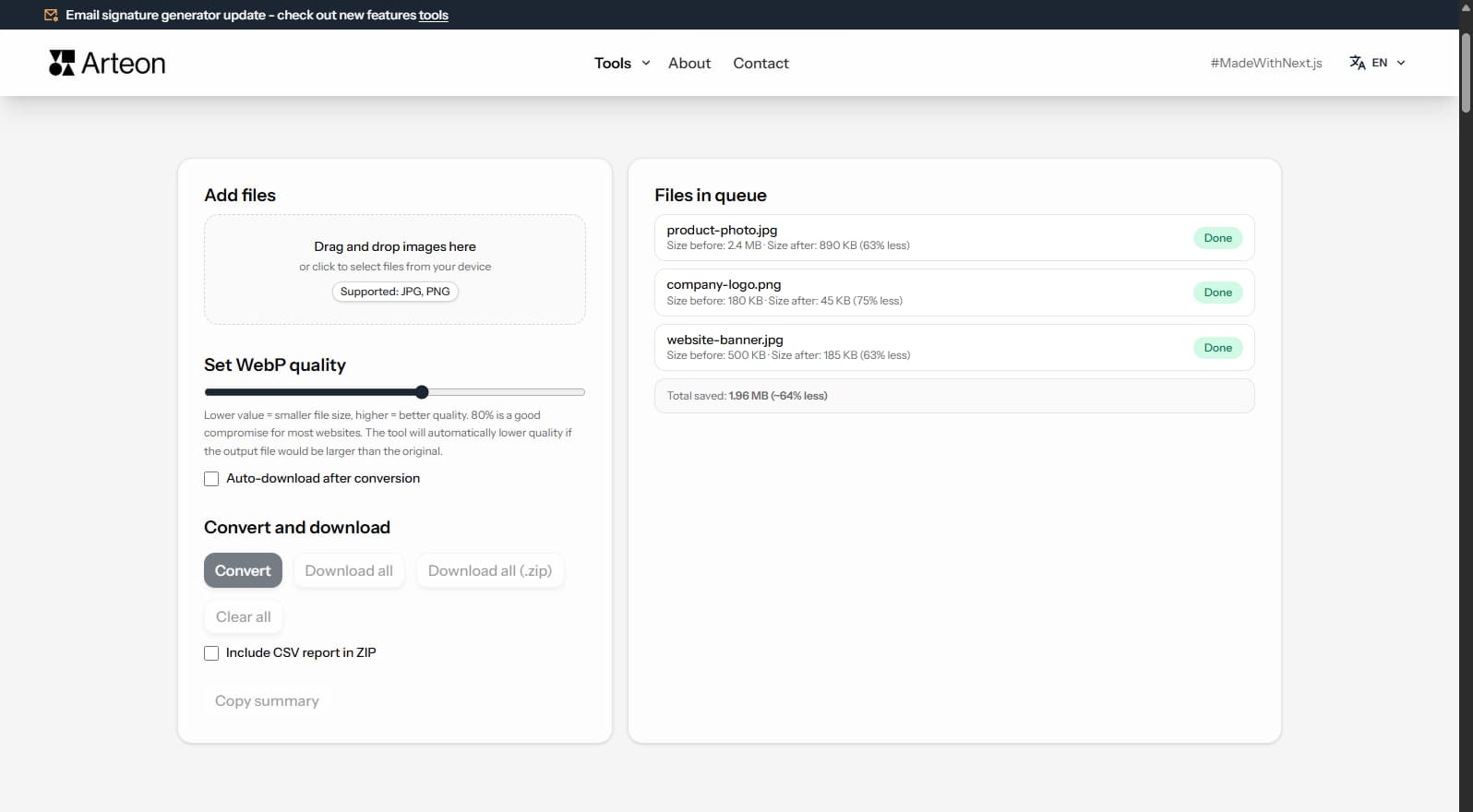
2.4 MB → 890 KB
Product image
500 KB → 185 KB
Screenshot / banner
350 KB → 230 KB
Actual savings may vary depending on image content and quality settings. The converter shows the exact size before and after conversion for each file.
When to choose PNG vs JPG for PDF page extraction
PNG is lossless — it preserves sharp text edges, clean lines, and exact colors without compression artifacts. This makes PNG ideal for documents with text, technical drawings, invoices, and any content with sharp edges.
JPG uses lossy compression and may show visible artifacts around text and sharp edges (known as "ringing"). However, JPG produces smaller files, which is better for photo-heavy PDFs like product catalogs or photo albums.
Rule of thumb: choose PNG for documents with text and diagrams, JPG for photo-heavy PDFs, and WebP for the best balance of quality and size.
Convert other files to PNG
Convert PDF to other formats
Frequently asked questions about PDF to PNG conversion
Is converting PDF to PNG free?
Yes, this converter is completely free with no limits. No registration, no watermarks.
Does the converter upload my files?
No. All processing happens locally in your browser. Your files never leave your device.
Can I convert multiple files at once?
Yes, the converter supports batch conversion. Add multiple files and convert them all simultaneously.
Does the converter work on mobile?
Yes, the converter works on any device with a modern web browser, including smartphones and tablets.
Is converting PDF to PNG safe for my files?
Yes. All conversion happens locally in your browser using the Canvas API. Files are never sent to any external server. When you close the page, data is automatically cleared.
What resolution will the output PNG images have?
The output resolution depends on the PDF page dimensions and rendering settings. PNG preserves exact pixel data without compression artifacts, making it ideal for documents with text and sharp edges.
Is PNG supported by all browsers?
The PNG format is widely supported by modern browsers: Chrome, Firefox, Safari, Edge, and Opera.
Help us improve our tools
Have an idea, found a bug, or want to suggest a feature? Drop us a message – we respond within 24 hours.
Explore other useful tools
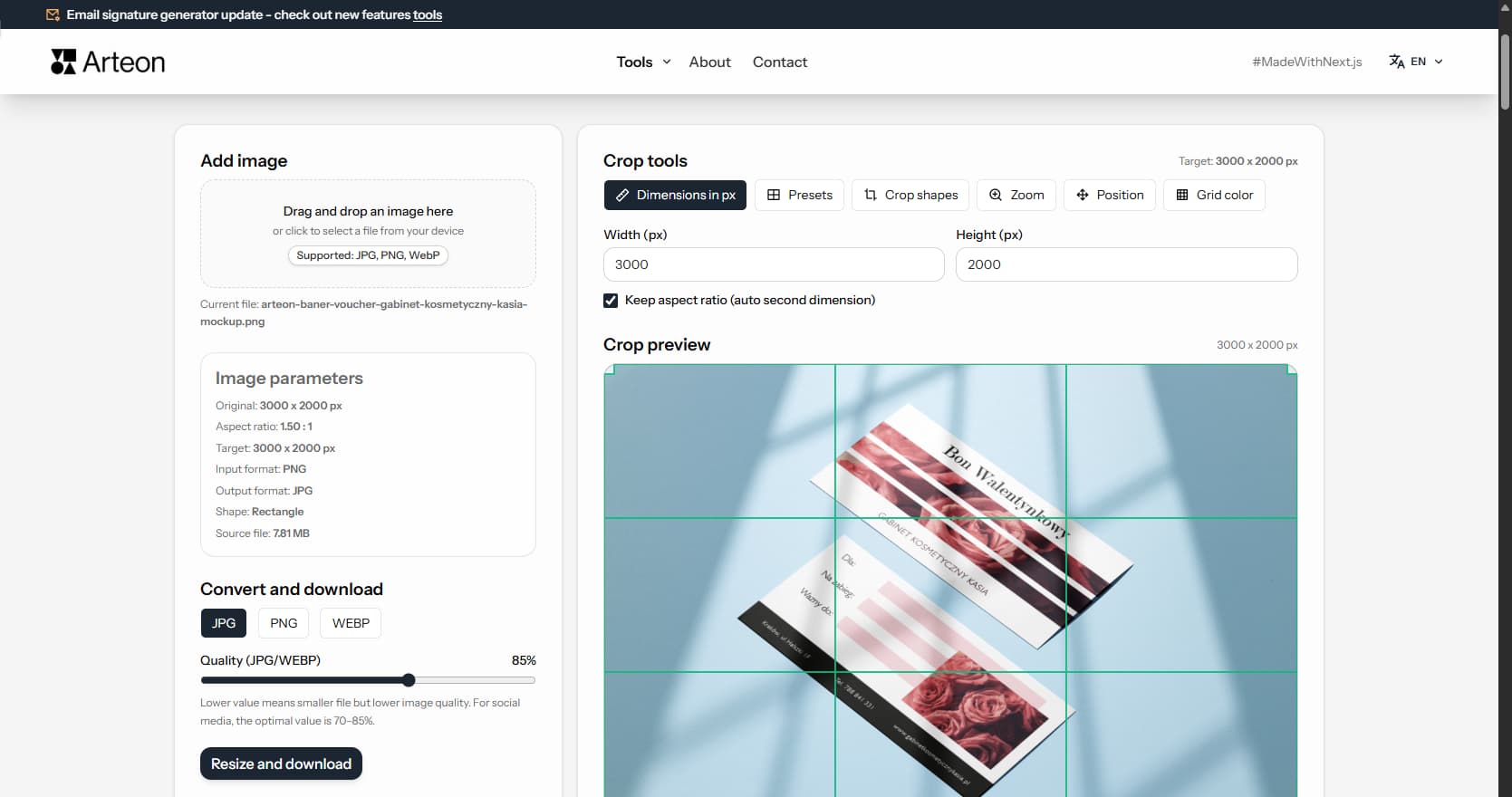
Online image editor
Resize, crop and convert your image. Ready-made formats for social media, circular avatars, export to JPG/PNG/WebP.
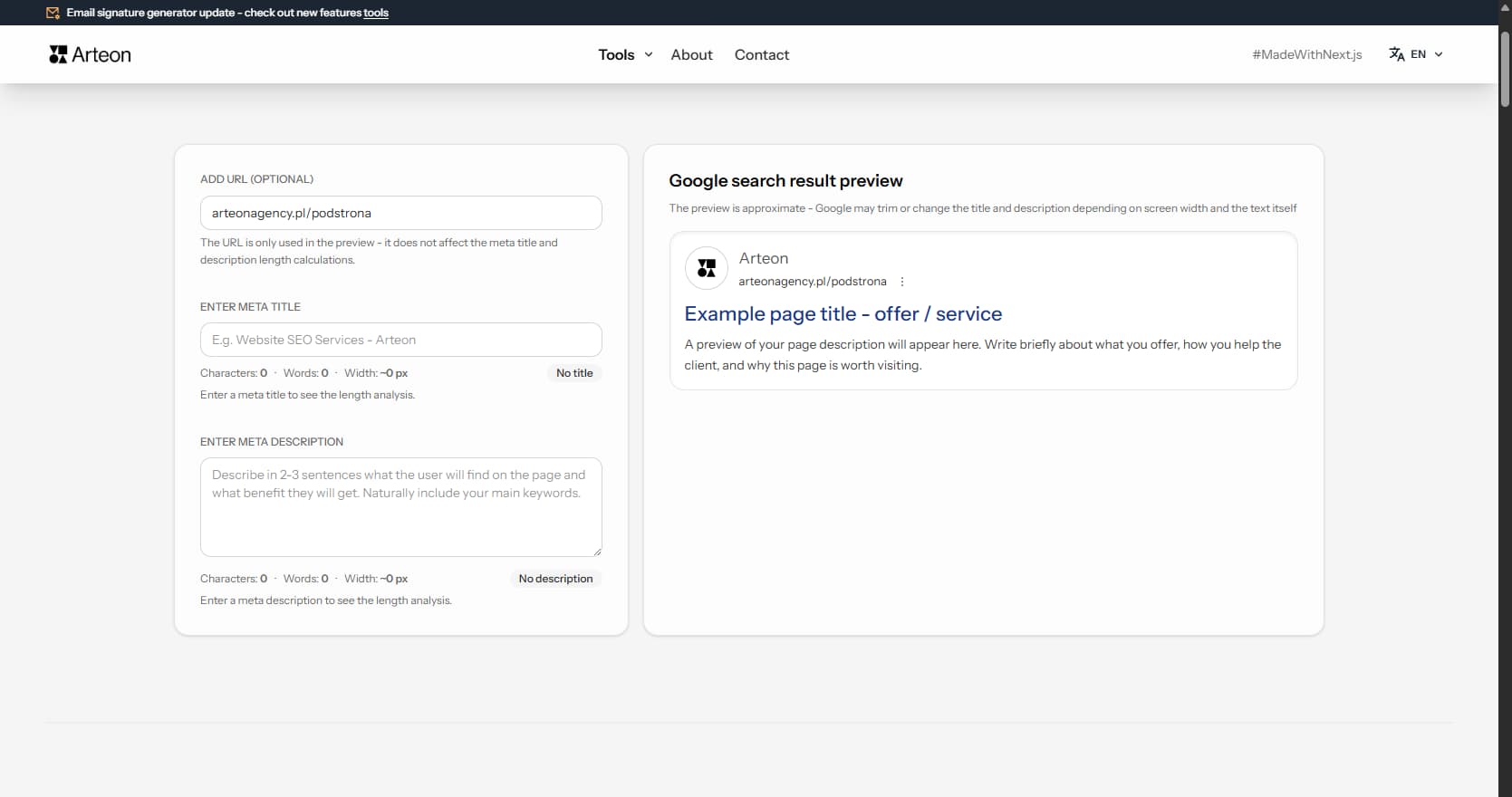
Meta title & description checker
Check title and description length in pixels. Live Google preview and optimization tips.
PNG to JPG
Convert PNG files to JPG in your browser. No file limits, no signup, no server uploads.
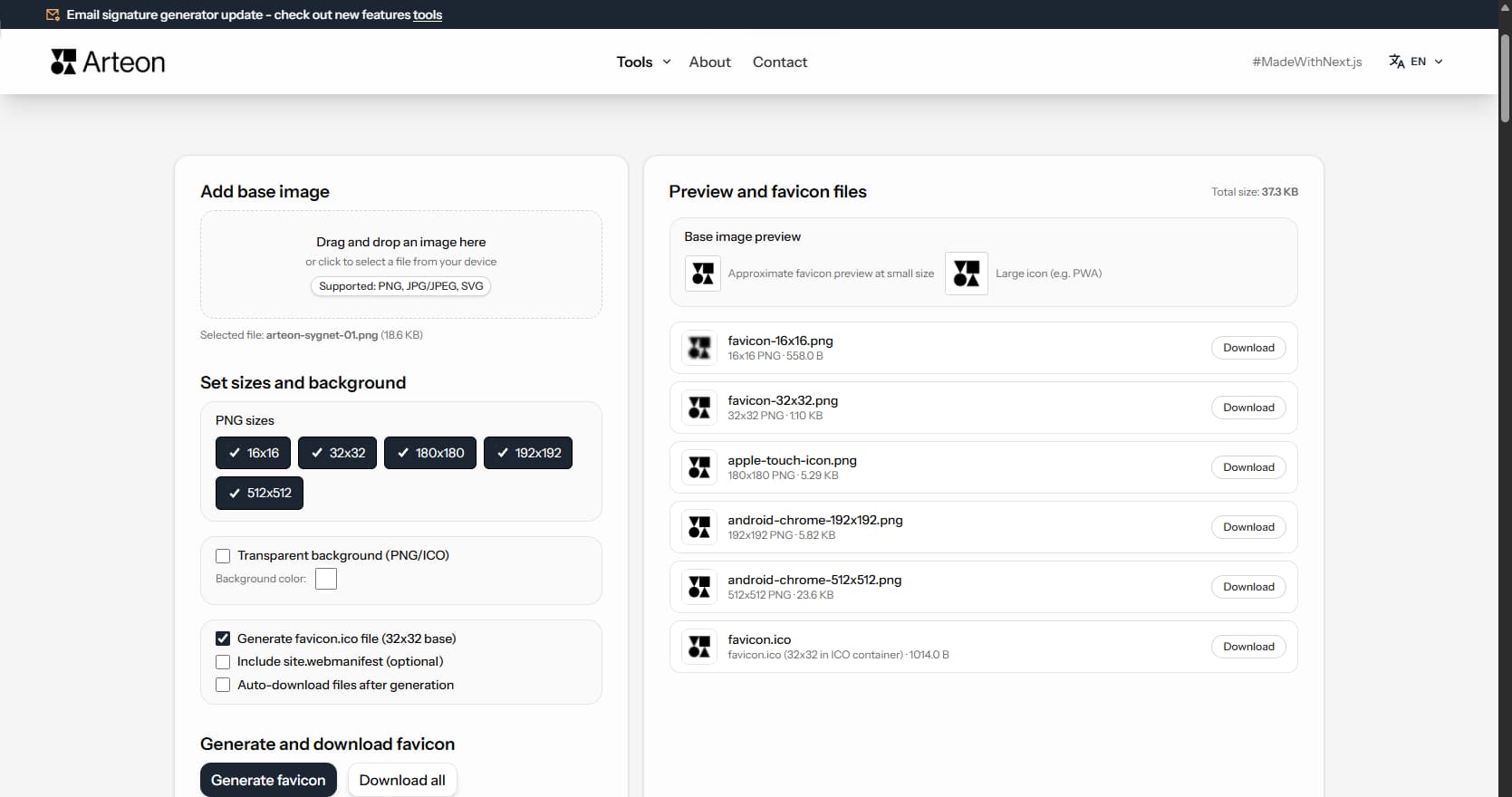
Favicon generator
Create a complete favicon.ico set for your website from one image. All required sizes, no login.
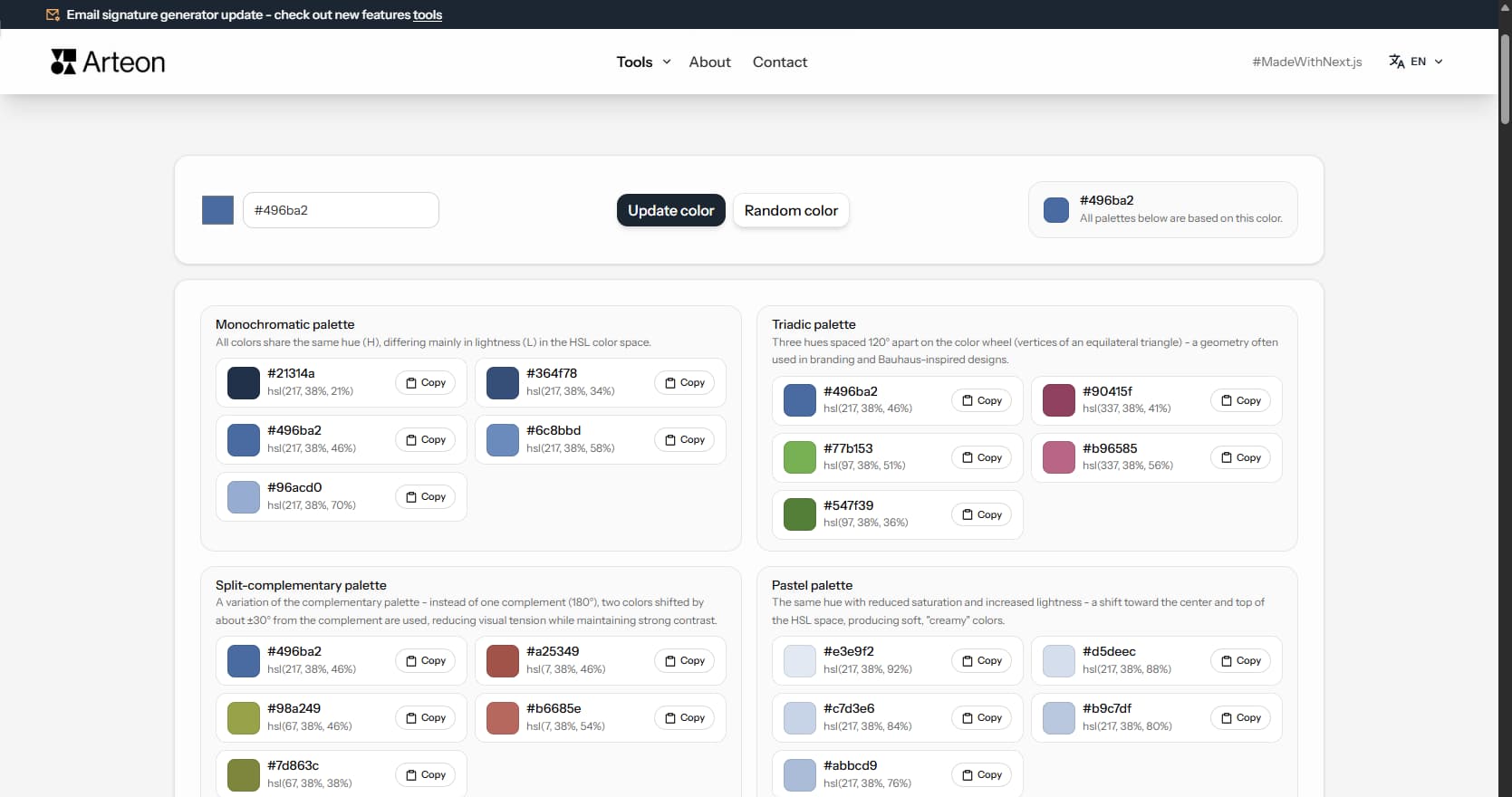
Color palette generator
Generate 9 palettes from one color: monochromatic, complementary, triadic and more. HEX codes.
WebP to JPG
Convert WebP files to universally compatible JPG. Works in every app and platform.
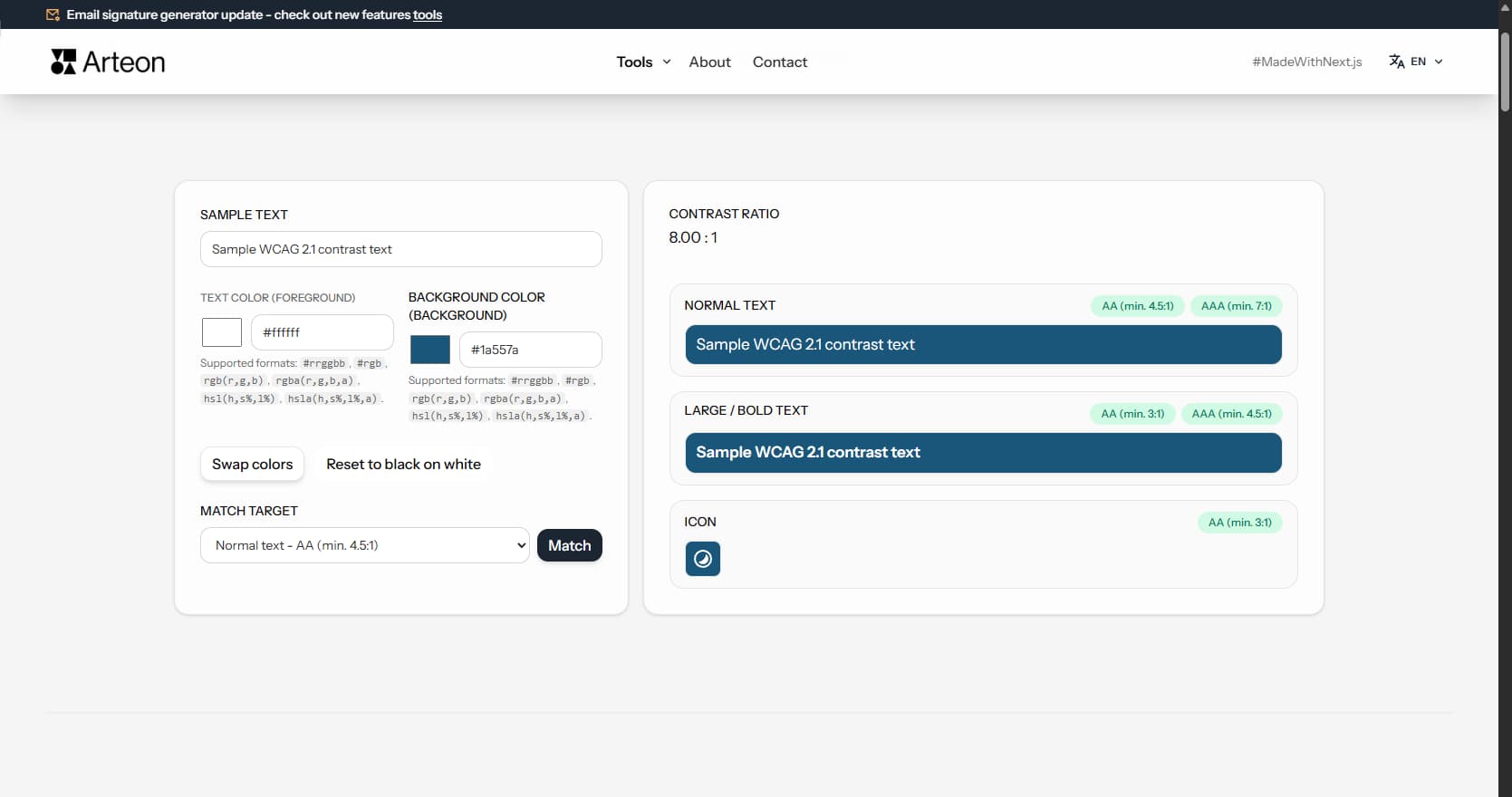
Color contrast checker
Check text and background contrast per WCAG 2.1 AA and AAA. Automatic color correction.
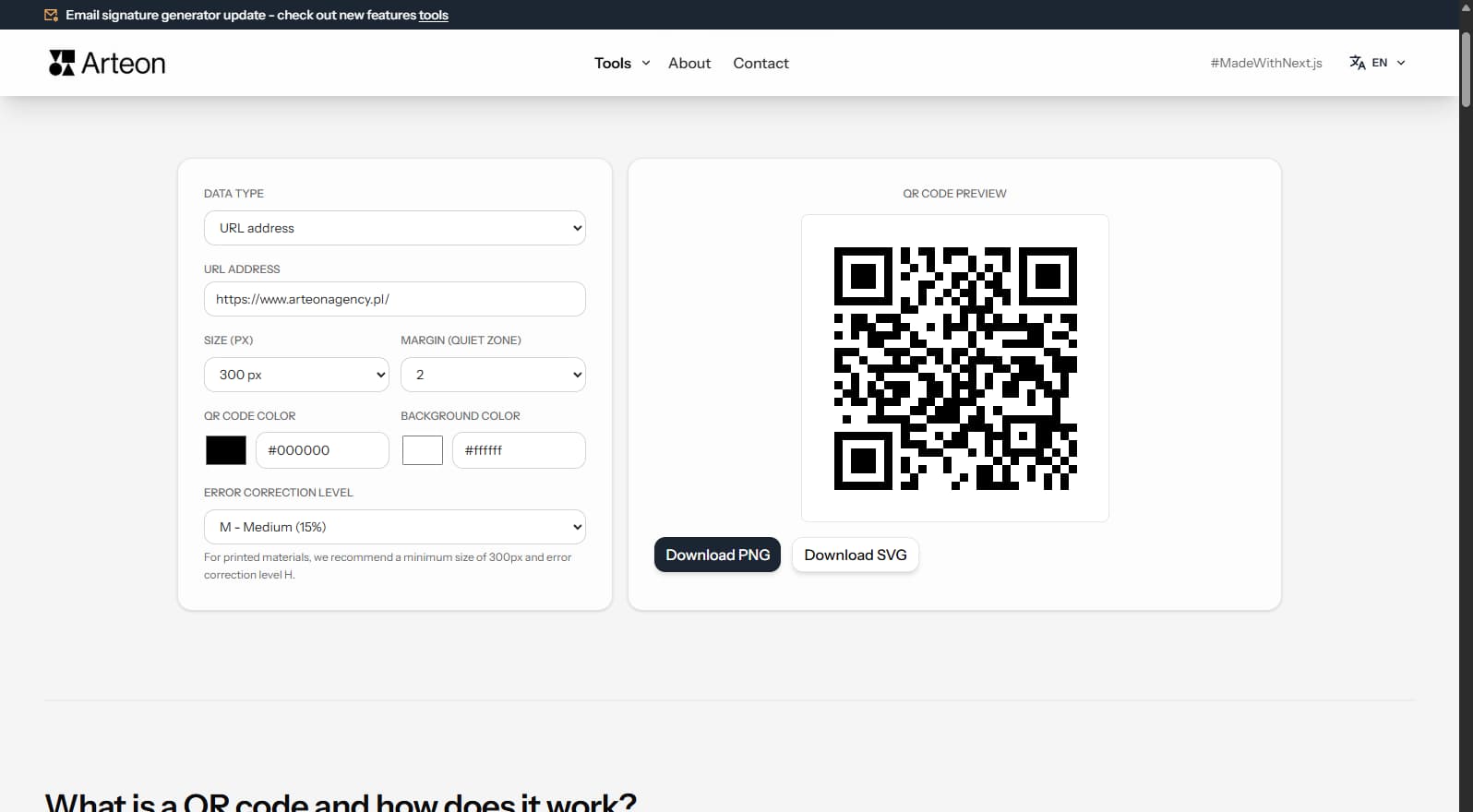
Free QR code generator
Create a QR code for a website, vCard business card or print. Export PNG and SVG, no registration.
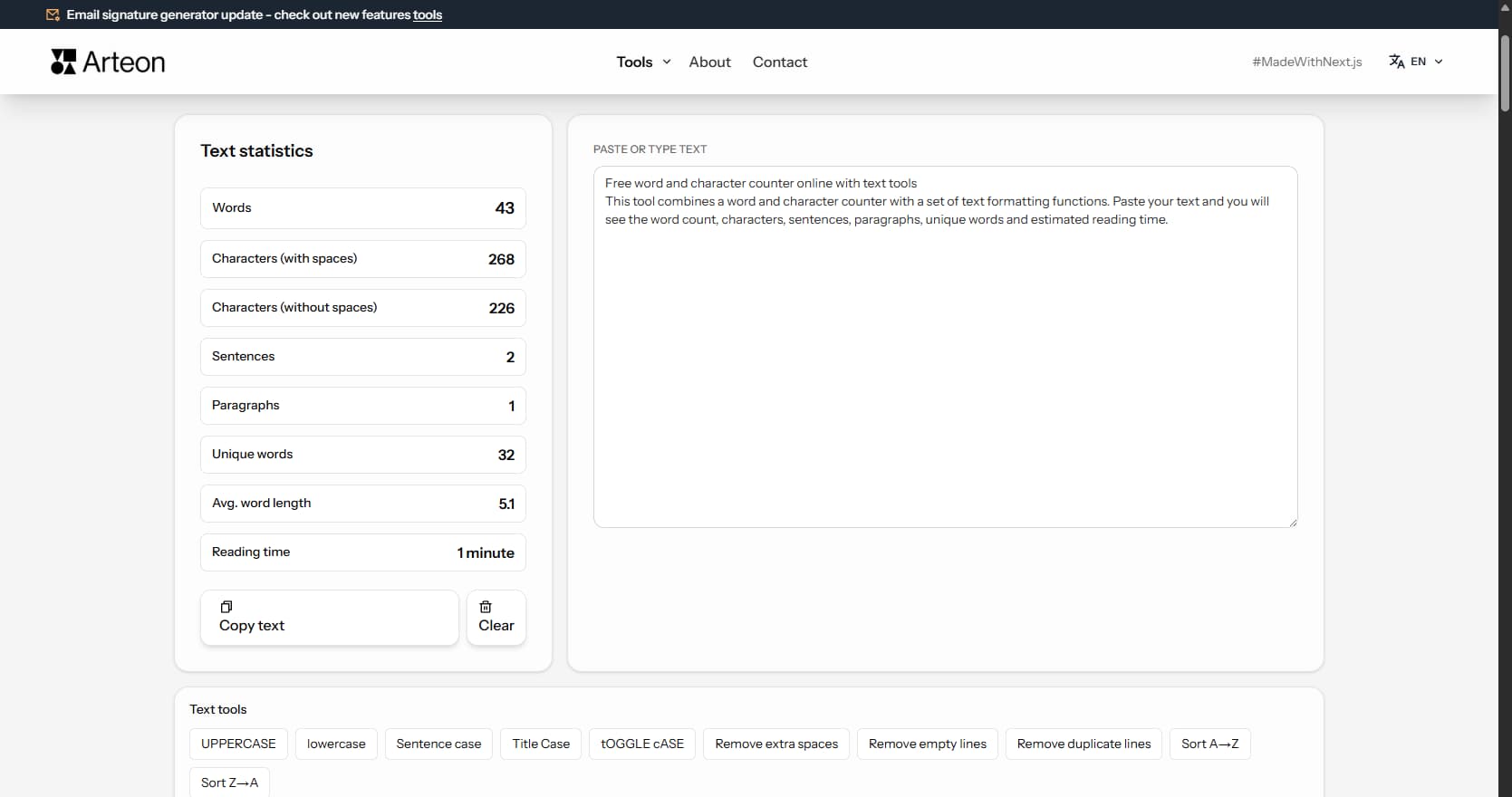
Word & character counter
Count words, characters, sentences and reading time. Check readability with the Flesch-Kincaid score.