Convert CSV to JSON – auto-detect separator
Export your CSV from Google Sheets, Shopify, or PostgreSQL and get structured JSON ready for APIs, MongoDB, or D3.js — entirely in your browser.
Why convert CSV to JSON?
CSV (Comma-Separated Values) is a simple tabular format — each row is a record, columns are separated by commas or semicolons. CSV files are generated by Excel, Google Sheets, CRM systems (Salesforce, HubSpot), e-commerce platforms (Shopify, WooCommerce), and databases. The limitation is that CSV cannot represent nested data, types (everything is text), or schema validation.
JSON (JavaScript Object Notation) is the standard data exchange format for modern APIs, web applications, and NoSQL databases. It supports nested objects, arrays, numeric types, booleans, and null. Converting CSV to JSON transforms flat tabular data into structures ready for REST APIs, MongoDB, Firebase, React/Vue apps, and automation scripts.
The converter auto-detects column headers (first row) and the separator (comma, semicolon, tab) without configuration. It handles quoted values, newlines within values, and Unicode characters.
All processing happens locally in your browser — nothing is sent to any server. No registration, no limits, no tracking.
How to convert CSV to JSON
Paste your data
Paste or type your CSV data into the input field, or upload a .csv file from your computer. The converter auto-detects the separator.Convert
Click Convert. The tool reads your headers as JSON property names and each subsequent row becomes a JSON object in the output array. Conversion happens instantly in your browser.Copy or download
Copy the formatted JSON to clipboard for immediate use in your code editor, API client, or database import script — or download it as a .json file.
What makes this converter different?
Complete privacy
Your files are processed entirely in your browser. Nothing is uploaded to any server.No limits
Convert as many files as you need. No daily limits, no file size restrictions, no watermarks.Quality control
Adjust settings to find the perfect balance between file size and quality.Instant conversion
All processing happens locally using modern browser APIs - fast and works offline after loading.
CSV vs JSON – format comparison
| Feature | CSV | JSON |
|---|---|---|
| Nested/hierarchical data | — | ✓ |
| Tabular data | ✓ | — |
| Schema validation | — | ✓ |
| Human readable | ✓ | ✓ |
| API standard | — | ✓ |
| Compact syntax | ✓ | ✓ |
How does CSV to JSON conversion work?
CSV (Comma-Separated Values) stores data as rows of text with values separated by commas or semicolons. JSON (JavaScript Object Notation) organizes the same data as an array of key-value objects, where each row becomes an object and each column header becomes a key.
The converter reads the first row of the CSV file as column headers and uses them as property names in each JSON object. Every subsequent row becomes a separate object in the resulting JSON array. For example, a CSV with columns "name,email,age" produces objects like {"name": "...", "email": "...", "age": "..."}.
The output is properly formatted JSON with indentation for readability. All values are preserved as strings by default. The conversion happens entirely in your browser — no data is sent to any server.
Tips for converting CSV to JSON
A few tips to help you avoid common issues during conversion:
Column headers
Make sure your CSV has a header row. The converter uses the first row as JSON property names. Without headers, the output will use generic keys like column_0, column_1.Delimiter detection
The converter automatically detects whether your CSV uses commas, semicolons, or tabs as delimiters. If the result looks wrong, check that your file uses a consistent separator.Special characters
Values containing commas, quotes, or newlines should be enclosed in double quotes in the CSV. The converter handles standard CSV escaping automatically.Encoding
For best results, use UTF-8 encoded CSV files. Files with other encodings (e.g., Windows-1252) may display special characters incorrectly in the JSON output.
Common CSV formatting issues and how to handle them
CSV files from different sources can have inconsistent formatting. Here are common issues the converter handles:
- Different separators – commas, semicolons, tabs. European exports from Excel often use semicolons because commas are used as decimal separators.
- Quoted values – values containing commas or newlines must be wrapped in double quotes. The converter handles this correctly.
- Unicode and special characters – accented characters, CJK text, and emoji are preserved in the JSON output.
- Empty values – empty cells are converted to empty strings or null in JSON, depending on context.
If conversion fails, check that your CSV has consistent column counts across all rows and that quoted values use proper double-quote escaping.
Convert other files to JSON
Frequently asked questions about CSV to JSON conversion
Is converting CSV to JSON free?
Yes, this converter is completely free with no limits. No registration, no watermarks.
Does the converter upload my files?
No. All processing happens locally in your browser. Your files never leave your device.
Can I convert multiple files at once?
Yes, the converter supports batch conversion. Add multiple files and convert them all simultaneously.
Does the converter work on mobile?
Yes, the converter works on any device with a modern web browser, including smartphones and tablets.
Is converting CSV to JSON safe?
Yes. The entire conversion runs locally in your browser. Your data is never sent to any server. When you close the page, all data is automatically cleared from memory.
Can I use the JSON output in my application?
Yes. The output is standard JSON that works with any programming language, database, or API. You can parse it directly in JavaScript, Python, PHP, Java, or any other language that supports JSON.
What happens to empty values in CSV?
Empty cells in CSV are converted to empty strings in JSON. If your CSV has trailing commas or inconsistent column counts, the converter handles them gracefully.
Can I use CSV exports from Shopify or Google Sheets directly?
Yes. Shopify product exports, Google Sheets CSV downloads, and PostgreSQL COPY command output are all supported. The converter auto-detects whether commas or semicolons are used as the separator, so no manual adjustment is needed.
Help us improve our tools
Have an idea, found a bug, or want to suggest a feature? Drop us a message – we respond within 24 hours.
Explore other useful tools
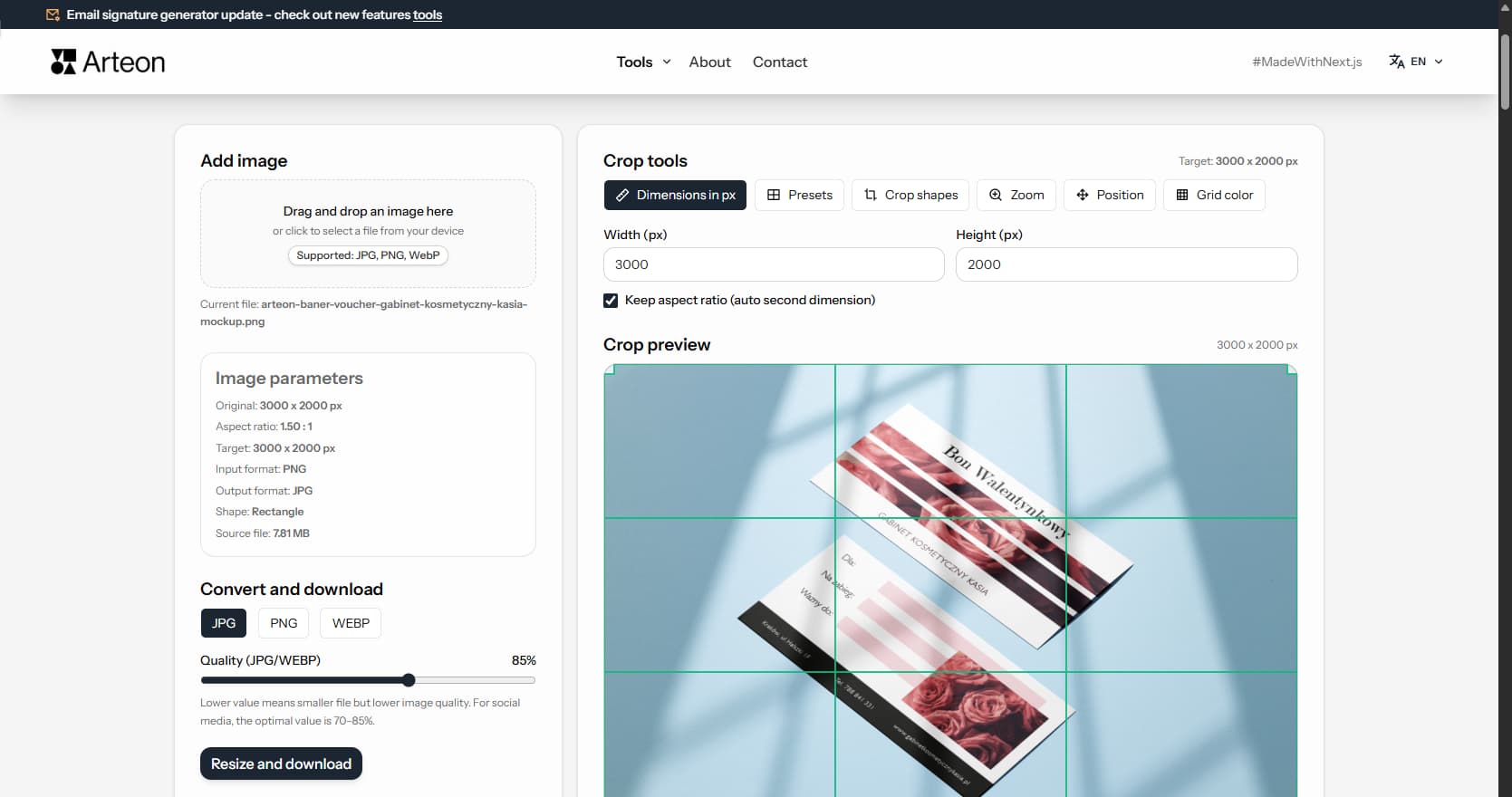
Online image editor
Resize, crop and convert your image. Ready-made formats for social media, circular avatars, export to JPG/PNG/WebP.
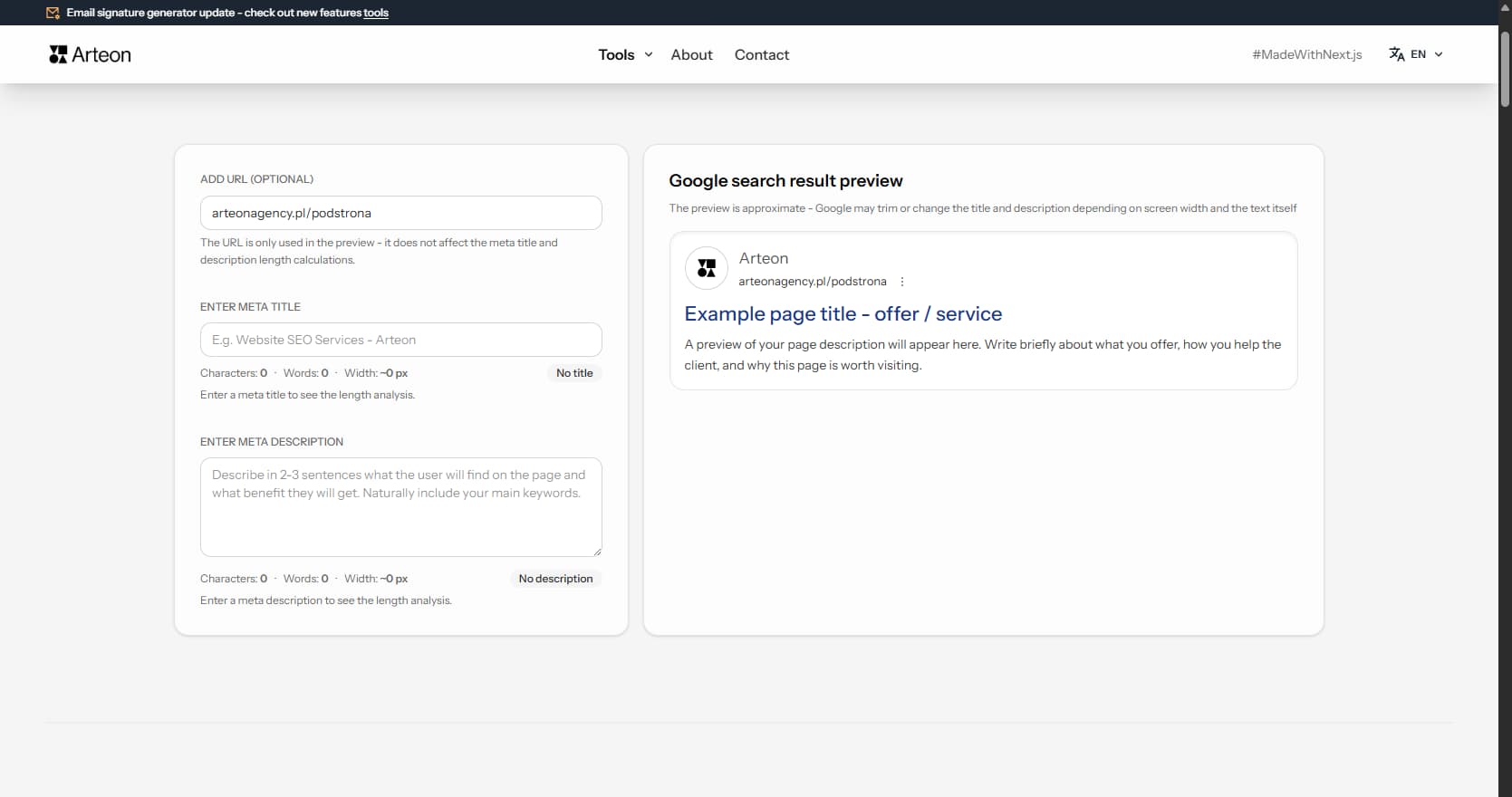
Meta title & description checker
Check title and description length in pixels. Live Google preview and optimization tips.
PNG to JPG
Convert PNG files to JPG in your browser. No file limits, no signup, no server uploads.
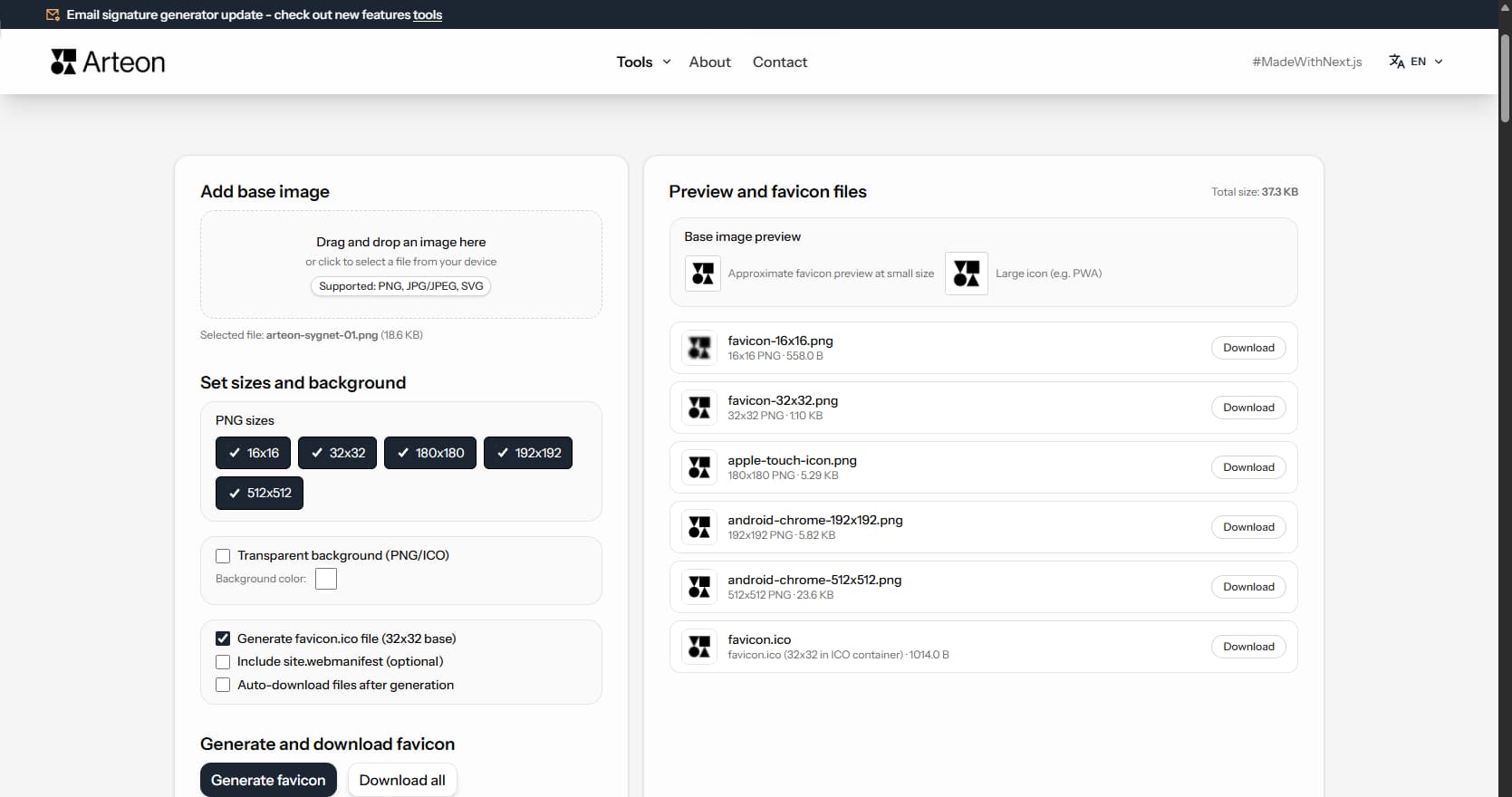
Favicon generator
Create a complete favicon.ico set for your website from one image. All required sizes, no login.
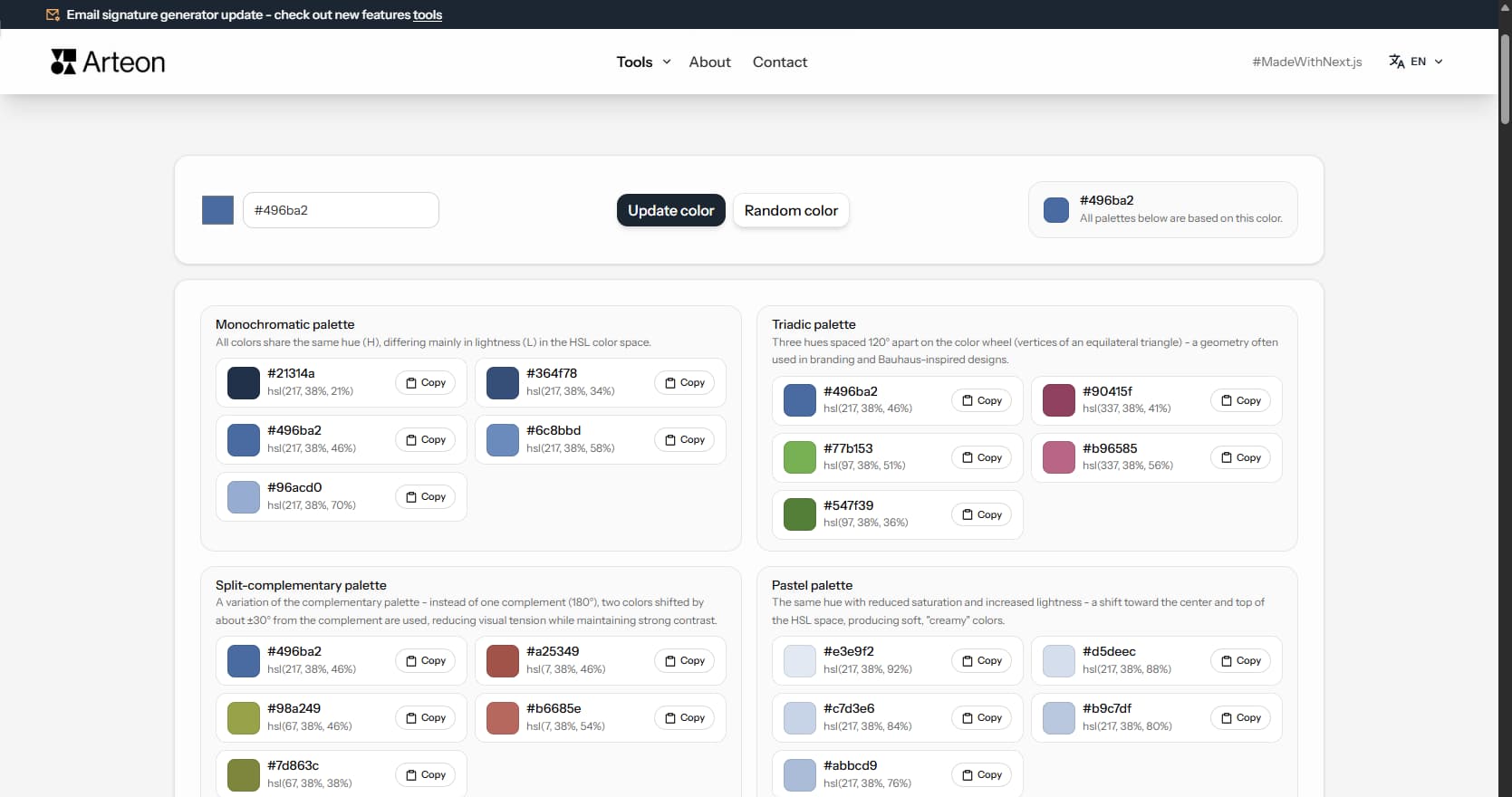
Color palette generator
Generate 9 palettes from one color: monochromatic, complementary, triadic and more. HEX codes.
WebP to JPG
Convert WebP files to universally compatible JPG. Works in every app and platform.
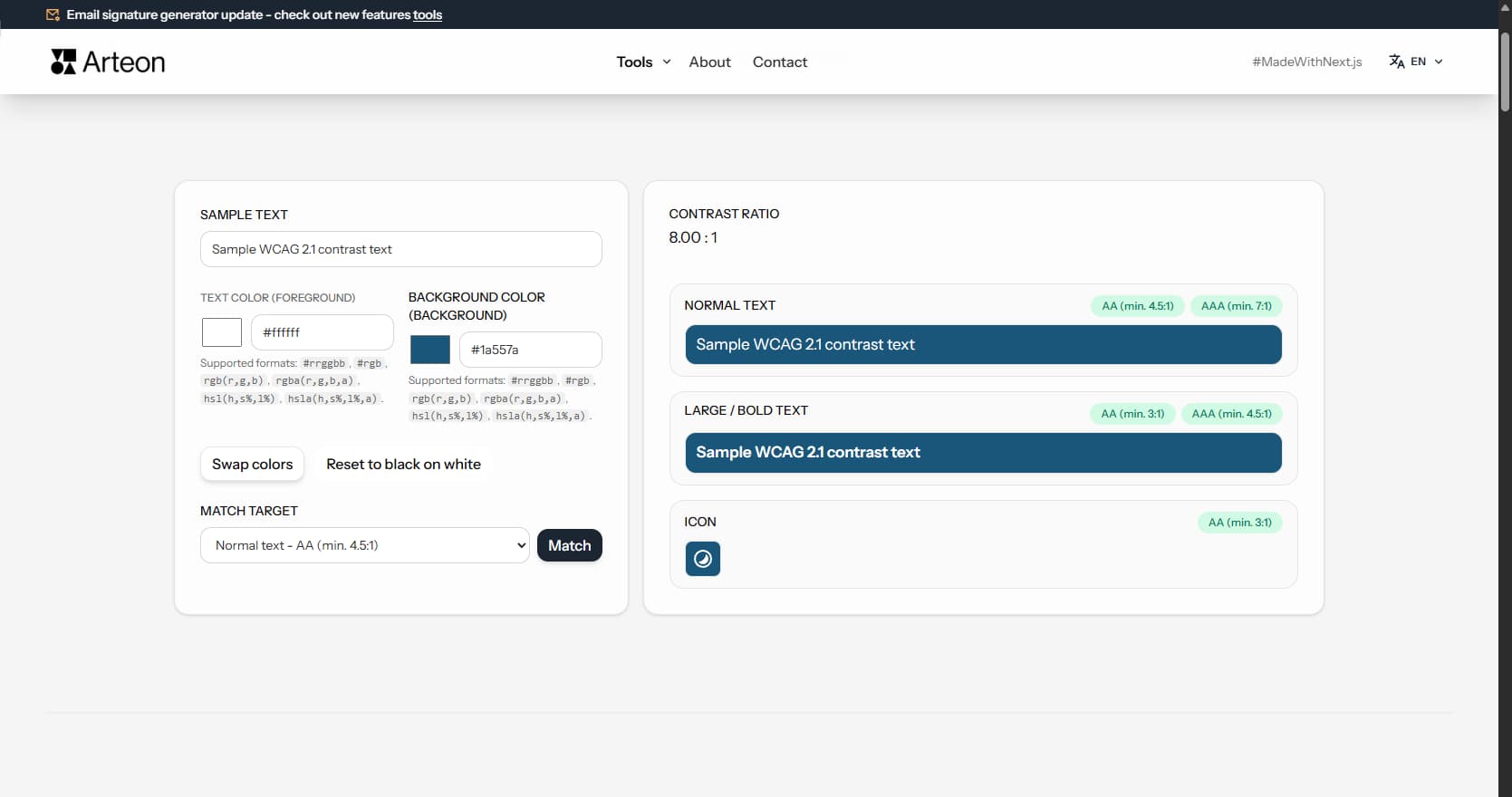
Color contrast checker
Check text and background contrast per WCAG 2.1 AA and AAA. Automatic color correction.
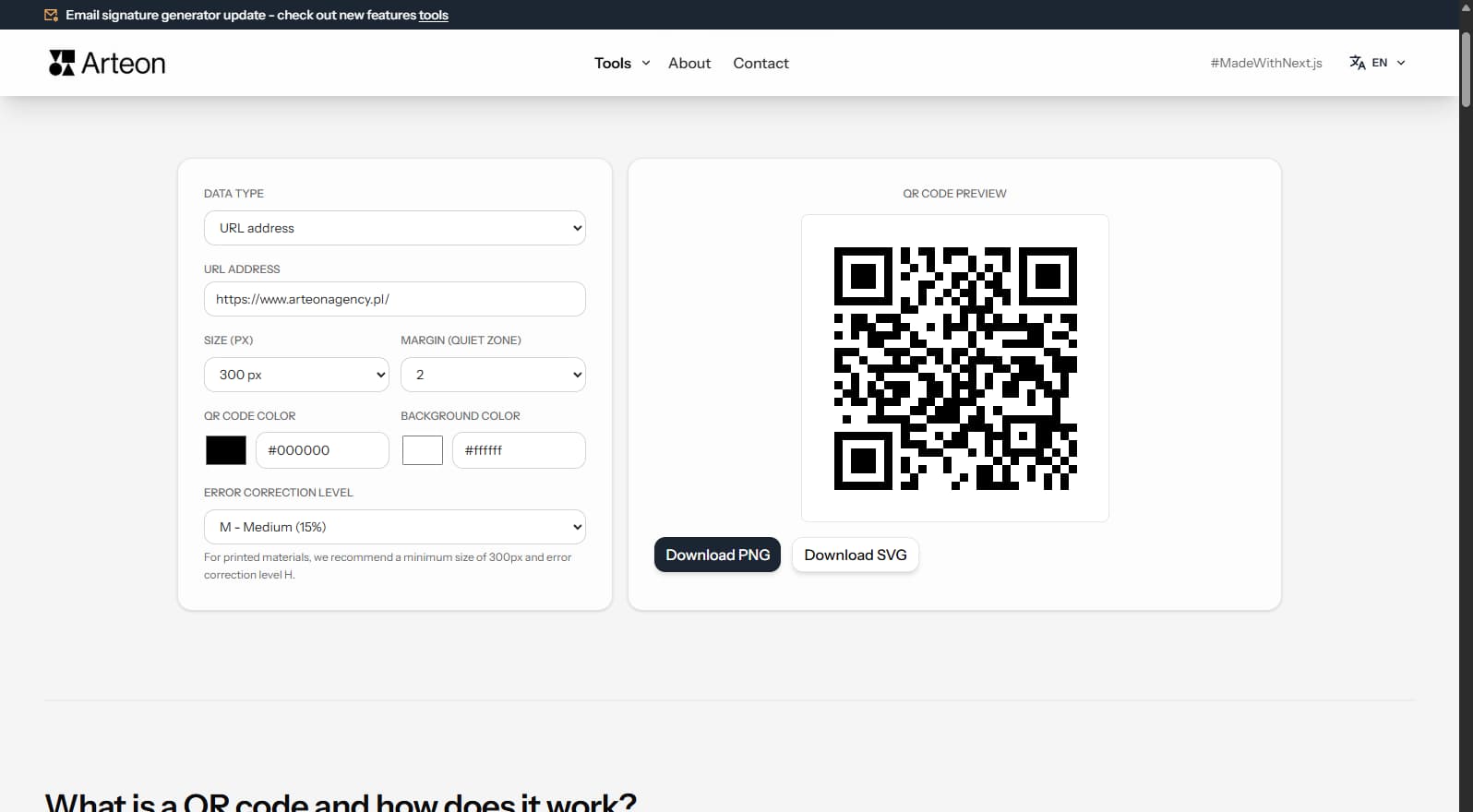
Free QR code generator
Create a QR code for a website, vCard business card or print. Export PNG and SVG, no registration.
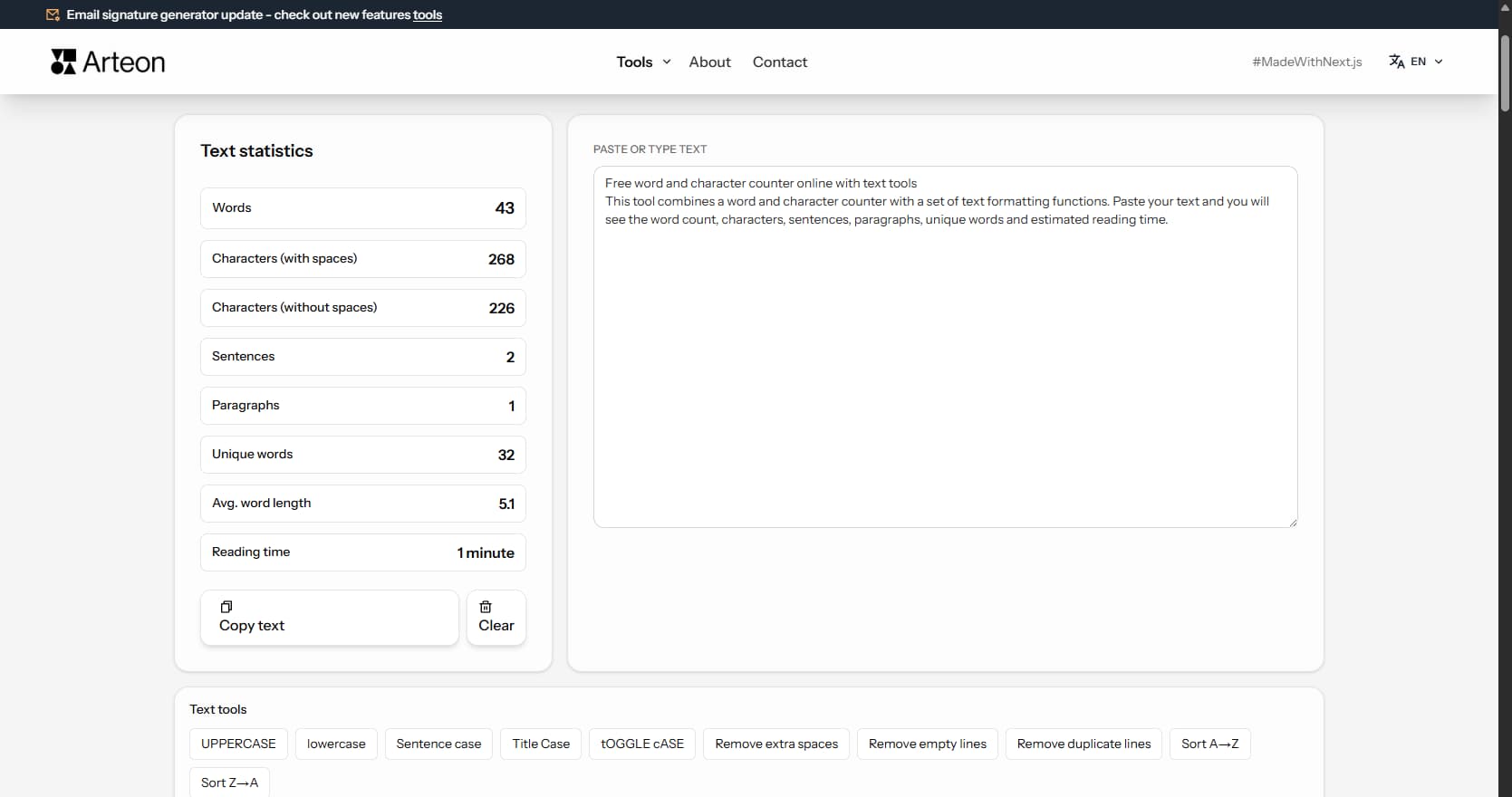
Word & character counter
Count words, characters, sentences and reading time. Check readability with the Flesch-Kincaid score.